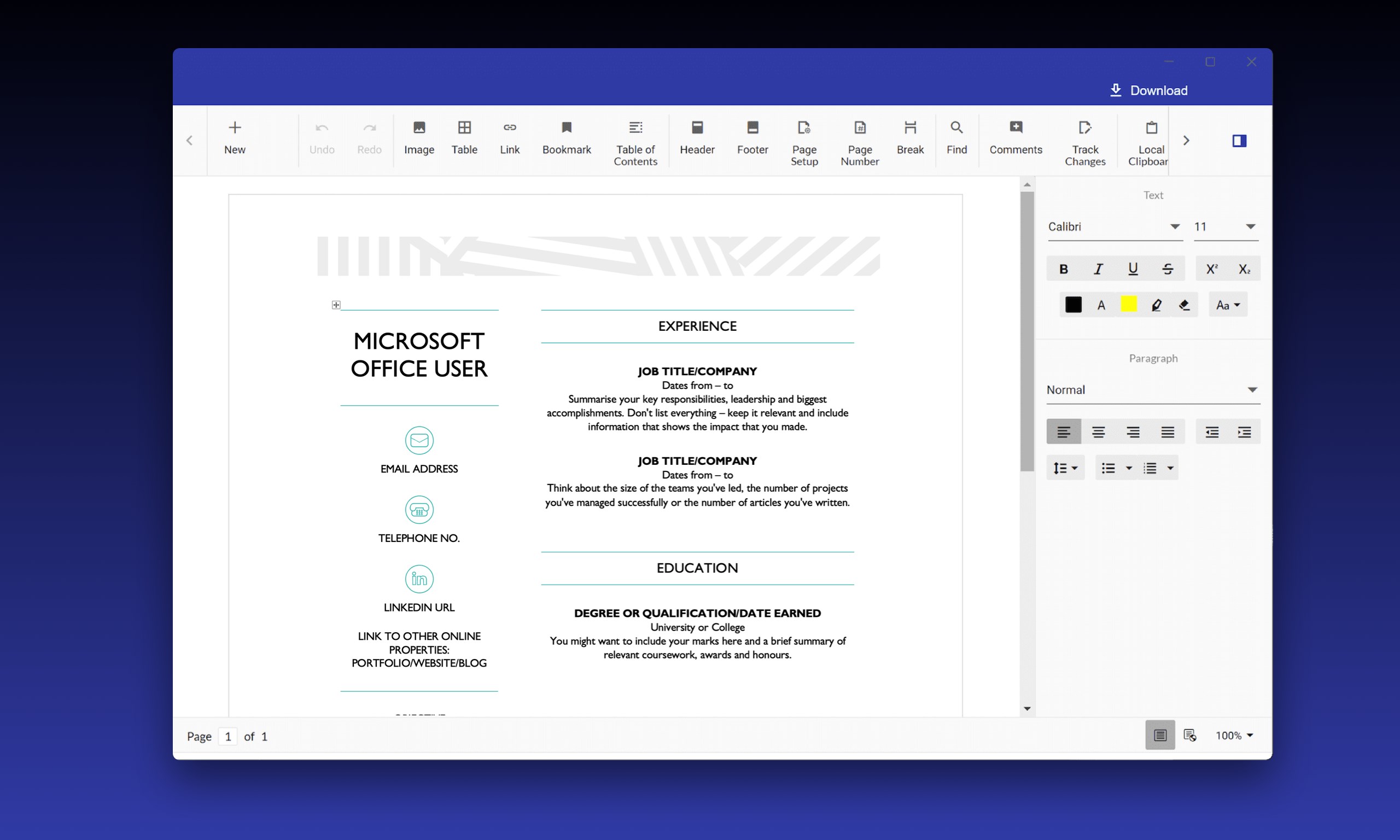
- Name Docs App
- Category Business
- Available on PC, Mobile, Surface Hub, HoloLens
- OS Windows 10 version 17763.0 or higher
- Keyboard Integrated Keyboard
- Mouse Integrated Mouse
- languages English (United States)
Introducing Docs App for Windows: A Streamlined Document Management Solution
Docs App for Windows by APP Software is designed to simplify your document organization and boost your productivity through an intuitive and collaborative interface. Perfect for students, professionals, and teams alike, it aims to be your go-to digital workspace on your desktop, integrating essential document handling with friendly usability.
Core Features That Make Docs App Stand Out
At its heart, Docs App for Windows offers an elegant blend of core functionalities tailored for seamless document management:
- Intuitive Document Organization: Effortlessly categorize, search, and access your files with smart tagging and an optimized sidebar.
- Collaborative Workspaces: Real-time sharing and editing enable teams to work together as easily as passing notes in class.
- Task and Reminder Integration: Keep track of deadlines and assignments directly within the app, turning your document hub into a productivity command center.
- Offline Accessibility: Access and work on your documents anytime, anywhere—no internet required—until you're ready to sync.
Immersive and User-Friendly Interface
From the moment you open Docs App, the interface welcomes you with a clean, modern layout reminiscent of a well-organized digital desktop. The design uses a soft color palette that's easy on the eyes, making long working sessions less fatiguing. Navigating between folders, documents, and collaboration panels feels fluid—like gliding smoothly on ice. The app's icons and menus are logically arranged, reducing the learning curve to mere minutes. Even newcomers unfamiliar with complex document management tools will find the experience approachable, akin to flipping open a well-worn notebook that instantly feels familiar.
Smart Collaboration and Unique Task Management
One of the most compelling aspects of Docs App is its built-in collaboration features designed to foster teamwork without chaos. Unlike many competitor applications that require through-the-ringer integrations, Docs App's collaborative editing allows multiple users to work on a document simultaneously, with real-time updates visible to all. A particularly highlight is its task management integration, which enables users to assign tasks, set deadlines, and track progress within the same workspace—imagine having your project plan and document edits harmoniously housed in one convenient digital package. This dual approach streamlines workflows efficiently, making it an excellent choice for remote teams or classroom projects seeking to avoid the scattered chaos of multiple apps.
Performance and Recommendations
Throughout testing, Docs App for Windows demonstrated commendable speed and stability; switching between documents and collaborative sessions was smooth, with minimal lag. The app responds well even on mid-range hardware, which is essential for broader user accessibility. Its straightforward learning curve means that novices can become proficient rapidly, but experienced users will appreciate the depth of organizational and collaboration tools.
Considering its emphasis on collaborative work, task management, and user-centric design, I recommend Docs App for users who need a lightweight yet powerful document hub that emphasizes teamwork and efficiency. It's particularly suitable for students, educators, small business teams, or anyone managing multiple projects that require clarity and cooperation.
Overall, Docs App for Windows is a thoughtfully crafted tool that, while not reinventing the wheel, provides a solid, user-friendly alternative to more cumbersome office suites. Its standout real-time collaboration and integrated task management are what truly set it apart—making it worth considering as part of your digital workspace arsenal.
Pros
- Seamless integration with Microsoft services
- User-friendly interface
- Fast and reliable performance
- Regular updates improve stability and features
- Supports a variety of file formats
Cons
- Limited offline editing capabilities
- Occasional sync delays
- Basic editing tools lack advanced formatting options
- Customizability is somewhat limited
- Some features are only available through subscription