
- Name Doc Scan PDF Scanner
- Category Utilities & tools
- Available on PC
- OS Windows 10 version 17763.0 or higher
- languages English (United States)
Meet Your Digital Paperwork Assistant: Doc Scan PDF Scanner for Windows
If you've ever felt overwhelmed by piles of paper or wished for a reliable way to digitize and organize your documents seamlessly, then Doc Scan PDF Scanner for Windows is here to become your new best friend. Designed with simplicity and efficiency in mind, this app transforms your document scanning process into a smooth, almost effortless experience—think of it as having a pocket-sized scanner right on your desktop.
About the App: What Is It, and Who Made It?
Doc Scan PDF Scanner for Windows is a straightforward yet powerful document scanning tool that emphasizes quick, high-quality scans and easy sharing. Brought to you by Better App, a developer dedicated to creating user-friendly utility software, this app aims to elevate your document management game.
Core features include:
- High-resolution scanning with automatic edge detection and cropping
- Conversion of scanned images into editable PDFs or other formats
- Built-in filtering options to enhance clarity and readability
- Seamless sharing via popular cloud services or email
The target audience ranges from students, freelancers, and small business owners to anyone who frequently handles paper documents and needs an efficient digital solution without fuss.
A Fresh Approach to Document Scanning—A Friend's Perspective
Imagine your desk is cluttered with receipts, contracts, or handwritten notes. Now picture transforming all these paper artifacts into crisp, digital versions with just a few clicks—almost as if you're slicing through the clutter and organizing your life with a swipe. That's the experience Doc Scan PDF Scanner aims to deliver: a simple, reliable, and surprisingly smart tool designed to make document digitization feel less like a chore and more like a breeze.
Core Functionality Deep Dive: Smarter Scanning and PDF Magic
Automatic Detection and Precise Cropping
The app's standout feature is its intelligent edge detection, which automatically recognizes the borders of your documents, even if they're placed awkwardly or aren't perfectly aligned. This smart crop feature helps users avoid tedious manual adjustments, ensuring each scan looks professional and clean. Whether you're capturing a handwritten recipe or a printed contract, the app's clarity filter further refines the image, removing background noise and emphasizing text—making every scan look sharp and ready for digital storage.
Conversion and Organization: From Images to Editable PDFs
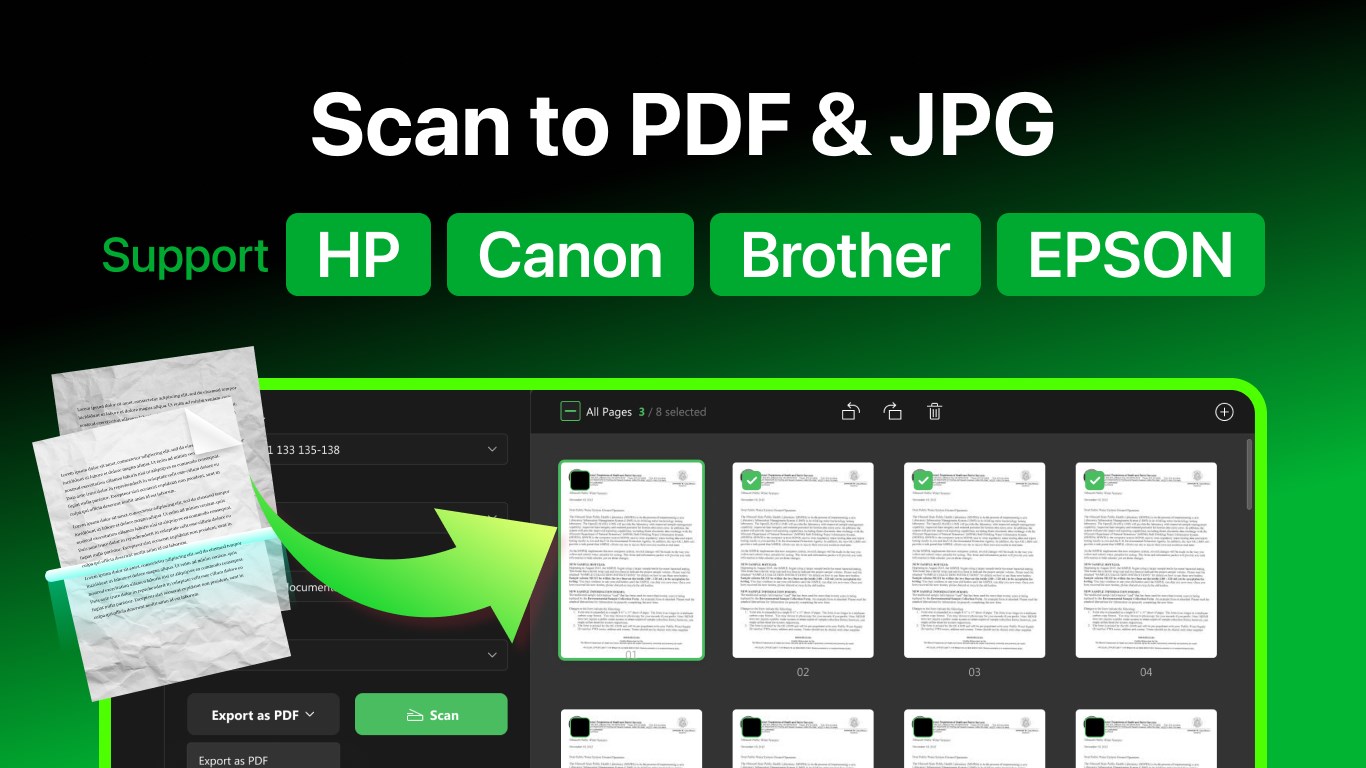
Once your document is scanned, the real magic happens with conversion options. The app supports saving your scans as PDFs, offering options to optimize for clarity or compression. Notably, it allows you to create multi-page documents effortlessly, akin to flipping through a well-organized digital binder rather than a jumble of scattered images. This feature shines when digitizing lengthy reports or multiple receipts, turning them into one manageable file that's easy to search and share. Plus, the app's OCR capabilities (if enabled) can even make text within scans editable, adding a layer of versatility to your document management.
User Interface, Ease of Use, and Learning Curve
The interface boasts a clean, minimalistic design that feels intuitive—much like opening a familiar photo app where everything is just a tap away. Transitioning from download to scanning is straightforward, perfect for beginners or those who prefer simplicity over complexity. The app responds swiftly to commands, providing a seamless flow from capturing to saving. Its step-by-step guidance ensures that even first-time users quickly master the essentials without needing time-consuming tutorials. Overall, the user experience feels polished and accessible, like having a personal scanner assistant by your side.
What Sets It Apart? Unique Advantages over Similar Tools
Many PDF scanner apps exist, but Doc Scan PDF Scanner for Windows distinguishes itself with its combination of effective automatic edge detection and high-quality image processing—all packaged in a straightforward interface. The app's ability to produce sharp, professional-looking PDFs without requiring extensive manual tweaks is a major win. Additionally, its optimized sharing options—allowing quick uploads to cloud storage or direct emailing—save time and streamline workflows. Unlike some competitors that may demand steep learning curves or produce subpar images, this app's focus on user-friendly automation and clarity makes it a practical choice for everyday users seeking dependable performance without complexity.
Final Verdict: Is It Worth a Try?
Absolutely. For casual users and small-scale professionals alike, Doc Scan PDF Scanner for Windows offers an efficient, reliable solution that makes digitizing documents both accessible and hassle-free. Its standout features—particularly automatic edge detection and simple PDF creation—address common pain points in document scanning. While it may not replace professional OCR tools for large-scale OCR needs, it's more than capable for quick, high-quality scans.
If you're looking for a no-fuss app that turns your paper clutter into organized digital files in just moments, this app is a solid recommendation. It's like having a dependable pocket scanner right on your desktop—friendly, straightforward, and effective.
Pros
- High-quality document detection and cropping
- Multiple export options including PDF and JPEG
- Optical character recognition (OCR) capability
- User-friendly interface with simple navigation
- Supports batch scanning for multiple pages
Cons
- Occasional detection inaccuracies in complex backgrounds
- Limited editing features within the app
- OCR accuracy varies depending on image quality
- Some features require a premium subscription
- Performance may slow on old devices











