
- Name Dell Optimizer for Dell PCs
- Category Utilities & tools
- Developer Dell Technologies
- Available on PC
- OS Windows 10 version 0.0 or higher
- Keyboard Integrated Keyboard
- Mouse Integrated Mouse
- languages Chinese (Simplified), Chinese (Traditional Chinese), English, French, German, Japanese, Portuguese (Brazil), Spanish, Korean
Empowering Your Productivity: An In-Depth Look at Dell Optimizer for Windows PCs
If you're constantly seeking ways to streamline your workflow and unlock your device's true potential, Dell Optimizer for Windows PCs is designed to be your intelligent assistant. This app promises smarter performance and personalized enhancements, all wrapped in a user-friendly package that transforms your PC into a more responsive and optimized workmate.
Meet the Team Behind the Magic
Developed by Dell Technologies and published by Dell Inc., this application is part of Dell's broader initiative to integrate AI-powered solutions seamlessly into their hardware ecosystem. With Dell's extensive experience in enterprise solutions and hardware designing, the app benefits from a deep understanding of user needs and device capabilities, making it a trustworthy companion for both casual and professional users.
Key Features That Make a Difference
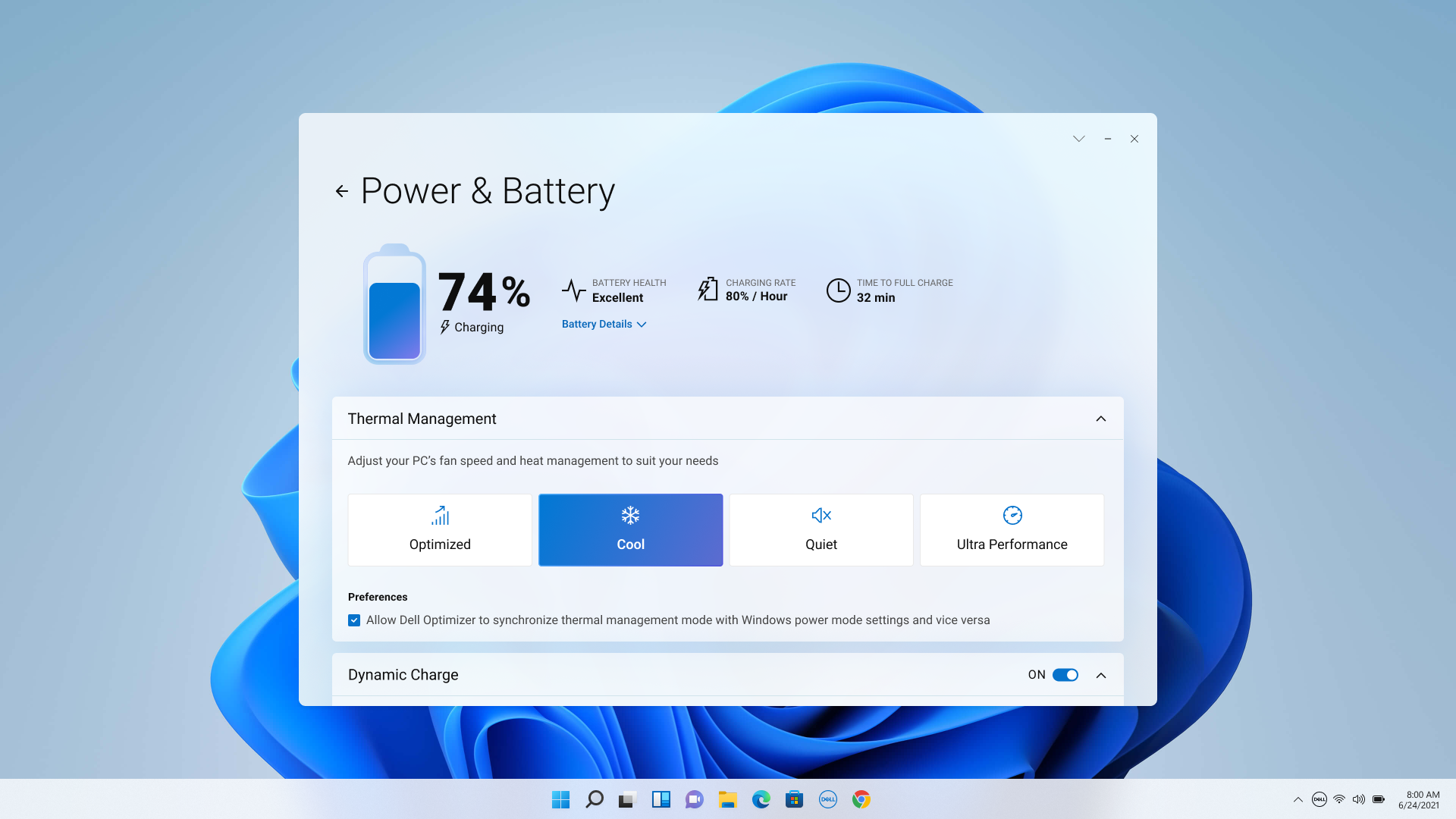
- AI-Driven Performance Optimization: The app continuously learns your usage patterns, dynamically adjusting system settings, such as CPU performance, network priority, and battery management, to deliver an optimized experience tailored specifically to you.
- Intelligent Audio Enhancement: It intelligently adjusts audio settings based on your environment—whether you're on a video call or listening to music—ensuring clearer communication and richer sound quality.
- Focus and Productivity Modes: Features like "Quiet Mode" and "Focus Mode" help reduce distractions by managing notifications and background activities, allowing you to concentrate better on important tasks.
- Seamless System Integration: Designed to work smoothly with Windows, the app integrates effortlessly with existing system features, providing a cohesive and unobtrusive user experience.
Performance and User Experience
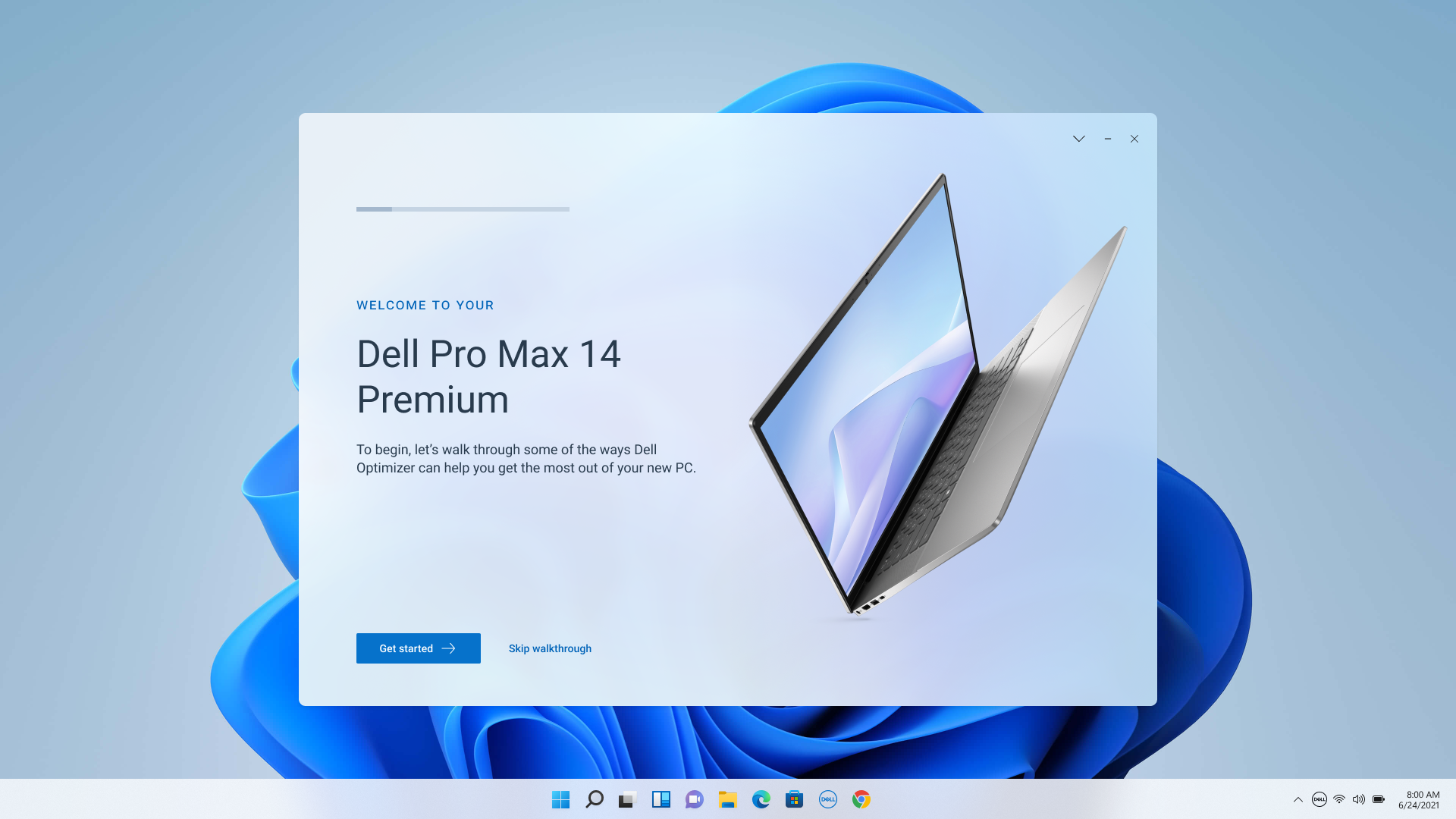
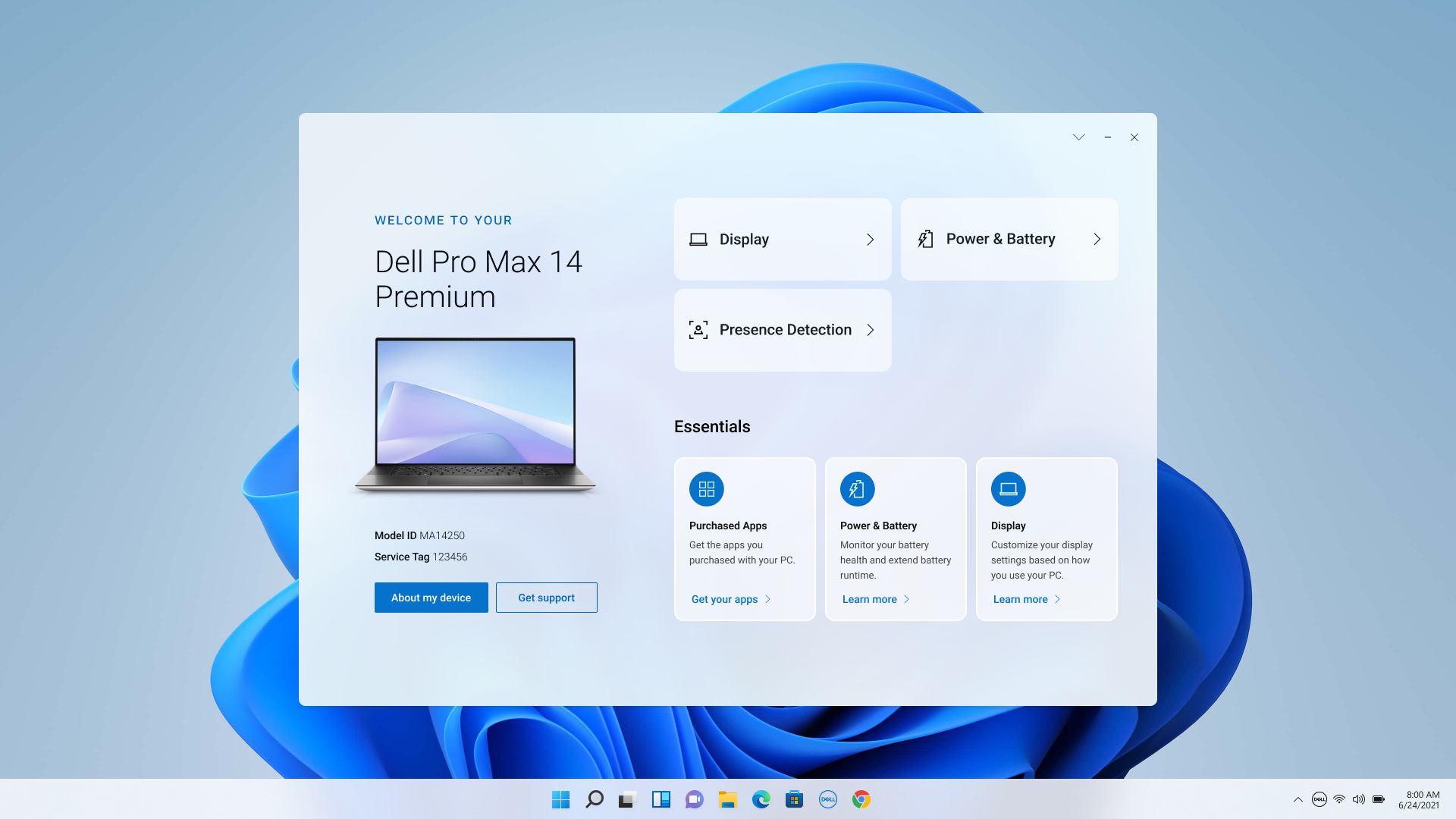
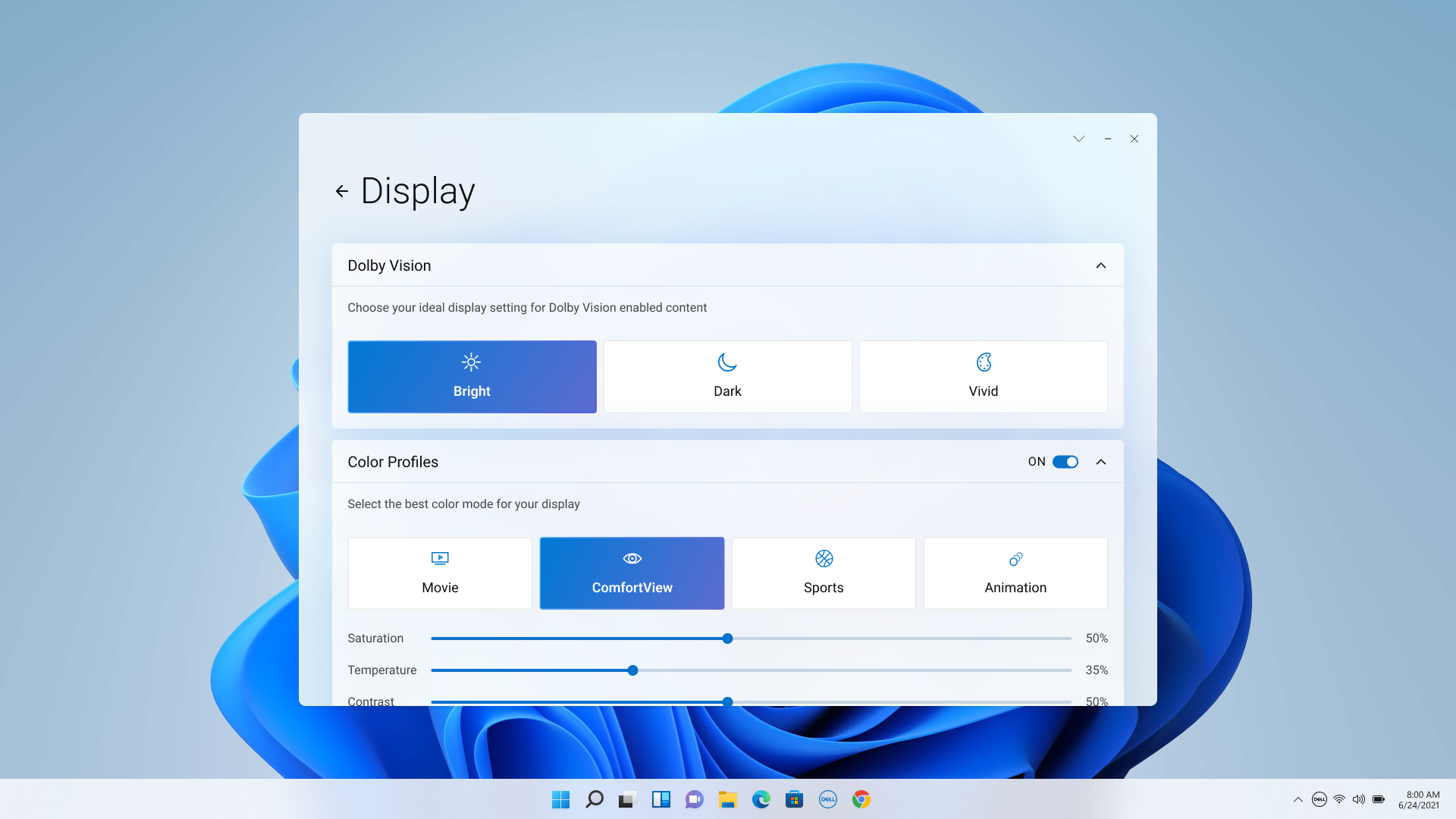
From the moment you launch Dell Optimizer, its interface welcomes you with a sleek and intuitive dashboard—think of it as the cockpit of a well-designed spaceship, where every control is at your fingertips yet unobtrusive. Navigating through its features feels natural; the layout is clean, with visual cues guiding you to essential settings and insights.
The app's real magic lies in its responsiveness. As you go about your day, it quietly observes your habits, making real-time adjustments without any lag or noticeable delays—much like a skilled conductor subtly guiding an orchestra. Setting up personalized profiles takes just moments, and even users less familiar with system tuning will find the learning curve gentle.
Compared to other utilities and tools in this space, Dell Optimizer stands out with its adaptive AI capabilities, which not only optimize system resources but do so in a personalized manner that traditional utilities often lack. Its ability to 'think ahead'—whether prioritizing network bandwidth for your video call or adjusting power settings for longer battery life—gives it a competitive edge in delivering a truly intelligent experience.
Final Verdict and Recommendations
All things considered, Dell Optimizer for Windows PCs earns a solid recommendation for users seeking a smarter approach to device management—especially those who value a blend of automation, convenience, and performance refinement. For Dell device owners, it's almost a must-have; it feels like having a personal IT assistant working quietly in the background, enhancing your hardware without demanding your constant attention.
While it may not replace more advanced performance tuning tools for tech enthusiasts, its targeted features provide a significant uplift for everyday productivity. Considering its seamless integration, user-friendly design, and intelligent features, I suggest giving it a try if you're looking to squeeze a little more efficiency and responsiveness out of your Windows-based Dell device. Just remember: like any smart tool, it's most effective when you set it up to match your unique workflow—so spend a few moments exploring its options, and you'll soon wonder how you ever worked without it.
Pros
- Improves system performance dynamically
- Enhances battery life intelligently
- Simplifies device management
- Provides personalized settings
- Includes real-time troubleshooting tools
Cons
- Occasional high resource usage
- Limited customization options for advanced users
- Battery optimization may occasionally conflict with user preferences
- Update frequency can cause disruptions
- Initial setup may be complex for some users











