
- Name Dell Display and Peripheral Manager
- Category Utilities & tools
- Developer Dell Technologies
- Available on PC
- OS Windows 10 version 0.0 or higher
- Keyboard Integrated Keyboard
- Mouse Integrated Mouse
- Memory 8 GB
- languages Arabic, Chinese, Chinese (Simplified), Chinese (Traditional Chinese), English, French, French (Canada), German, Italian, Japanese, Korean, Polish, Portuguese, Portuguese (Brazil), Portuguese (Portugal), Russian, Spanish, Spanish (Latin America), Turkish, Ukrainian
Unveiling the Power of Dell Display and Peripheral Manager for Windows
Imagine effortlessly managing all your Dell displays and peripherals from a single, sleek interface—this is exactly what Dell Technologies' Display and Peripheral Manager for Windows aims to deliver. Designed to streamline your device setup, this app turns a potentially cluttered workspace into a harmonious digital environment, making it a must-have tool for anyone who swears by Dell's quality and efficiency.
Simplified Device Management at Your Fingertips
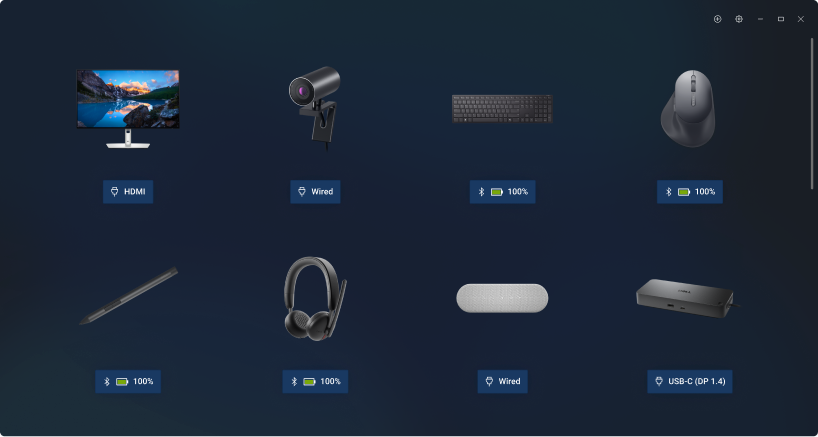
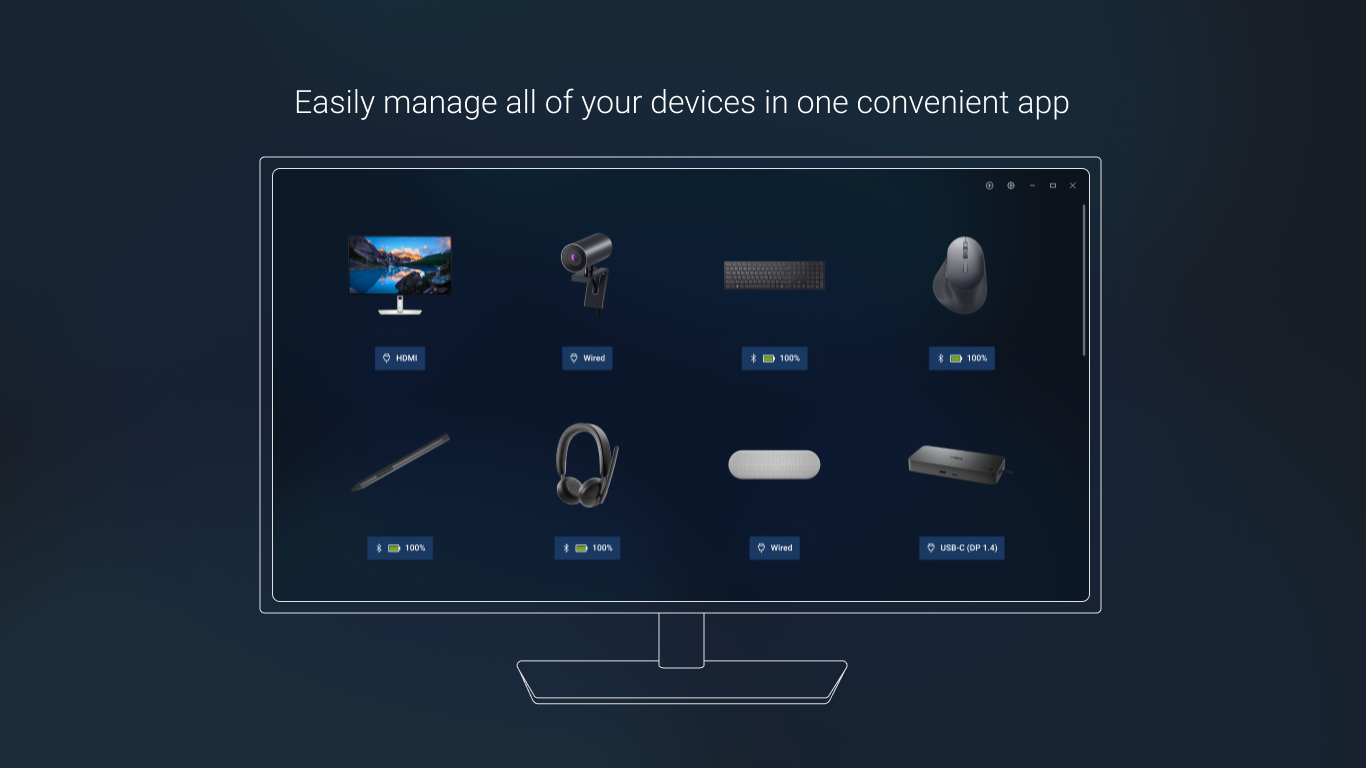
The core strength of this application lies in its ability to centralize the control of multiple Dell monitors and peripherals. Whether you're a creative professional juggling dual screens or an office setup enthusiast managing a variety of peripherals, this app provides an intuitive hub that keeps everything organized. Its real-time device status updates and easy toggling features allow users to adjust display configurations, update firmware, and troubleshoot issues without wading through endless menus. Think of it as your personal command center, bringing order to the digital chaos with just a few clicks.
Intuitive Interface Designed for Effortless Navigation
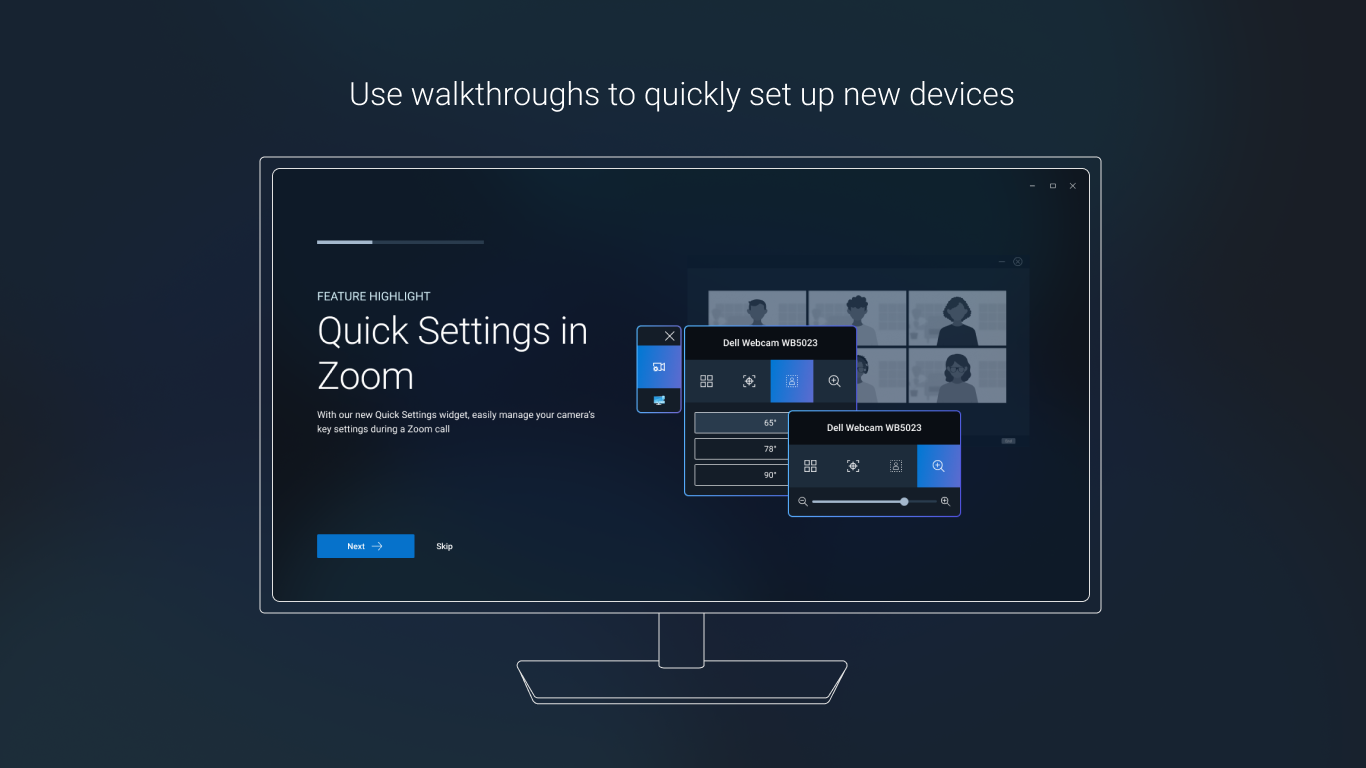
The app's user interface feels as smooth as a well-oiled machine—clean, modern, and thoughtfully laid out. Starting with an inviting dashboard, users can quickly identify connected displays and peripherals, access their settings, and deploy changes seamlessly. The learning curve is gentle; even those new to Dell's ecosystem will find themselves navigating the app comfortably within minutes. The responsiveness of the interface ensures operations flow naturally, minimizing delays and frustration. This level of design consideration transforms device management from a chore into a user-friendly experience.
Unique Features That Set It Apart
While many utility tools offer similar functionalities, Dell's Display and Peripheral Manager has two standout features that make it truly exceptional:
- Automatic Firmware Updates: This feature ensures your devices stay up-to-date with the latest enhancements and security patches without manual intervention. It's like having a dedicated technician in your back pocket, constantly looking out for your device's health and performance.
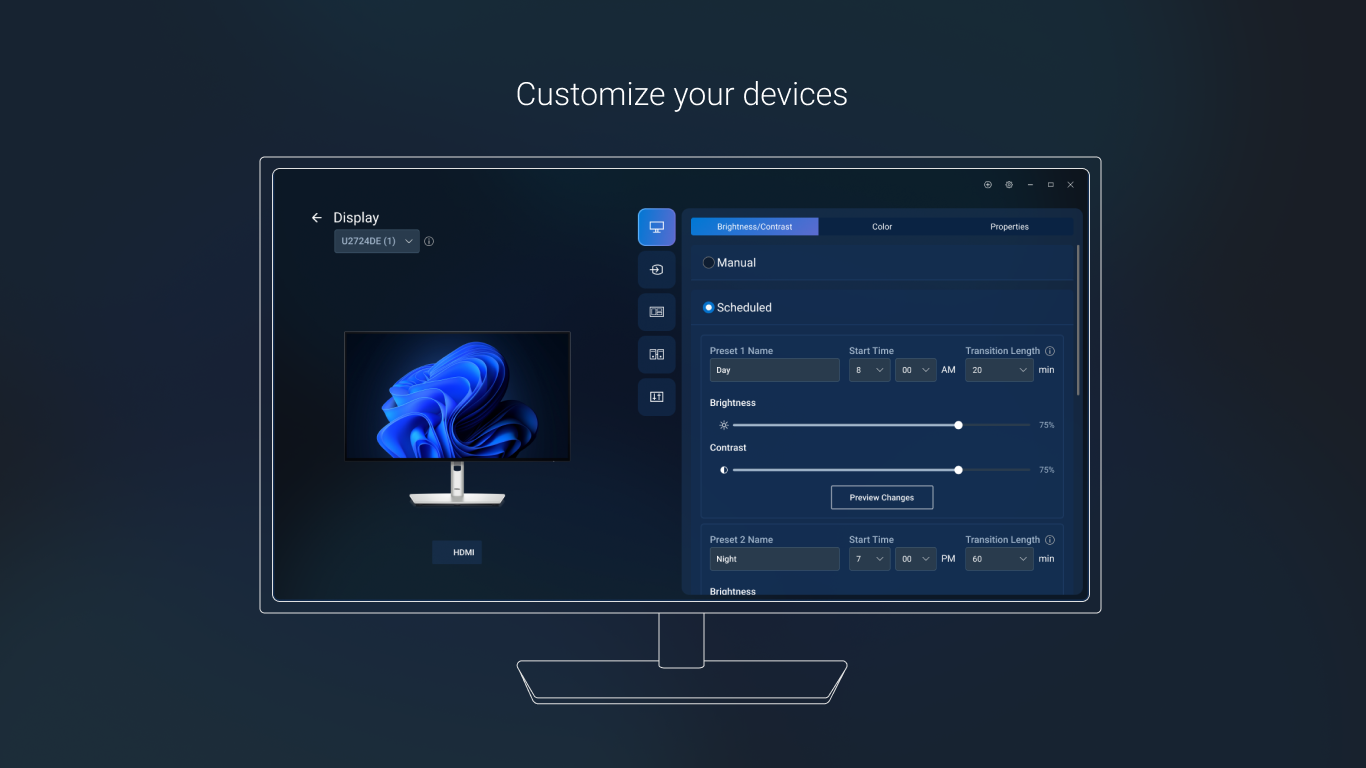
- Custom Preset Configurations: For users with specific workflow or display preferences, the app enables saving and quickly switching between multiple preset configurations. Whether you're switching between creative work and gaming, this flexibility saves time and ensures optimal performance tailored to each task.
Compared to similar utilities, Dell's solution integrates these features seamlessly into the user interface, making it not just functional but also delightful to use. Its focus on automation and customization provides a distinct edge, particularly for power users or those managing multiple devices regularly.
Final Thoughts & Recommendations
All in all, Dell Display and Peripheral Manager for Windows stands out as a well-crafted utility that offers tangible benefits for Dell device users. Its intuitive design, coupled with powerful automation and customization features, makes device management less burdensome and more efficient. If you're a Dell enthusiast or someone managing multiple monitors and peripherals in a professional setting, this app is worth exploring. I'd recommend giving it a try—you'll likely find it a reliable companion in your daily device orchestration, streamlining workflows and reducing tech-related headaches.
Pros
- Intuitive interface
- Comprehensive device controls
- Real-time monitoring
- Seamless integration with Windows
- Automatic updates and support
Cons
- Limited device compatibility
- Occasional connectivity lag
- Cluttered menu options
- Occasional crashes during updates
- Limited customization options for notifications











