
- Name CrystalDiskInfo
- Category Utilities & tools
- Developer Crystal Dew World
- Available on PC
- OS Windows 10 version 0.0 or higher
- Keyboard Integrated Keyboard
- Mouse Integrated Mouse
- languages English, Japanese
A Crisp Look at CrystalDiskInfo for Windows: Your Hard Drive's Best Friend
If you're feeling paranoid about your storage device's wellbeing yet want a straightforward, reliable way to keep tabs on it, CrystalDiskInfo for Windows is like having a trusted mechanic glance under the hood without the old-fashioned jargon. It's a lightweight, user-friendly utility that transforms complex disk health data into clear, digestible insights—no tech wizardry required.
Who's Behind the Magic?
Developed and published by Crystal Dew World, a dedicated team familiar with the ins and outs of storage diagnostics, this application benefits from years of expertise. Their goal is to deliver clear, concise disk health information to everyday users, tech enthusiasts, and IT professionals alike—making sure your disks stay as healthy as the day you bought them.
Core Features That Stand Out
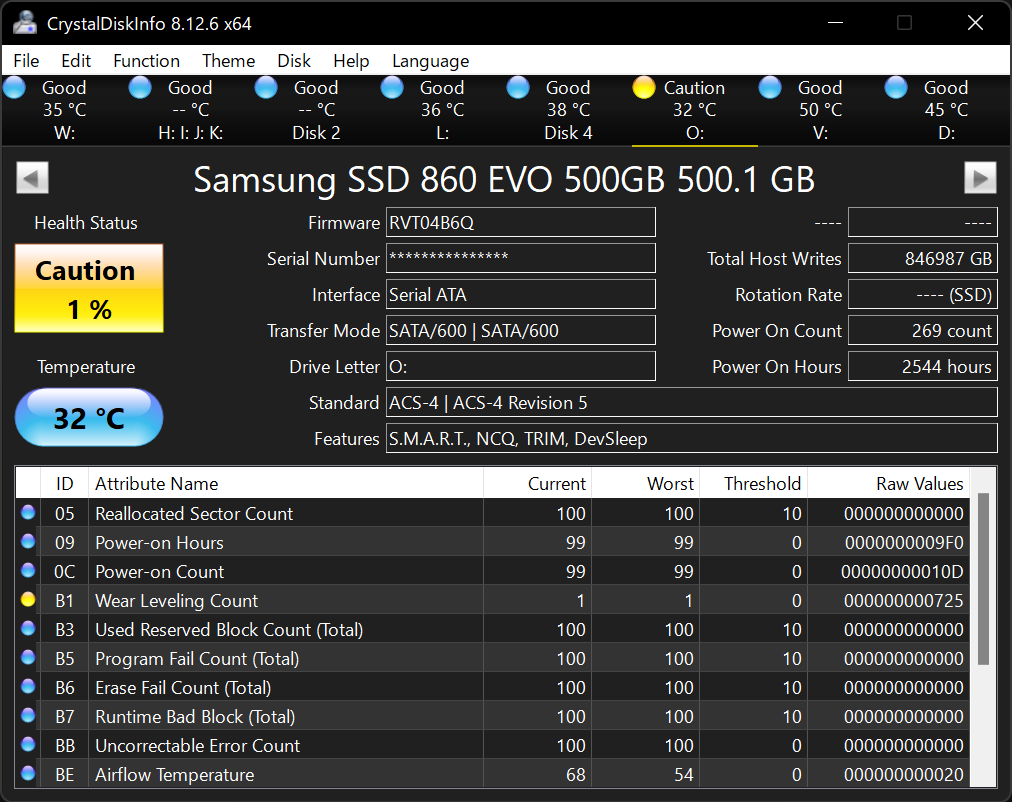
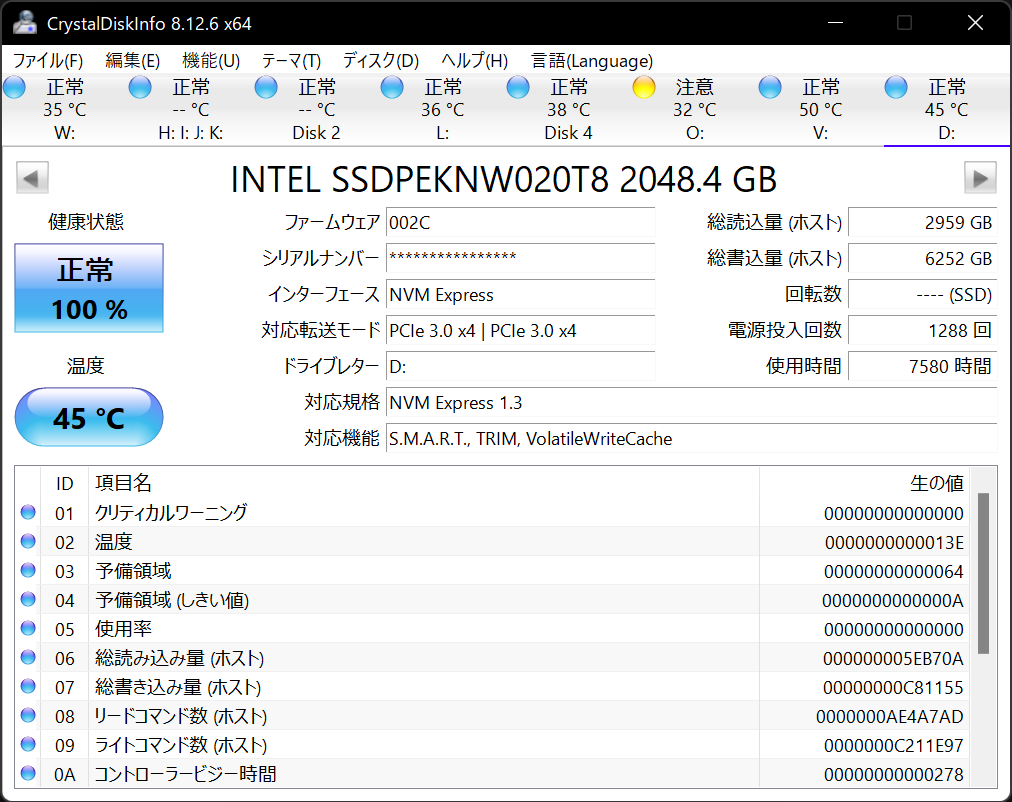
First, the standout feature is its real-time SMART (Self-Monitoring, Analysis, and Reporting Technology) monitoring, which acts like a health tracker for your drives, flagging potential issues before they turn into disasters. Second, the app offers detailed information about the drive's temperature, total hours powered-on, and detailed SMART attributes—serving as a doctor's report packed with all the vital stats. Third, its ability to support a wide range of drive types including SSDs and traditional HDDs ensures versatility and comprehensive coverage for most storage devices.
Immersive User Experience: From Interface to Usability
Imagine opening a clean, organized dashboard—akin to a minimalist control panel—where vital disk stats are presented with easy-to-understand icons and color codes. The interface is refreshingly straightforward, eschewing the clutter of unnecessary menus, making navigation feel like flipping through a well-labeled directory. Operation is remarkably smooth; even on older systems, the app loads swiftly and responds without lag, making health checks feel effortless—like a quick glance over your car's dashboard instead of a complicated diagnostic test.
For newcomers, the learning curve is gentle. The app's intuitive layout allows users to interpret SMART attributes without an engineering degree. For power users, the detailed data and export options enrich their diagnostic toolkit, providing room for deeper analysis.
What Makes CrystalDiskInfo Truly Unique?
While many disk monitoring tools offer similar data, CrystalDiskInfo's key differentiation lies in its focus on simplicity combined with detailed insights. Its unobtrusive background operation and real-time alerts act like a vigilant guardian, giving peace of mind. Unlike some utilities that bombard you with technical jargon, this app presents information in an accessible manner. Another highlight is its support for both HDDs and SSDs, ensuring comprehensive monitoring regardless of storage type. This versatility, coupled with its transparency in reporting, sets it apart from more opaque or overly complicated options.
Final Verdict: Is It Worth a Spot on Your Desktop?
Absolutely. If you're someone who values knowing the health status of your drives without fuss, CrystalDiskInfo earns your trust through its straightforward approach and detailed diagnostics. While it's not an all-in-one optimization suite, its focused capabilities make it invaluable for proactive maintenance. I'd recommend it to everyday users, IT professionals, or anyone eager to keep their digital storage in check without drowning in technical details. Think of it as having a friendly mechanic always on call—ready to tell you if your drive is in tip-top shape or needs some TLC.
Pros
- Real-time Drive Monitoring
- Detailed Drive Information
- User-Friendly Interface
- Lightweight and Portable
- Free and Open Source
Cons
- Limited Support for Some SSD Brands
- No Advanced Diagnostic Tools
- Occasional False Alerts
- Limited Compatibility with Non-Windows OS
- Interface Might Overwhelm New Users











