

- Name CPU Check
- Category Utilities & tools
- Available on PC, Mobile, Surface Hub, HoloLens
- OS Windows 11 version 26100.0 or higher
- Keyboard Integrated Keyboard
- Mouse Integrated Mouse
- languages Chinese (Simplified), Chinese (Traditional), Dutch, English (United States), French, German, Portuguese, Russian, Spanish, Ukrainian
Introducing CPU Check for Windows: Your Handy Diagnostics Companion
CPU Check for Windows is a straightforward application designed to provide quick and detailed insights into your processor's performance and health, making it an essential tool for both casual users and tech enthusiasts alike.
Developed by Stefan vd
Created by Stefan vd, this app brings a clean, user-friendly approach to CPU monitoring without unnecessary complexity, focusing on delivering precise information efficiently.
Key Features at a Glance
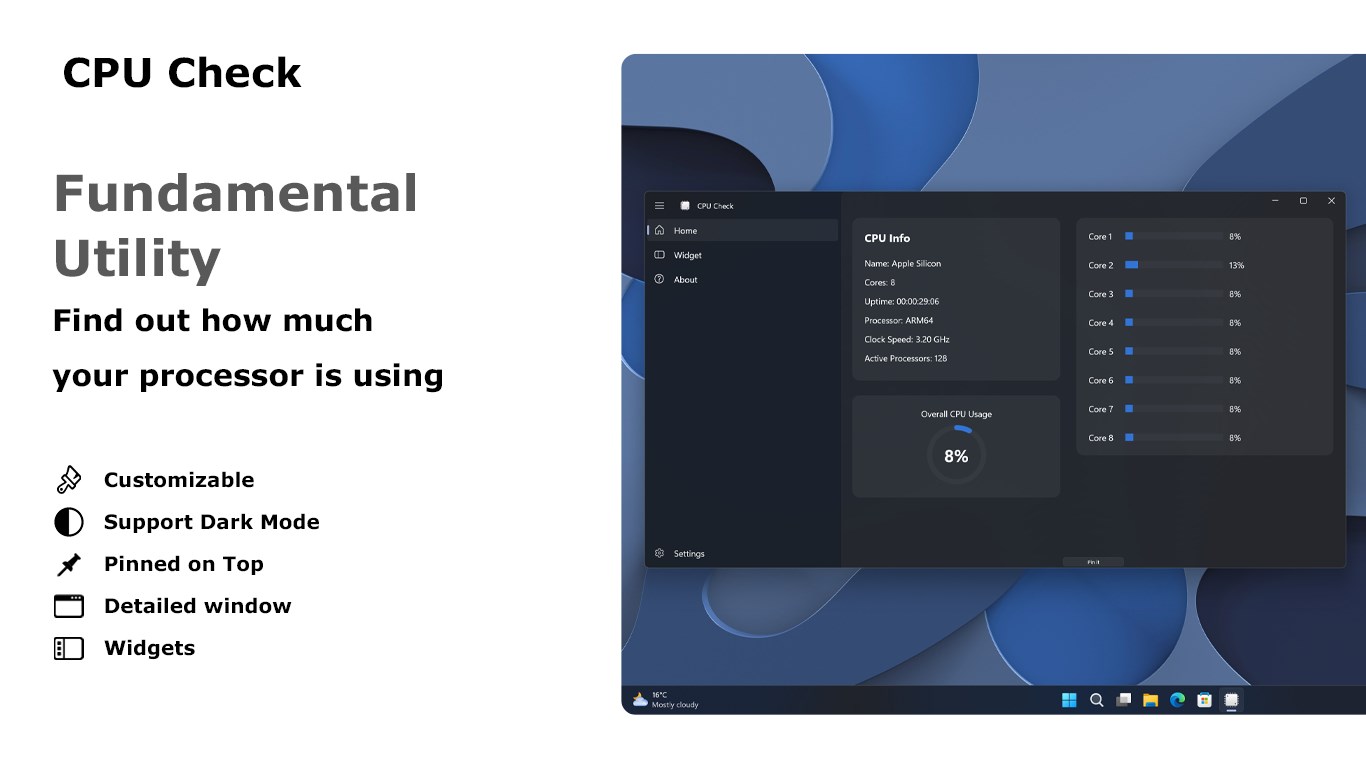
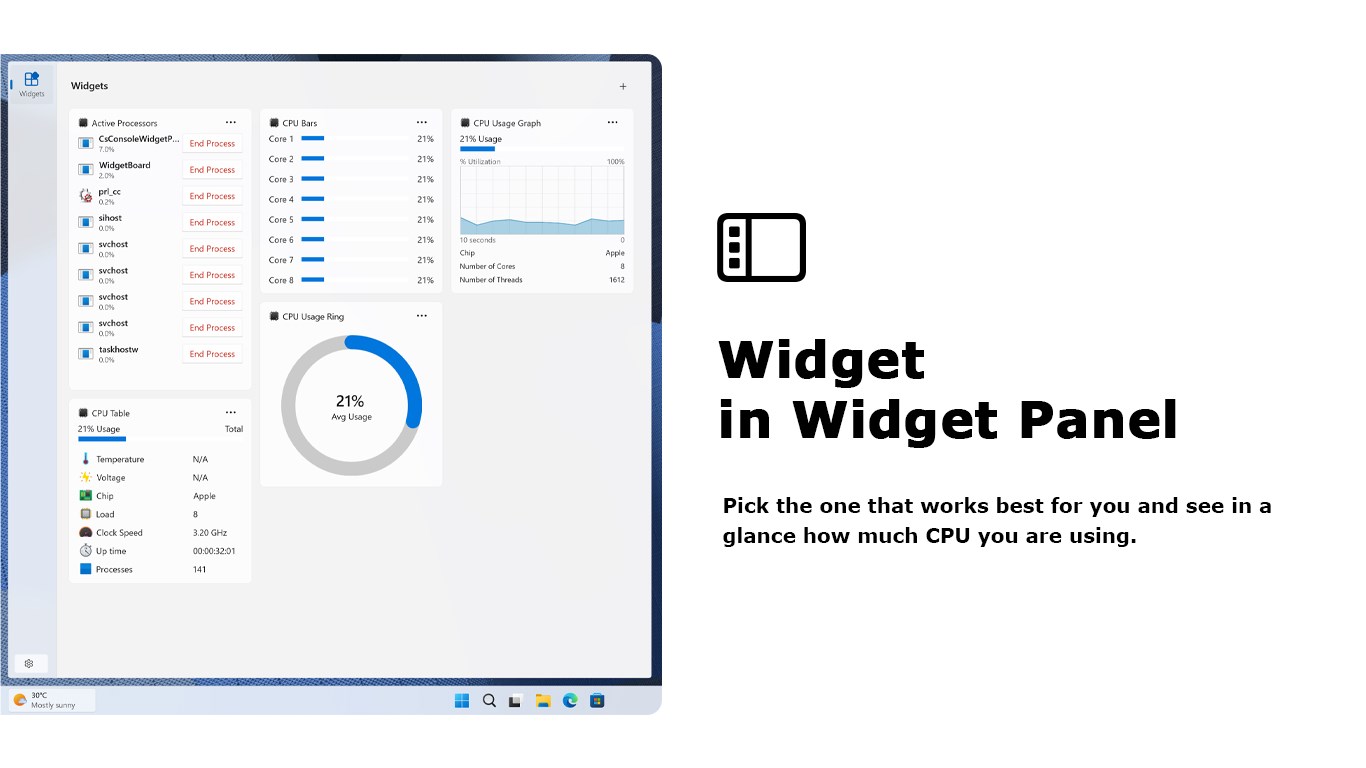
- Real-time CPU Monitoring: Keeps you informed about current CPU usage, temperatures, and power consumption, helping you keep your machine in tip-top shape.
- Comprehensive Hardware Details: Provides in-depth specifications about your processor, including model, architecture, clock speed, and more.
- Performance Testing: Includes built-in tools to test your CPU's responsiveness and stability, useful for diagnosing issues or benchmarking.
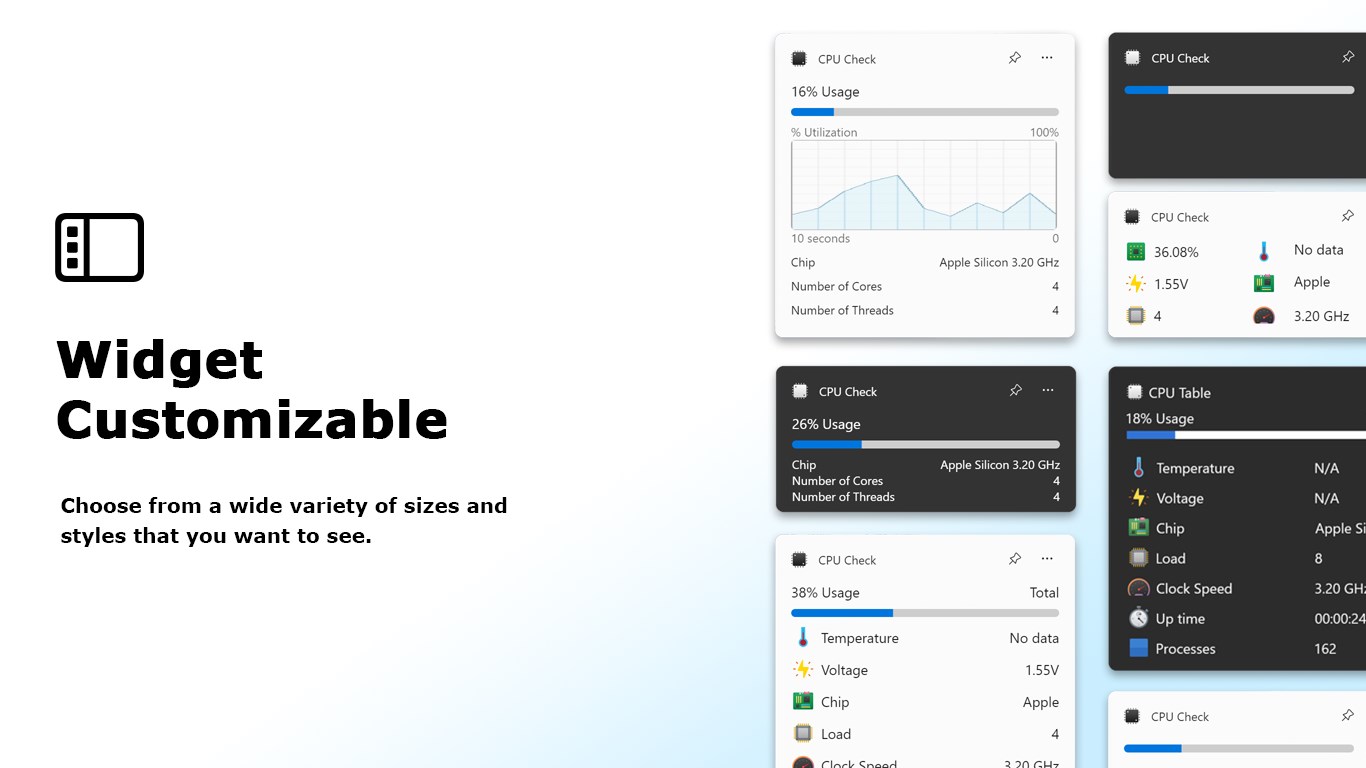
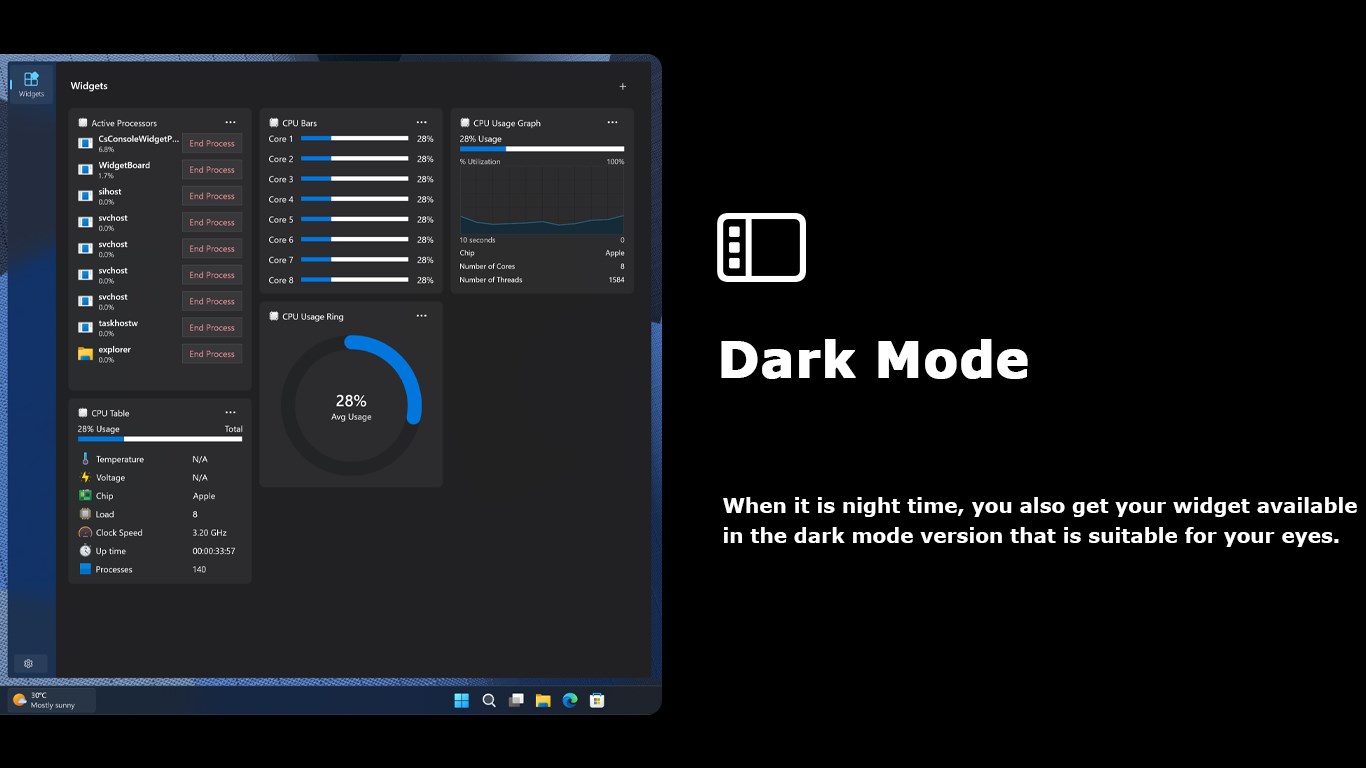
- User-Friendly Interface: Designed to display complex data clearly and intuitively, even for those unfamiliar with technical jargon.
A Fresh Take on CPU Diagnostics: Why You'll Love This App
Imagine yourself sitting comfortably at your desk, wondering whether that sudden lag is just a glitch or a sign of your processor crying out for help. CPU Check for Windows steps in like a knowledgeable friend, offering clarity amidst the chaos, all wrapped in a sleek interface that doesn't require a degree in computer science to navigate. Its real-time monitoring feature acts like a heartbeat monitor for your CPU, keeping you in the know about every pulse and temperature fluctuation, making it a trusty tool for proactive maintenance and troubleshooting.
Deep Dive into Core Functionality
Real-time Monitoring: Your CPU's Vital Signs
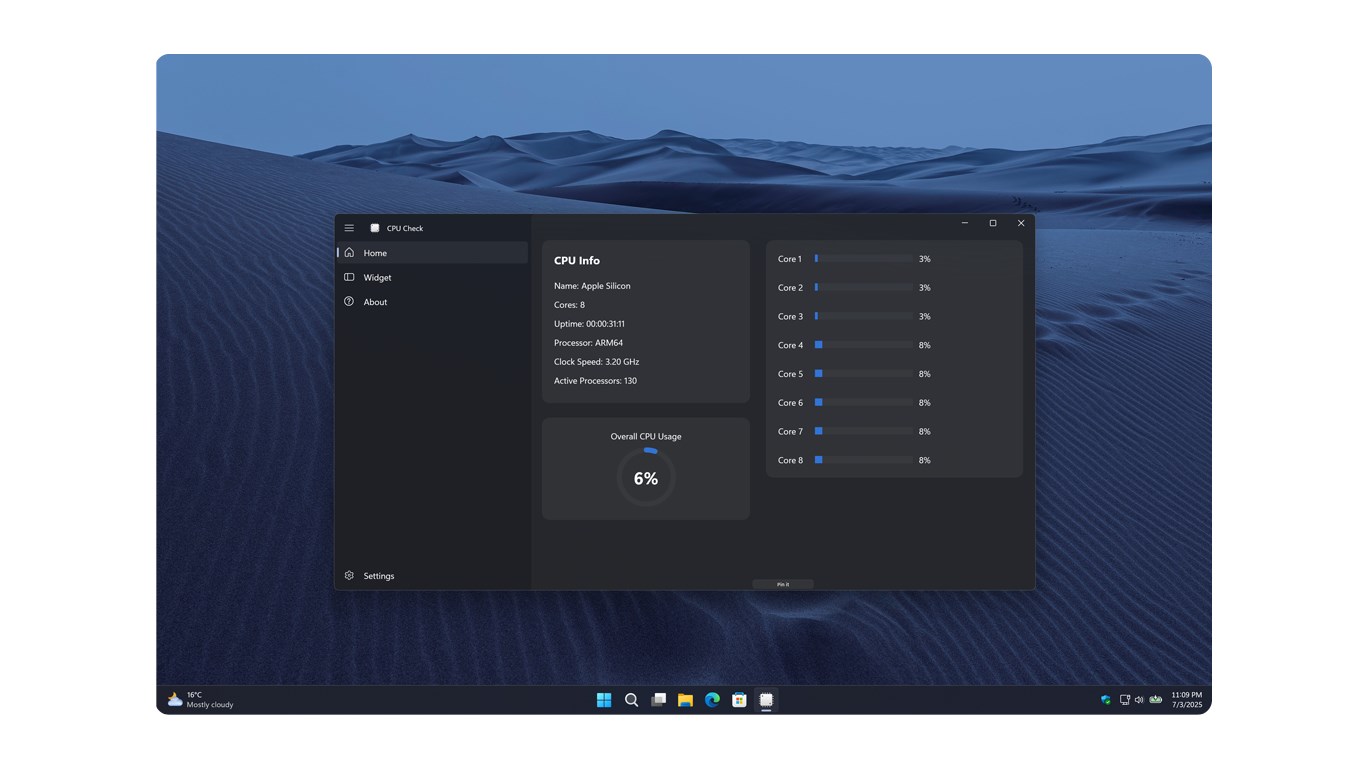
This feature acts as a window into your processor's inner workings, displaying live data on CPU usage, temperature, and load. It's like having a dashboard in your car—giving you instant feedback on how your CPU is handling tasks. Whether you're gaming, editing videos, or just browsing, this real-time data helps you spot potential issues early, such as overheating or unexpectedly high utilization, preventing hardware failures before they happen.
Comprehensive Hardware Details: Knowing Your Processor Inside and Out
This section provides a detailed profile of your CPU, similar to a report card for your hardware. It lists your processor model, architecture, clock speed, number of cores, and even cache details. For tech-savvy users, this information is invaluable for optimizing performance or planning upgrades. For beginners, it demystifies what's inside their machine, making tech jargon accessible and understandable.
Performance Testing: Stress-Test Your CPU
Want to see if your CPU is performing as it should? The built-in testing tool allows you to run quick stability checks, simulate demanding workloads, and observe how your processor handles stress. Think of it like taking your car for a test drive—catching issues that might not be apparent during everyday use. It's particularly useful for overclockers or anyone troubleshooting performance problems.
User Experience: Smooth, Intentional, Informative
The app boasts a minimalist yet effective interface that feels just right—neither cluttered nor sparse. Navigating through its menus is intuitive, much like flipping through the pages of a well-organized book. The responsiveness of the application is impressive; the data updates seamlessly without lag, offering a fluid user experience. Learning curve? Nearly zero—just launch the app, and you'll find yourself instantly understanding your CPU's health metrics. This simplicity makes it accessible to newcomers, while its detailed data appeals to seasoned techies seeking precise info.
What Sets CPU Check Apart from the Crowd?
Unlike many generic system monitors, CPU Check for Windows zeroes in specifically on the CPU, presenting data in a digestible format tailored for those who want quick insights rather than overwhelming information overload. Its standout feature is the combination of real-time thermal data and stress testing. This duo empowers users to actively monitor and evaluate their processor's health without switching between multiple tools, making it an all-in-one solution. The app's focus on clarity and ease of use is its unique advantage—no convoluted menus or confusing terminologies steer your experience, just straightforward, meaningful data.
Final Recommendations and Usage Tips
Considering its features and user-friendly design, CPU Check for Windows is recommended for anyone looking for an accessible yet detailed CPU diagnostic tool. Whether you're a casual user wanting to keep tabs on your machine or a tech enthusiast performing routine maintenance, this app fits the bill. For optimal benefit, use it regularly to track your CPU's health over time, especially before and after heavy workloads or system upgrades. Keep an eye on thermal data during gaming or intensive tasks to prevent overheating, and leverage the performance testing feature to verify system stability after overclocking.
In conclusion, CPU Check for Windows is a reliable, easy-to-understand tool that helps demystify your CPU's vital signs. Its highlight features, ease of use, and targeted focus make it a standout among utility apps—think of it as your friendly neighborhood tech nurse, always ready to give your processor a quick check-up.
Pros
- Accurate CPU Identification
- User-Friendly Interface
- Fast Scan Speed
- Lightweight App Size
- Free to Use
Cons
- Limited Reporting Details
- No Benchmarking Features
- Occasional Data Inaccuracy
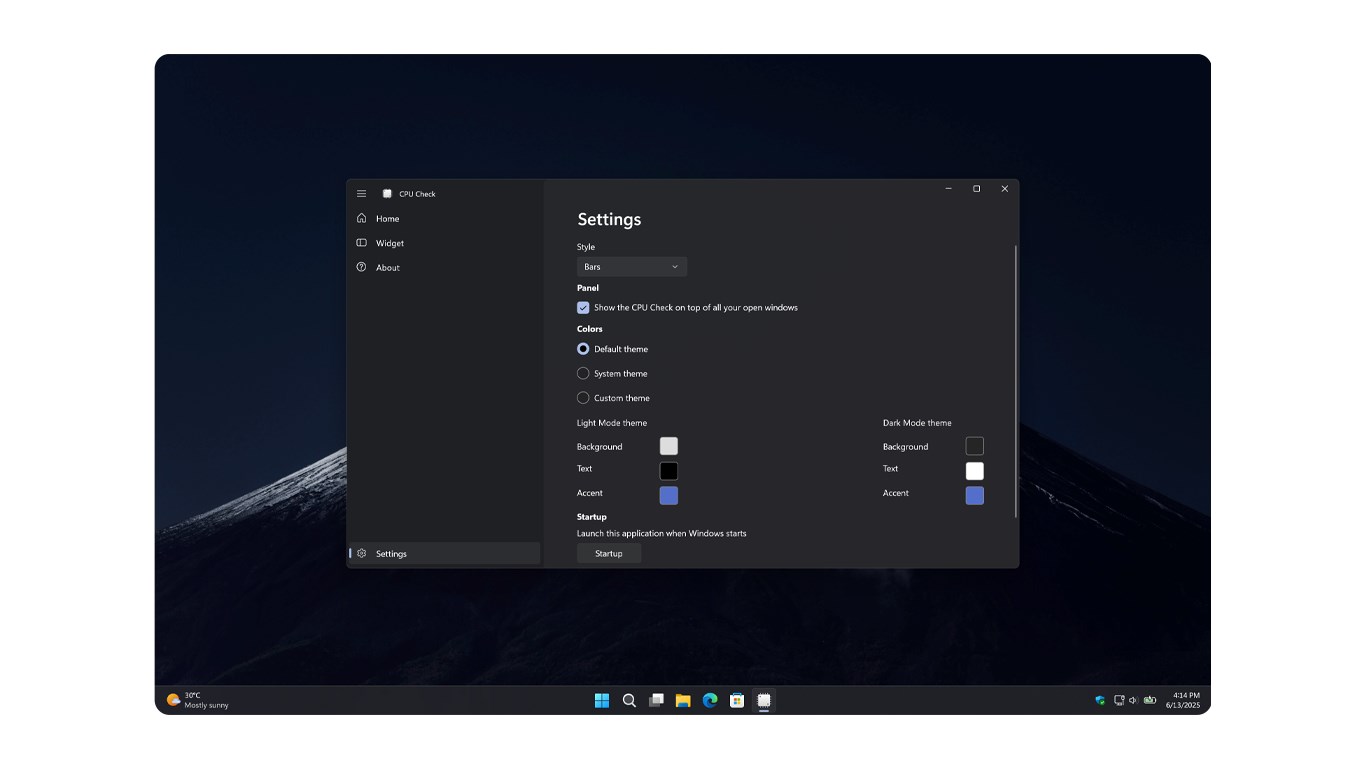
- Lack of Customization Options
- Limited Compatibility with Older Systems











