- Name Car Scanner (ELM OBD2)
- Category Business
- Available on PC, Mobile, Surface Hub, HoloLens
- OS Windows 10 version 16299.0 or higher
- Keyboard Integrated Keyboard
- Mouse Integrated Mouse
- languages English (United States)
Introducing Car Scanner (ELM OBD2) for Windows: Your Trusted Vehicle Diagnostics Companion
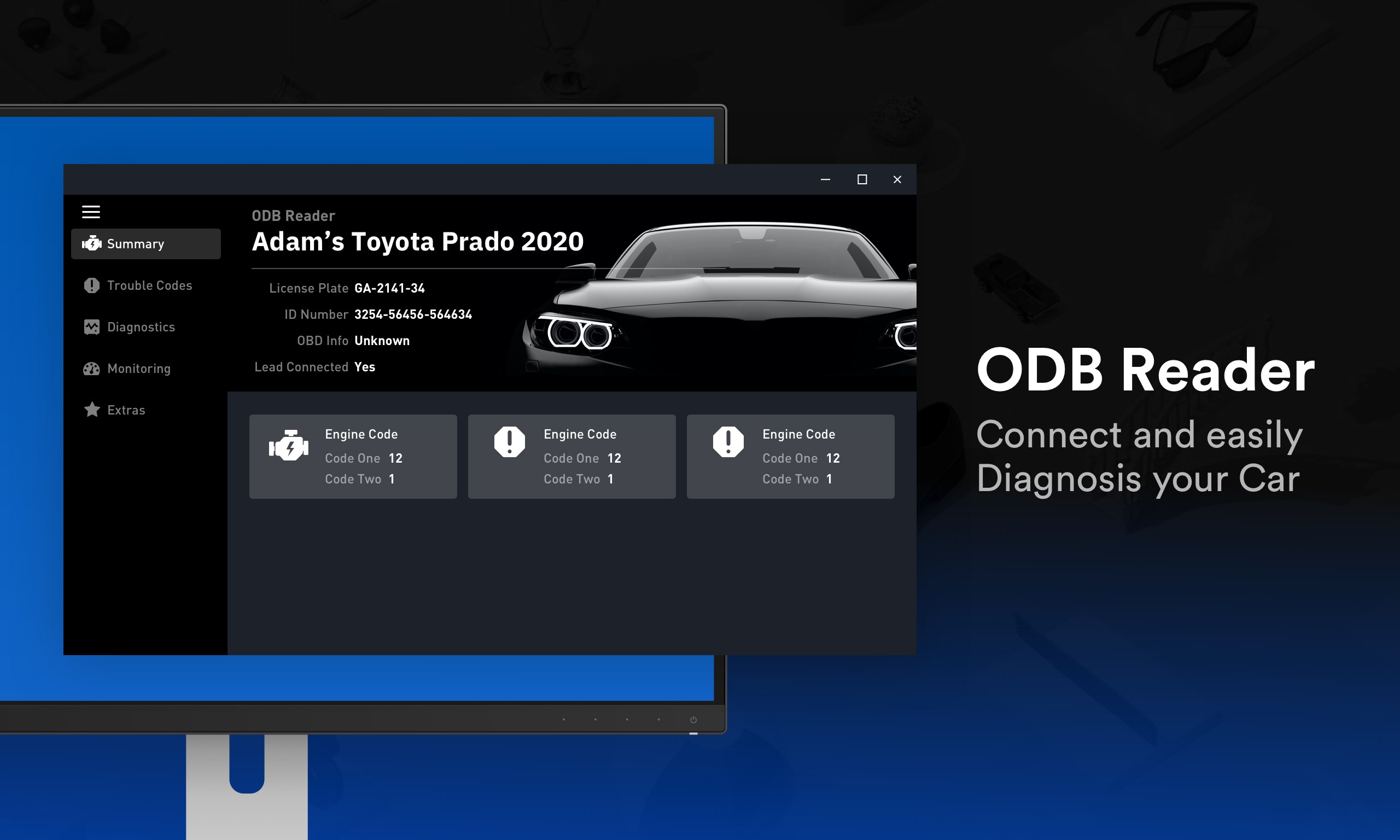
Car Scanner (ELM OBD2) for Windows is a powerful application designed to bring professional-grade vehicle diagnostics directly to your PC, making it easier for car enthusiasts and technicians to monitor and troubleshoot their vehicles with precision.
Developed by Real Digital
Created by the innovative team at Real Digital, this application leverages their expertise in digital tools to offer a user-friendly yet comprehensive diagnostic solution tailored for Windows users.
Key Features That Stand Out
- Real-time Data Monitoring: Access live engine metrics and sensor information for a detailed understanding of vehicle health.
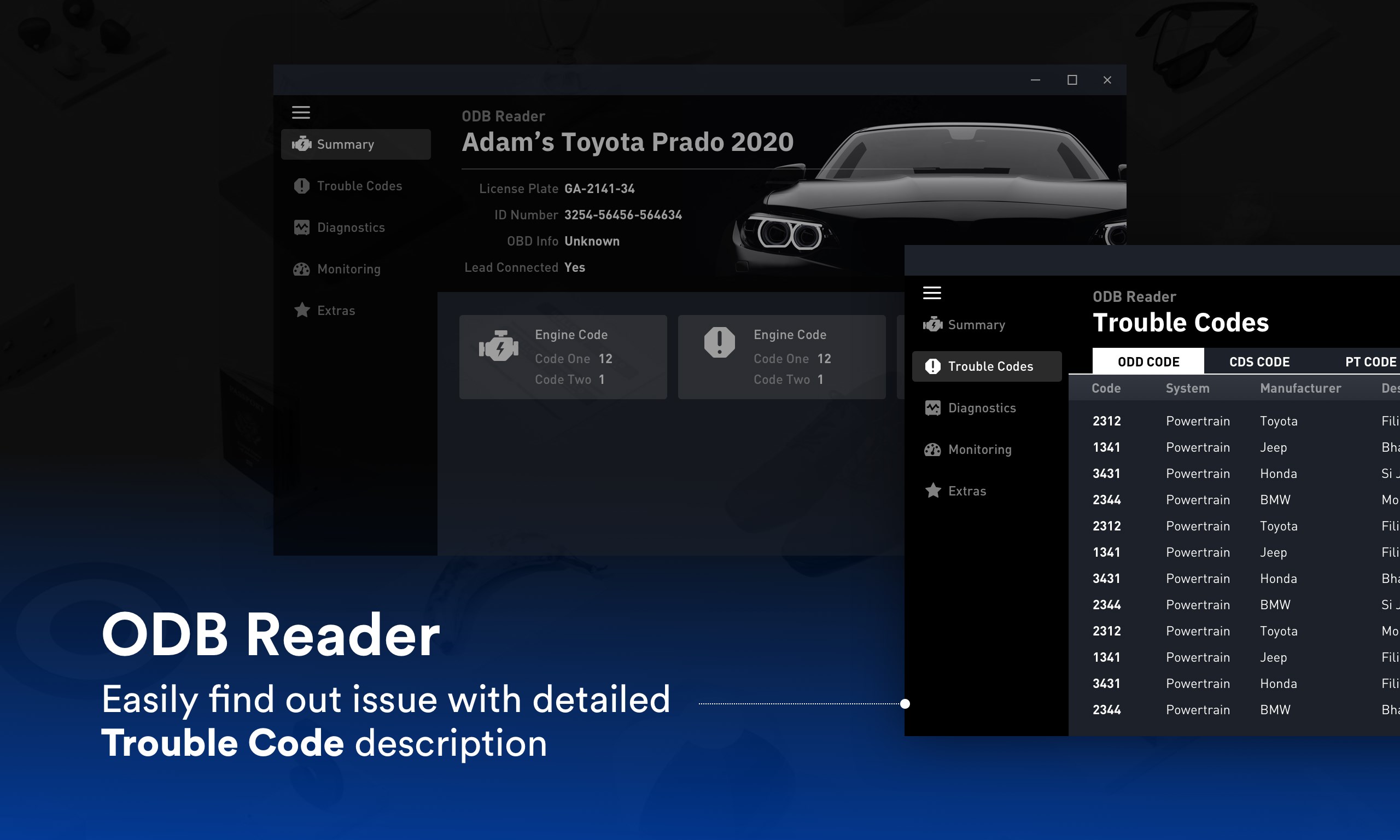
- Fault Code Reading and Clearing: Retrieve diagnostic trouble codes (DTCs) and clear them, facilitating quick troubleshooting and maintenance.
- Customizable Dashboard: Design your own interface with widgets displaying critical information, enhancing user convenience.
- Compatibility and Connectivity: Seamlessly connect with a wide range of ELM327-compatible OBD2 adapters, ensuring versatility across vehicle makes and models.
Designed for a broad audience, from professional mechanics to dedicated car owners, the app provides critical diagnostic insights that are easy to access and interpret.
Immersive Introduction: Why This App Is a Game Changer
Imagine having a personal mechanic right at your fingertips, available whenever your vehicle whispers subtle warnings or needs a little tune-up. Car Scanner (ELM OBD2) transforms your Windows PC into a portable diagnostic hub, turning complex engine data into clear, actionable insights. Whether you're tinkering in the driveway or managing a fleet of vehicles, this app offers the kind of detailed information that once required pricey dealership visits, now accessible for a fraction of the cost. It's like giving your car a thorough check-up without leaving your home—an empowering tool that puts vehicle health monitoring within everyone's reach.
Deep Dive into Core Functionalities
Real-Time Data Monitoring: Your Vehicle's Vital Signs
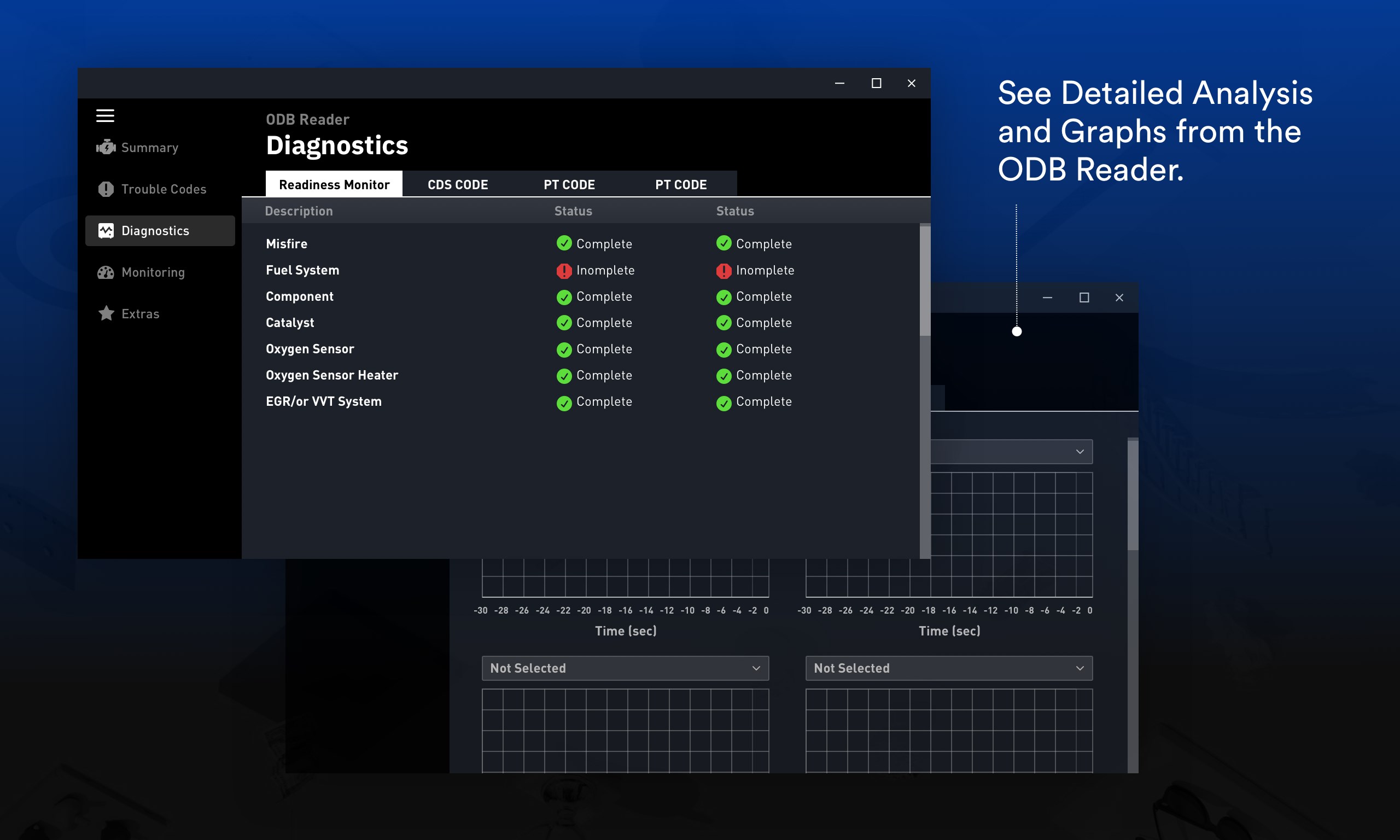
This feature acts like a live dashboard, streaming critical engine parameters such as RPM, coolant temperature, vehicle speed, and oxygen sensor data. The app's graphical interface makes real-time data easy to read, akin to having a heartbeat monitor for your car. This immediate feedback can help catch subtle issues early, before they escalate into costly repairs. The app supports multiple gauges and custom displays, ensuring users can tailor their monitoring experience to fit their specific needs or curiosity.
Diagnostics and Troubleshooting: Reading and Resetting Fault Codes
One of the most appreciated features is the ability to read Diagnostic Trouble Codes (DTCs). Think of these as a car's way of self-reporting problems—like a doctor reading vital signs indicating your vehicle's health status. Once diagnosed, users can clear the codes after repairs, turning off warning lights and resetting the system. This process simplifies maintenance routines and helps users quickly identify and resolve issues, reducing downtime and improving vehicle longevity.
Customizable Dashboard and User Experience
The app's intuitive interface boasts modern design elements that make navigation feel seamless, even for newcomers. The customizable dashboard allows users to add or remove widgets depending on their focus—whether it's engine performance, emission data, or sensor statuses. The app responds smoothly to input, with minimal lag, delivering a glitch-free experience. Overall, the learning curve is gentle, supported by clear icons and straightforward menus, perfect for both novices and seasoned mechanics.
Unique Selling Points and Differentiation
While many diagnostic apps focus solely on data reading, Car Scanner (ELM OBD2) shines with its collaborative work features and task management integrations. For example, users can document issues with notes, organize maintenance tasks, and share reports directly from the app—features typically seen in professional fleet management software but tailored here for individual and small business use. This makes coordinating repairs or monitoring multiple vehicles more streamlined, offering a distinct edge over standard diagnostic tools that lack these organizational functionalities.
Another advantage is its compatibility with a broad spectrum of OBD2 adapters, allowing flexibility across various devices and vehicle brands, making it more versatile than many competing apps tied to specific hardware ecosystems.
Final Verdict and Recommendations
Car Scanner (ELM OBD2) for Windows is a solid, reliable diagnostic tool that balances depth of information with ease of use. If you are a car enthusiast eager to get a deeper understanding of your vehicle, or a professional seeking an affordable yet comprehensive diagnostic solution, this app is highly recommended. Its standout features—especially real-time data visualization and task management—offer tangible benefits that set it apart from more basic apps.
For users looking for a straightforward, no-fuss diagnostics solution, this app provides enough depth without overwhelming complexity. However, those requiring advanced customization or fleet management should consider how its collaborative features can support their workflows. Overall, it's a commendable utility that brings professional-level vehicle analysis into the comfort of your Windows environment.
Pros
- User-Friendly Interface
- Wide Vehicle Compatibility
- Real-Time Data Monitoring
- Comprehensive Diagnostic Reports
- Affordable Pricing Model
Cons
- Limited Bluetooth Support
- Basic Customization Options
- Occasional App Crashes
- Data Logging Limitations
- Language Support