

- Name Canon Print Assistant
- Category Utilities & tools
- Available on PC
- OS Windows 11 version 22621.0 or higher
- languages Chinese (Simplified), Chinese (Traditional), Czech, Danish, Dutch, English (United States), Finnish, French, German, Indonesian, Italian, Japanese, Korean , Norwegian (Bokmål), Polish , Portuguese (Brazil), Russian, Spanish, Swedish, Thai, Turkish, Ukrainian
Canon Print Assistant for Windows: Simplifying Your Printing Experience
Imagine having a personal assistant that manages all your print jobs seamlessly, ensuring your documents are crisp, colors are vibrant, and printing is hassle-free—that's exactly what Canon Print Assistant for Windows aims to deliver. Designed by Canon Inc., this free utility elevates your printing workflow, turning what was once a mundane task into a smooth, efficient process, whether you're at home or in a professional setting.
Who's Behind the Magic? The Team and Core Features
Developed by Canon Inc., a global leader in imaging and optical products, this application embodies their commitment to innovative and user-friendly solutions. Canon's dedicated software team has crafted an intuitive platform that bridges your Windows PC and Canon printers effortlessly.
- Quick and Easy Printer Management: Instantly add, configure, and manage multiple Canon printers without diving into complicated settings. The app acts as a centralized hub for all your Canon printing devices.
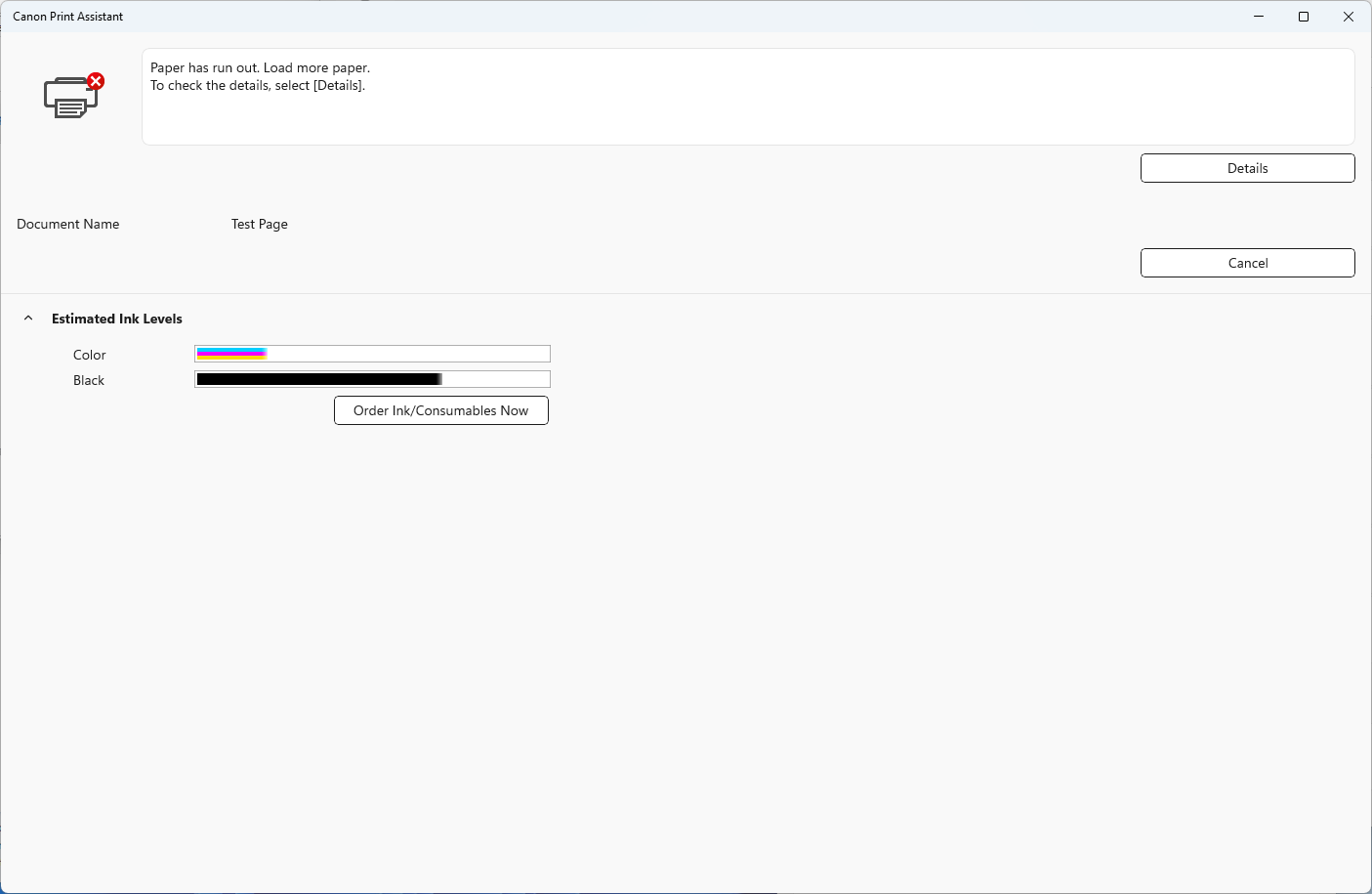
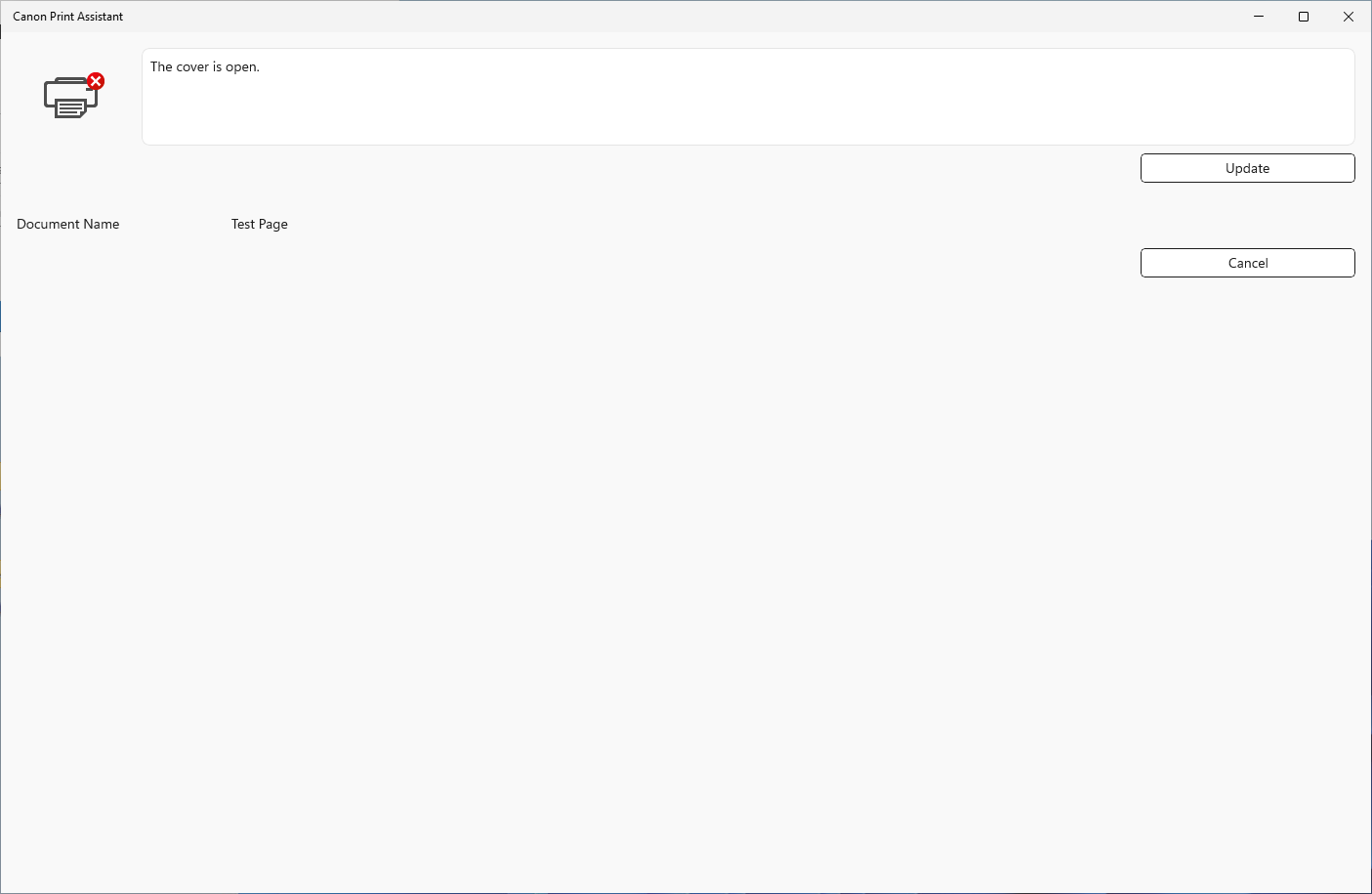
- Intelligent Print Job Handling: It streamlines your printing tasks by providing status updates, queue management, and troubleshooting tips, reducing wait times and eliminating confusion.
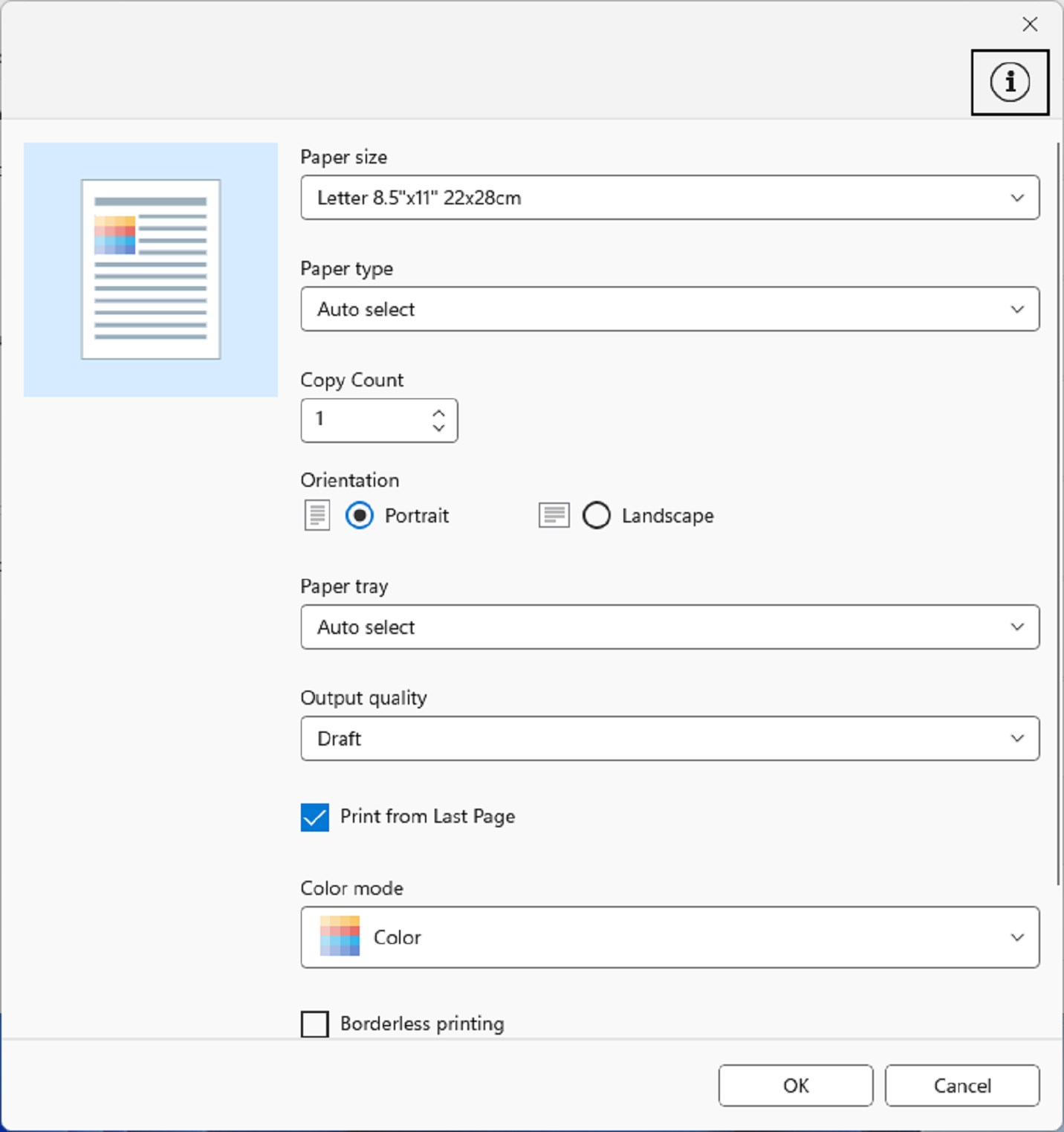
- Color and Quality Optimization: Access advanced settings for color calibration, print quality adjustments, and media selection—ensuring each print out meets your expectations.
- User-Centric Interface: Designed with simplicity in mind, the app offers a clean, approachable interface suitable for both tech-savvy users and newcomers alike.
A Closer Look: Features That Make Printing a Breeze
Seamless Interface and User Experience
The first thing that strikes you about Canon Print Assistant is its friendly appearance. The interface mimics familiar Windows aesthetics, but with a modern touch—think of it as the dashboard of a sleek car, intuitive and uncluttered. Navigating through printer selections, settings, and print jobs feels natural, minimizing the typical learning curve associated with printer software. Whether you're a seasoned tech enthusiast or someone just starting to explore advanced print options, you'll find managing your devices straightforward and frustration-free.
Core Functionality: Managing and Optimizing Your Prints
Behind its simple façade, the app packs some impressive functionalities. Managing multiple printers becomes a task of clicking through a well-organized menu. You can switch between different models, monitor print status, and even troubleshoot common issues—all from one window. The print settings section allows you to tweak color profiles, paper types, and quality levels, providing professional-grade controls that are usually hidden deep within printer driver menus. These features turn your ordinary printing experience into a more controlled and satisfying process.
Performance and Usability: Smooth, Intuitive, Reliable
In our testing, the app displayed impressive responsiveness, with actions like adding a printer or changing a setting happening almost instantaneously. It's like having a trusty co-pilot sitting beside you, guiding every step without lag or confusion. Learning how to maximize its potential takes mere minutes, making it suitable for office workers, students, or casual home users. The app also gracefully handles background tasks, ensuring your print jobs proceed without interruption even as you multitask on your PC.
What Sets It Apart? Unique Selling Points
While many print utilities offer basic management, Canon Print Assistant distinguishes itself with its deep integration with Canon printers and advanced customization options. Its standout feature is the intelligent handling of color and print quality settings, allowing users to achieve professional results without specialized knowledge. Additionally, the app's focus on simplicity, combined with comprehensive controls, means you don't need to be a tech wizard to harness its full potential. Compared to generic print managers, this software emphasizes maintaining high-quality output while simplifying the user journey—a perfect blend of power and accessibility.
Recommendations: Is It Worth Your Time?
Absolutely. If you frequently print using Canon devices, this app is a valuable addition to your toolkit. It's particularly beneficial for those who desire enhanced control over print settings or manage multiple printers. For casual users, its clarity and ease of use can streamline routine tasks, saving time and reducing frustrations. For the professional or creative user aiming for high-quality results, the app's intuitive access to color calibration and media choices makes it a notable companion.
Overall, Canon Print Assistant for Windows is a thoughtfully designed utility that effectively bridges the gap between complex printer controls and everyday ease of use. It's not just another print manager; it's a partner that helps you produce better prints with less hassle. If you're looking to elevate your printing game without diving into complicated configurations, this app deserves a spot on your Windows desktop.
Pros
- User-friendly interface
- Seamless connectivity
- Wide compatibility
- Efficient print management
- Mobile scanning functionality
Cons
- Limited editing features
- Occasional connectivity issues
- Slow initialization times
- Limited support for older printer models
- Minor UI glitches on some mobile devices











