

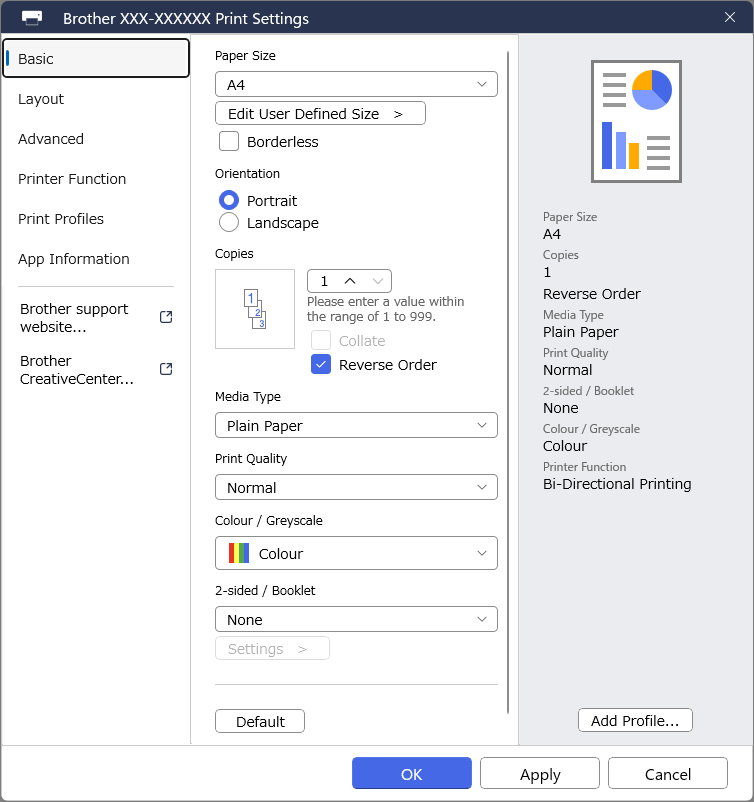
- Name Brother Print Support App
- Category Utilities & tools
- Developer Brother Industries, LTD.
- Available on PC
- OS Windows 10 version 19041.0 or higher
- languages Arabic (United Arab Emirates), Bulgarian, Chinese (Simplified), Chinese (Traditional), Croatian, Czech, Danish, Dutch, English (United Kingdom), English (United States), Finnish, French, French (Canada), German, Hungarian, Indonesian, Italian, Japanese, Korean , Norwegian (Bokmål), Polish , Portuguese (Brazil), Portuguese (Portugal), Romanian, Russian, Serbian (Latin, Serbia), Slovak, Slovenian (Slovenia), Spanish (Spain), Swedish, Thai, Turkish, Ukrainian, Vietnamese
Brother Print Support App for Windows: A Reliable Companion for Your Printer Maintenance
Navigating the world of printer management can sometimes feel like trying to tame a wild beast—constantly troubleshooting, updating drivers, and managing settings. Luckily, the Brother Print Support App steps in as a streamlined, user-friendly solution designed to simplify these tasks. Developed by Brother Industries, Ltd., this app aims to bring professional-grade printer support directly to your Windows device, making your printing experience smoother and more efficient.
Who's Behind the Curtain? About the Developer
Brother Industries, Ltd. is a well-established leader in printing and imaging solutions, renowned for their innovative approach and quality products. Their dedicated team of developers has focused on creating an app that bridges the gap between complex printer maintenance and user accessibility, ensuring users of all technical levels can easily manage their printers without hassle.
Top Features Making a Difference
- Intuitive Printer Diagnostics: The app provides instant access to troubleshooting tools, helping users identify and resolve printer issues swiftly, much like having a tech support expert in your pocket.
- Firmware and Driver Updates: Automated checking and updating of drivers and firmware ensure your printer operates with the latest enhancements, prolonging device lifespan and optimizing performance.
- Easy Printer Registration and Management: Simplifies adding new printers and managing multiple devices, turning a potentially complex setup into a seamless process, akin to assembling a well-orchestrated fleet.
- Remote Support and Assistance: Offers remote guidance options, allowing users to connect with support personnel if needed, making help just a click away.
A Closer Look: Deep Dive into Core Functionalities
Streamlined User Interface: Less Clutter, More Action
The app's interface resembles a clean, organized workspace—minimalistic but powerful. Navigation is straightforward, with clearly labeled icons and logical menus. The visual design employs a calm color palette with intuitive symbols that guide users effortlessly through tasks. Whether you're a tech novice or experienced user, you'll find the layout welcoming and easy to learn, with minimal learning curve.
Robust Diagnostics and Updates: Your Printer's Health Check
The standout feature here is the diagnostic tool, which scans your printer for common issues and suggests actionable solutions. Paired with automatic firmware and driver updates, the app ensures your printer is always at its peak. Imagine it as a personalized health app, but for your printer—promptly alerting you to problems before they escalate, and keeping everything running smoothly behind the scenes.
Device Management Made Simple
If you manage multiple printers, this feature is a game-changer. Adding, removing, or configuring devices is straightforward, with options to monitor status and usage. It's analogous to managing a small fleet, where each vehicle's condition is transparent. This reduces the chaos often associated with handling multiple devices scattered across different locations.
What Sets It Apart? Unique Selling Points
While many utility apps offer basic functions, the Brother Print Support App distinguishes itself with its comprehensive diagnostic tools integrated directly into the interface and the seamless update management system. Unlike typical utilities that merely inform, this app actively helps resolve issues, saving users precious time. Its focus on detailed device management combined with remote assistance makes it a versatile tool for both home users and small offices. These features exemplify a user-centric design approach—making complex printer management approachable without sacrificing power.
Final Thoughts: Should You Give It a Try?
All in all, the Brother Print Support App for Windows deserves a solid recommendation—especially for those who value simplicity, efficiency, and proactive maintenance in managing their printers. It's like having a dedicated technician sitting next to you, ready to assist at any moment. Whether you're troubleshooting, updating, or managing multiple devices, this app proves to be a dependable and user-friendly solution. While it's not overly flashy or laden with unnecessary features, its core strengths lie in practical, well-executed functions that genuinely enhance your printing experience.
Pros
- Easy setup process
- Seamless printing integration
- Remote management features
- Regular updates with bug fixes
- User-friendly interface
Cons
- Limited printer model support
- Occasional connection drops
- High resource consumption
- Limited troubleshooting guidance
- Requires internet connection for some features











