
- Name Bootable USB Creator
- Category Utilities & tools
- Available on PC
- OS Windows 10 version 17763.0 or higher
- languages English (United States)
Introducing Bootable USB Creator for Windows: A Handy Tool for Tech Enthusiasts
If you're someone who frequently experiments with different operating systems or needs to create bootable drives in a hurry, Bootable USB Creator for Windows by CoderLearn can be a reliable companion. Think of it as your digital power drill—easy to wield, precise, and ready to turn your USB thumb drive into a bootable switchboard in just a few clicks.
Developer and Core Features at a Glance
Developed by CoderLearn, this application aims to simplify the process of creating bootable USB drives for Windows. Its main highlights include:
- User-Friendly Interface: Streamlined design that minimizes learning curve, making it accessible even for beginners.
- Multi-Image Support: Ability to create bootable drives from ISO, IMG, and other image files, accommodating various OS installations.
- Fast and Reliable Creation Process: Optimized for speed, ensuring minimal waiting time during drive creation.
- Cross-Version Compatibility: Compatible with different Windows versions, ensuring broad usability across user bases.
The target audience spans tech hobbyists, IT professionals, students, and anyone needing an efficient tool for creating bootable USB media for installation or recovery purposes.
Vivid and Assured: Starting the Journey with Bootable USB Creator
Embarking on using this tool feels like setting out on an expedition with a trustworthy map—clear directions, no fuss, just results. From the moment you launch it, you'll notice how straightforward it is to get started, much like turning on a familiar gadget, with no complex setups or confusing menus. Whether you're preparing for a new OS installation or troubleshooting system issues, this app sets the stage for success in just a few simple steps.
Core Functionality One: Seamless ISO to USB Conversion
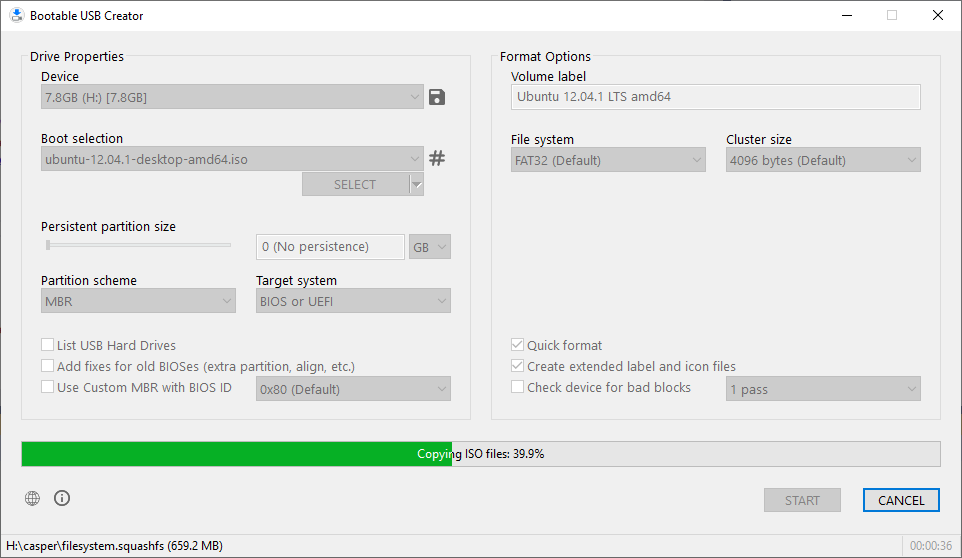
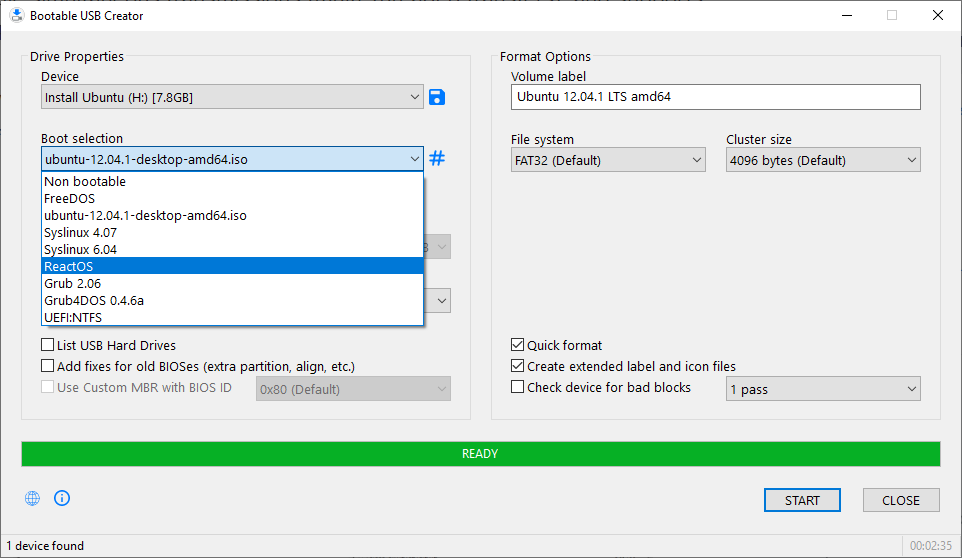
The standout feature that captures attention is its ability to convert ISO images directly into bootable USB drives. Imagine having a magic wand that effortlessly turns a downloaded ISO—be it Windows, Linux, or recovery tools—into a fully bootable media. The process is as smooth as butter; select your ISO file, plug in your USB stick, hit “Create,” and wait for the magic to happen. The app's intelligent recognition and automatic partitioning ensure compatibility across a variety of hardware configurations, which is often a sticking point with more complicated utilities.
Core Functionality Two: Speed and Stability, Your Trusty Sidekicks
Speed is often the Achilles' heel of similar tools, but not here. CoderLearn's creation process is notably swift, often completing a drive in just a fraction of the time compared to more cumbersome utilities. This efficiency is complemented by stability—once the process begins, you're less likely to encounter errors or corrupt images, thanks to built-in verification mechanisms. This reliable performance makes bootable creation less of a nerve-wracking experience and more of a confident task.
Design and User Experience: Friendly, Intuitive, and Efficient
The interface resembles a well-organized workspace where every tool has its place, making navigation feel natural. The clean layout, with minimal clutter, is like a well-designed kitchen—everything at your fingertips, ready to serve. Operation is fluid; transitions between steps are smooth, with clear prompts guiding you through the process. For beginners, the learning curve is gentle—you won't need to scour through complicated tutorials; the app's guided approach makes creating bootable drives surprisingly straightforward.
What Sets It Apart: Simplicity with Power and Compatibility
Compared to other utilities, Bootable USB Creator shines with its focus on simplicity without sacrificing power. Its support for multiple image formats and seamless creation process distinguishes it from overly complex, mechanically convoluted tools. Moreover, its compatibility across various Windows versions means users don't need to worry about system incompatibilities—an issue common with some niche utilities. Essentially, it's like having a Swiss Army knife that's easy to handle but still equipped to handle diverse tasks efficiently.
Final Verdict and Recommendations
Overall, Bootable USB Creator for Windows by CoderLearn deserves a solid recommendation for users seeking a straightforward yet capable solution for creating bootable drives. Its most notable strengths—speed, reliability, and ease of use—are especially appealing to those who want to avoid wrestles with complex utilities. I suggest it particularly for novices venturing into system installations or recovery tasks but also for seasoned users who appreciate efficiency and simplicity. Keep it handy—it's a tool you'll find yourself returning to time and again before embarking on your next tech adventure.
Pros
- User-Friendly Interface
- Wide Compatibility
- Fast Creation Speed
- Reliable Performance
- Built-in Formatting Options
Cons
- Limited Customization Features
- Occasional Compatibility Issues
- Absence of Multi-language Support
- Limited Customer Support Options
- Potential for Firmware Conflicts











