

- Name Auto Tapper
- Category Utilities & tools
- Available on PC
- OS Windows 10 version 0.0 or higher
- Keyboard Integrated Keyboard
- Mouse Integrated Mouse
- languages English
Introducing Auto Tapper for Windows: Your Reliable Automation Assistant
Auto Tapper for Windows, developed by MurGoo.com, is a straightforward yet powerful automation tool designed to streamline repetitive tapping tasks on your PC, making daily automation both accessible and efficient.
Who's Behind It?
MurGoo.com, a reputable developer known for creating user-friendly utility applications, brings Auto Tapper to Windows users seeking simple automation solutions without the complexity often associated with scripting or coding.
Key Highlights of Auto Tapper
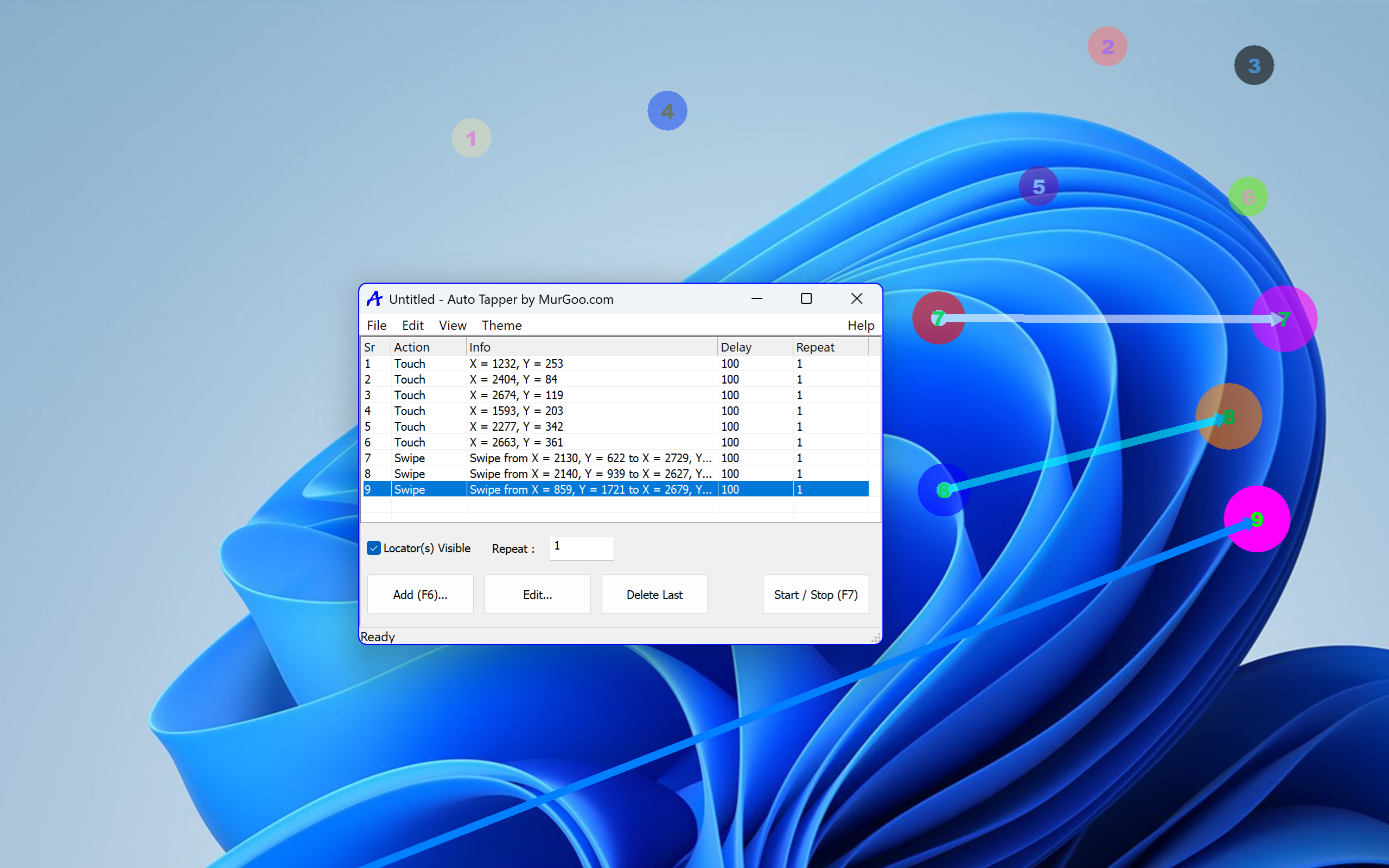
- Simple Tap Automation: Easily set up automated taps at specified screen coordinates, perfect for games, data entry, or routine tasks.
- Customizable Taps and Delays: Fine-tune tap intervals, counts, and positions to suit various scenarios.
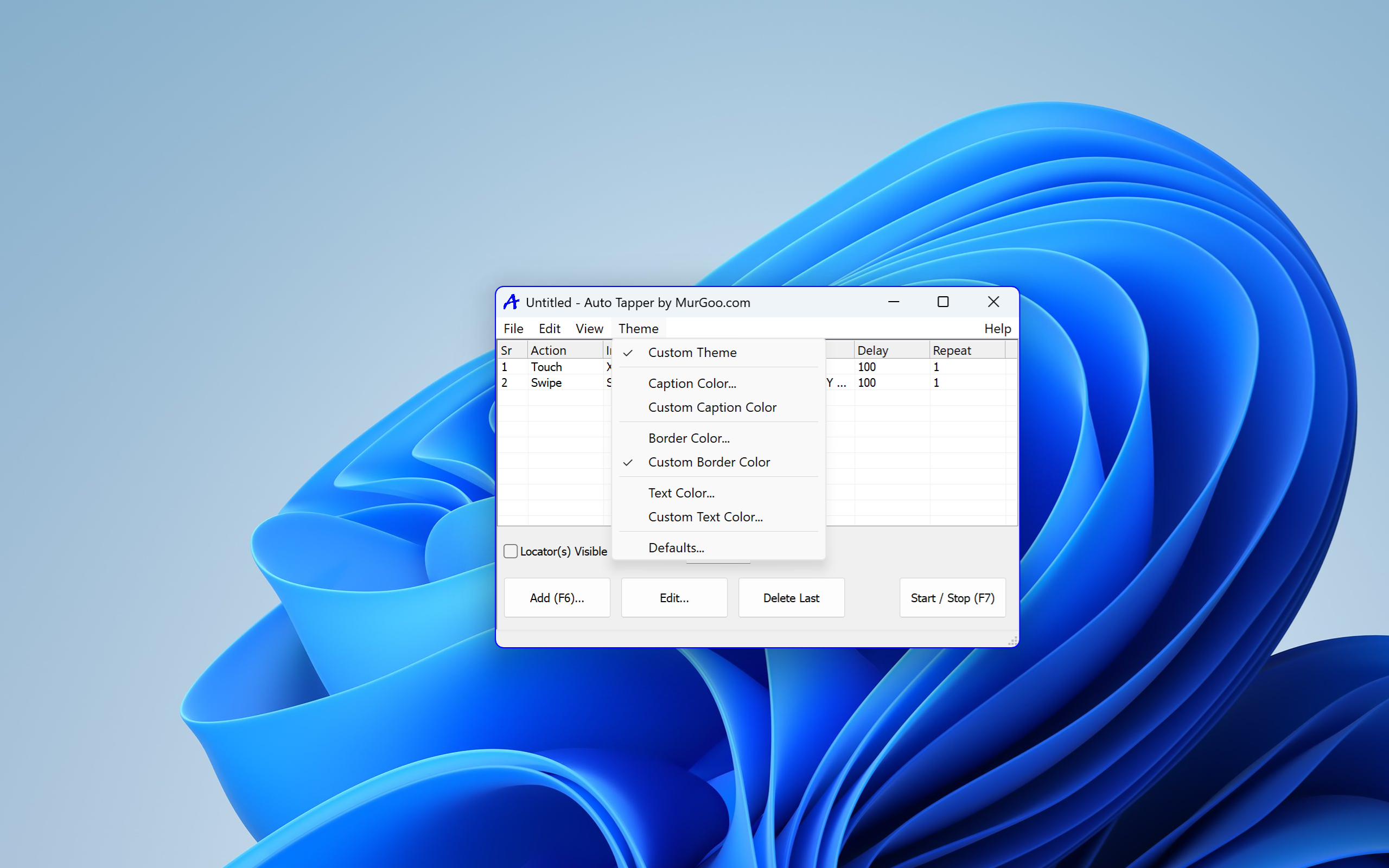
- User-Friendly Interface: Intuitive design allows users of all experience levels to quickly grasp and configure automation setups.
- Lightweight and Efficient: Minimal resource consumption ensures smooth operation without impacting system performance.
Engaging and Practical: A Handy Companion for Repetitive Tasks
Picture this: you're grinding away in a game, repeatedly clicking the same spot, or perhaps you're automating mundane data entries. Auto Tapper steps in like a trusty automate buddy, quietly working in the background while you focus on more engaging activities. Its straightforward design and clear controls make setting up automated clicks as easy as pie, even if you're not tech-savvy.
Core Functionality: Precision Tapping Made Simple
The core strength of Auto Tapper lies in its ability to simulate taps precisely where and when you want. Users can specify exact screen coordinates with pixel-level accuracy, ensuring that the taps occur exactly at the intended spots. The app supports multiple tap points simultaneously, which is particularly useful for complex automation sequences. For instance, in gaming, you can program rapid-fire taps at different locations to automate attacks or actions, saving time and effort.
Customization and Flexibility
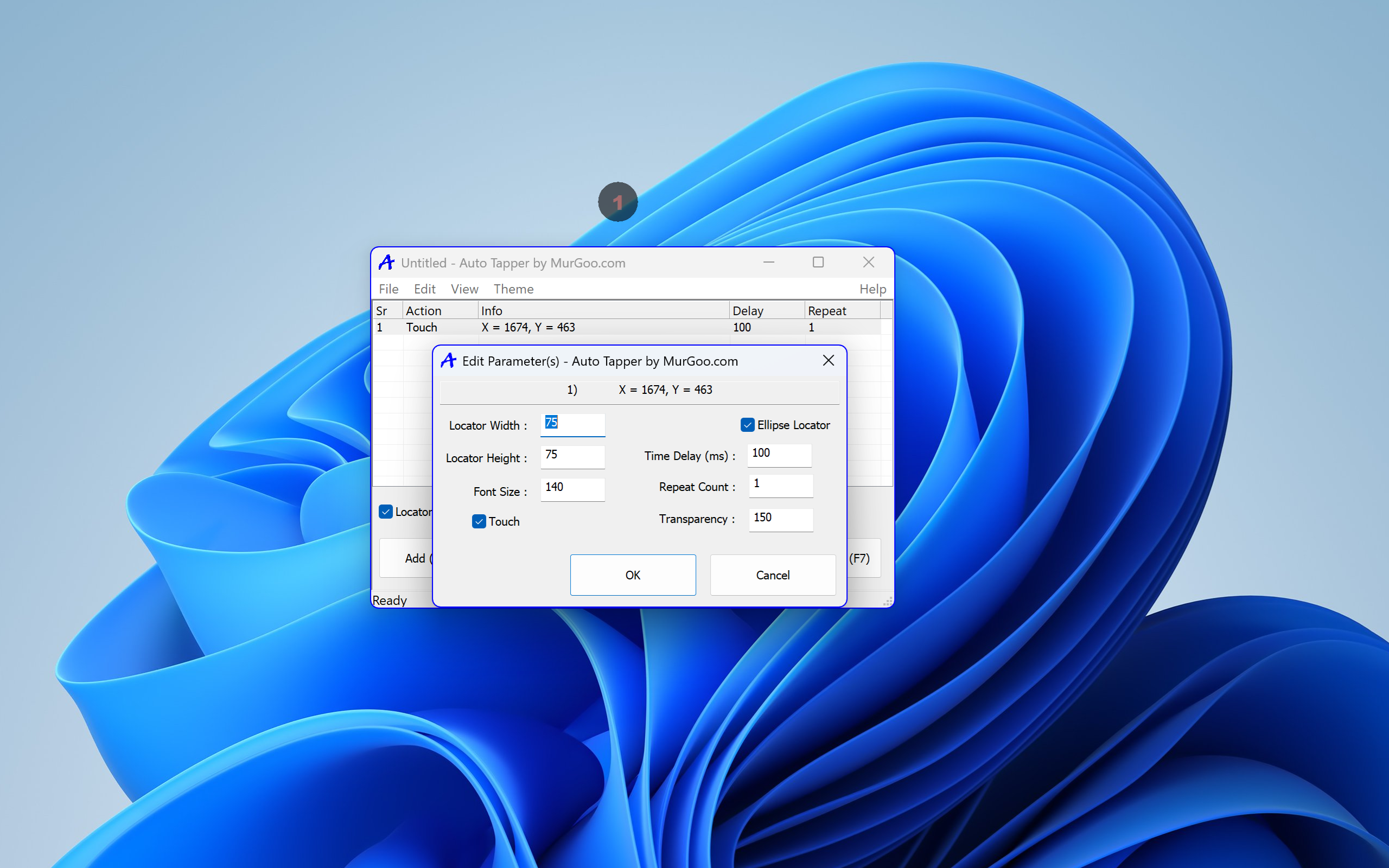
Delving into its tunable features, Auto Tapper offers highly customizable options. Users can set the number of taps, delay intervals, and even add repetitive cycles to automate prolonged tasks. This flexibility transforms the app from a basic ‘clicker' into a versatile automation tool capable of handling a variety of workflows, whether for gaming, testing, or data entry automation. The interface's design makes configuring these parameters straightforward—think of it as assembling a tailored automation choreography without any coding dance involved.
User Experience: Intuitive Design Meets Smooth Operation
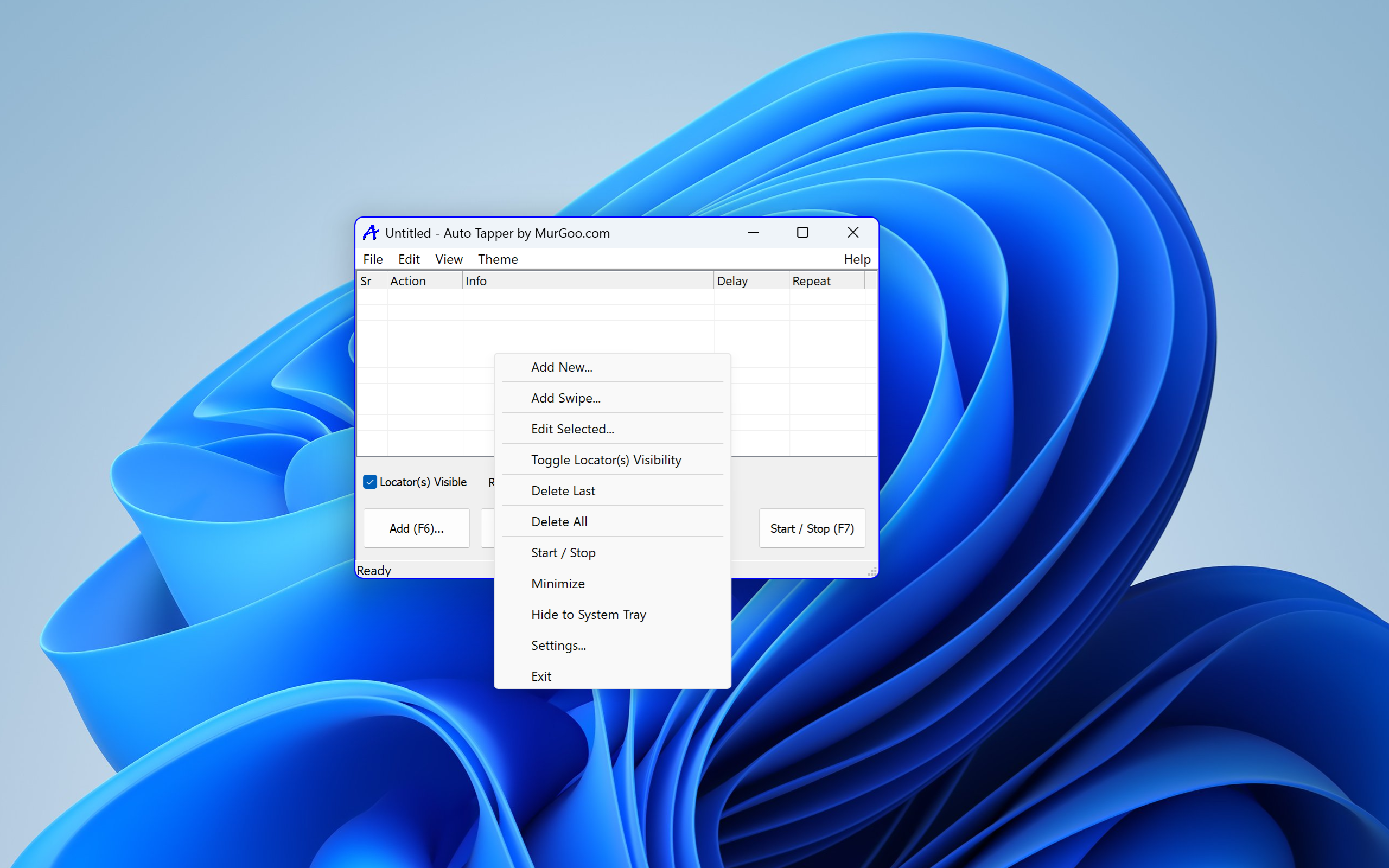
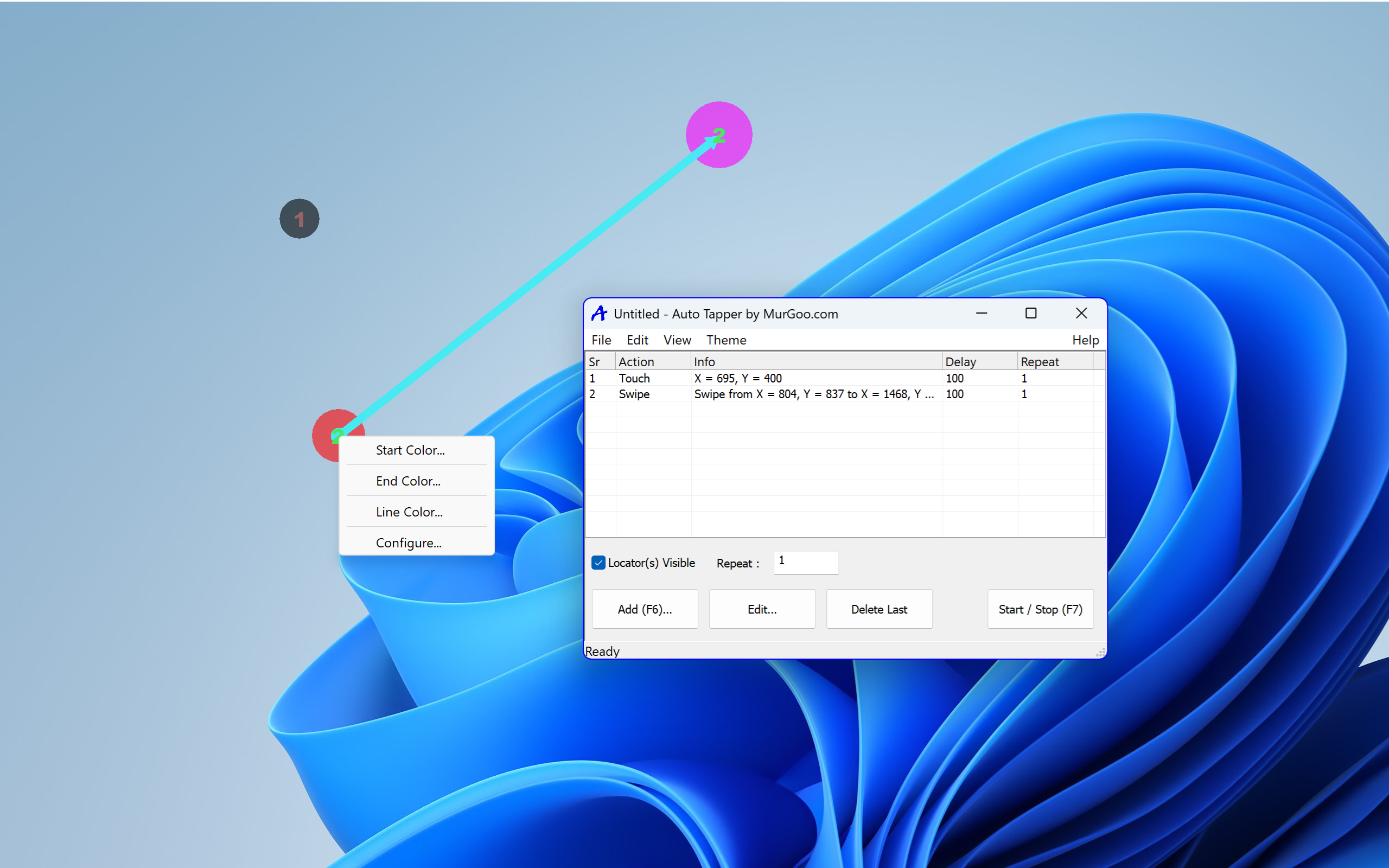
Using Auto Tapper feels like sliding into a well-fitted glove. The interface is clean, minimalistic, and designed to reduce the learning curve. Setting up a tap sequence involves selecting coordinates via simple clicks and adjusting sliders or input boxes for delays and repetitions. The app's responsiveness is commendable, with almost instant recognition of commands, leading to a seamless experience. The setup process is so intuitive that even first-time users quickly grasp how to automate their tasks without frustration or confusion.
What Sets It Apart? Unique Advantages and Differentiators
While many automation tools exist, Auto Tapper distinguishes itself with two key features:
- Dedicated Tap at Precise Screen Coordinates: Unlike generic macro tools that rely on recorded mouse movements, Auto Tapper allows pinpoint accuracy, making it ideal for applications needing precise interaction, such as specific game buttons or embedded interface elements.
- Minimal Learning Curve with Direct Controls: Its straightforward interface means users don't need to delve into scripts or complex configurations. This democratizes automation, enabling beginners and non-technical users to leverage automation confidently.
Final Verdict: A Solid, No-Frills Automation Tool
I would recommend Auto Tapper to anyone who needs quick and reliable tapping automation without the hassle of steep learning curves or resource-heavy software. It's particularly suited for gamers, testers, or professionals who want a straightforward solution for repetitive clicking tasks. While it may lack some advanced scripting features found in higher-tier automation software, its simplicity and precision make it a standout choice for rapid setup and dependable performance.
In essence, Auto Tapper is like having a digital assistant that handles the dull stuff, so you can focus on what matters most. For those seeking efficient, easy-to-use tap automation on Windows, this app is worth trying out — a good companion for daily repetitive tasks that deserves a spot on your utility toolkit.
Pros
- User-friendly interface
- High customization options
- Fast performance
- Supports multiple game types
- Lightweight application
Cons
- Limited free features
- Occasional unresponsiveness
- No Android support
- Lack of customization for tap patterns
- No built-in tutorial











