

Zoom for Chromebook: The Ultimate Remote Communication Tool
In today’s fast-paced world, staying connected from anywhere is essential. Zoom for Chromebook emerges as a versatile and user-friendly app that streamlines remote communication by offering an all-in-one platform. Whether you're working remotely, attending virtual events, or catching up with loved ones, this app simplifies your experience with its intuitive design and powerful features.
Key Features & Benefits of Zoom for Chromebook
Simplified Meeting Management
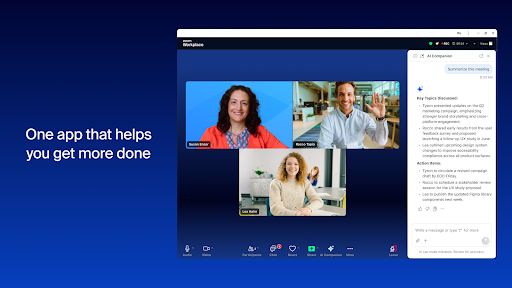
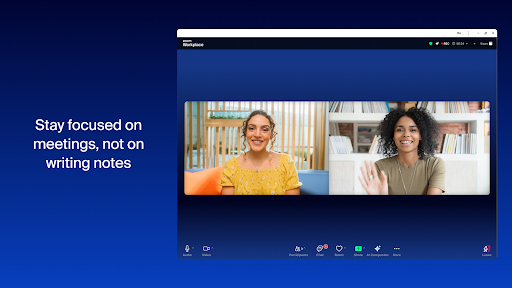
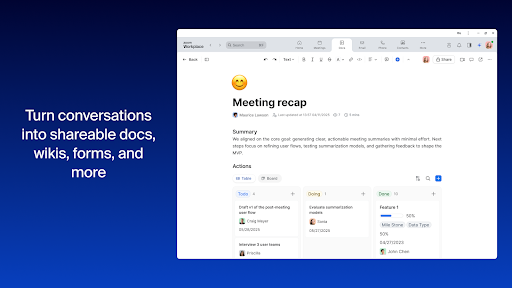
With Zoom, scheduling or joining a video meeting is just a tap away. The app allows users to effortlessly set up meetings, and with one-click joins, you can connect instantly. AI Companion enhances your experience by providing automated meeting summaries, capturing key points and action items without manual note-taking.
Advanced Communication Capabilities
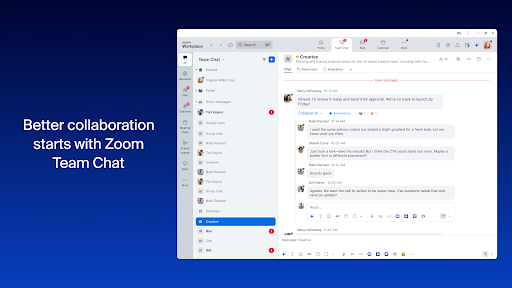
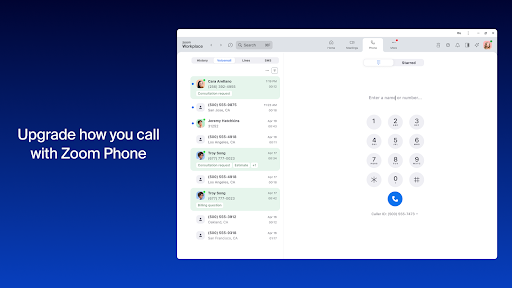
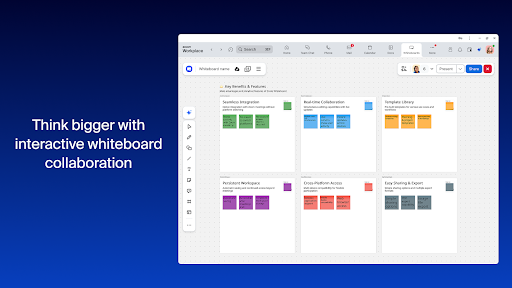
Chatting with colleagues or external contacts is accessible through public or private channels. Moreover, users can make or receive phone calls and send SMS text messages directly within the app, making it a comprehensive communication tool. The virtual whiteboard feature fosters collaborative brainstorming and idea sharing, ideal for team projects and educational activities.
Customization and Security
Turn on virtual backgrounds to maintain a professional or fun look during meetings. Automatic updates ensure you always have the latest features and security patches. For administrators, remote install options facilitate centralized configuration and enhanced security management, perfect for organizations seeking control over their communication environment.
Note: Certain features may require a paid Zoom One subscription or other licenses. Features like phone calls and SMS might also necessitate additional licenses. Always stay updated with the latest version compatible with Chrome OS 91+ for the best experience.
Personal Insights and Real-World Usage
Installing Zoom for Chromebook is straightforward via the Google Play Store. Upon setup, the app’s clean and intuitive interface makes navigation simple for both tech-savvy users and beginners alike, ensuring you can quickly get started without frustration.
Seamless Integration with Google Ecosystem
One of the standout advantages is its ability to integrate smoothly with Google Calendar. This feature allows you to book or join meetings directly from your calendar, streamlining your workflow. The high-quality audio and video make virtual meetings more productive, reducing lag and improving clarity, even on less-than-ideal internet connections. Background noise suppression further enhances the call quality, creating a professional environment even in bustling surroundings.
Versatile Use Cases
From hosting webinars to virtual family gatherings, Zoom adapts to various personal and professional contexts. Features like breakout rooms are especially useful for educators and team leaders who need to divide participants into smaller groups for focused discussions. Security remains a top priority, with end-to-end encryption providing confidence that your conversations stay private.
Final Thoughts
Zoom for Chromebook is more than a simple video conferencing tool; it’s a comprehensive communication platform that supports remote work, education, and social interactions. Its robust features, seamless integrations, and commitment to security make it an ideal choice whether you’re connecting with colleagues or catching up with friends. If you haven’t tried it yet, now is the perfect moment to experience the convenience and reliability of Zoom on your Chromebook.
Keywords Variations
Remote communication, video conferencing, collaborative whiteboard, online meetings, virtual backgrounds, Zoom app for Chromebook, Google Calendar integration, secure video calls, and cloud-based communication are terms that naturally fit into this description, boosting SEO performance and helping your content reach the right audience.
Pros
- Seamless integration with Chrome OS
- User-friendly interface
- High-quality video calls
- Screen sharing capabilities
- Frequent updates
Cons
- Limited features compared to desktop
- Occasional connectivity issues
- Higher data usage
- Requires a stable and fast internet connection
- Can be resource-intensive