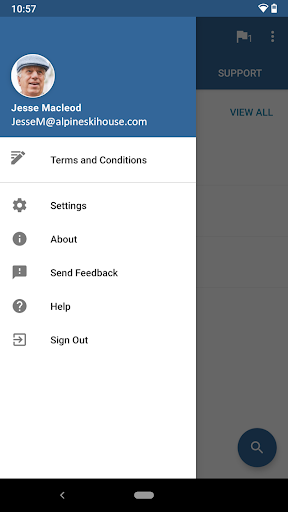
Introduction to the Intune Company Portal
The Intune Company Portal is a vital application designed to provide employees with seamless access to their company's apps and resources from virtually any network. By integrating with Microsoft Intune, this app ensures that users can securely connect to corporate tools and data, enhancing productivity while maintaining security standards. To get started with the Company Portal, your organization must already subscribe to Microsoft Intune, and your IT administrator needs to set up your account beforehand.
Core Features of the Company Portal App
Enroll in Corporate Resources
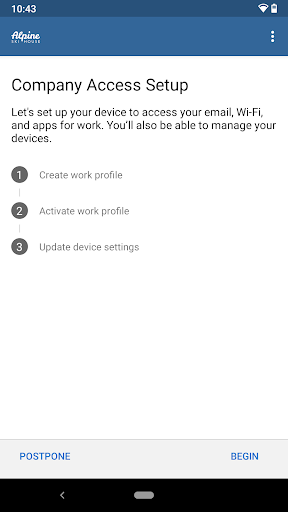
One of the primary functionalities of the Company Portal is enabling users to enroll their devices to access company resources securely. This enrollment process is essential for establishing a trusted connection between your device and your organization’s management system.
Browse and Install Company Apps
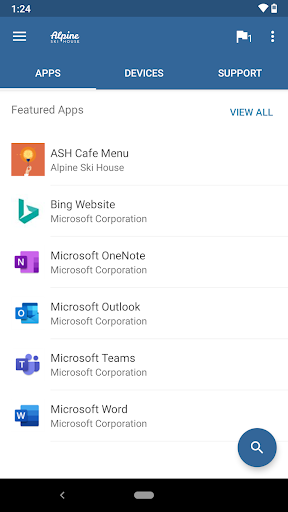
Once enrolled, users can easily browse through available corporate applications and select those they need. The app facilitates straightforward installation, ensuring employees can quickly acquire essential tools directly from the portal.
Manage Enrolled Devices
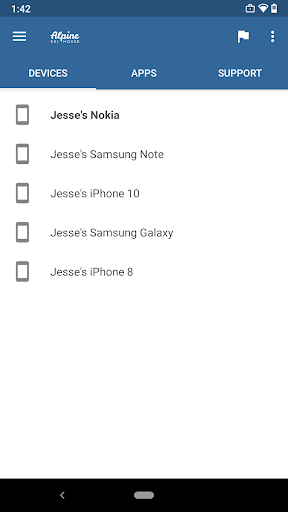
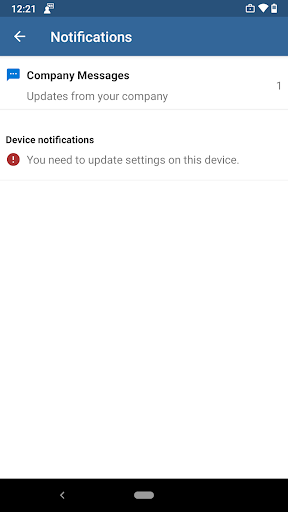
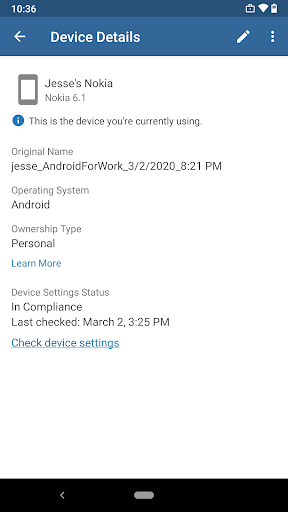
The portal provides a comprehensive view of all your enrolled devices. You can monitor device status, manage multiple devices, and perform actions such as remotely wiping or uninstalling apps to maintain security compliance.
Access IT Resources and Support
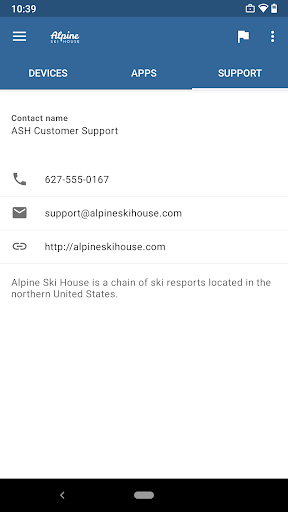
While certain contact information provided within the app may be accessible, it's vital to note that customer support details are generally managed by your IT department. The app also allows users to change their work account passwords, which contributes to maintaining account security and integrity.
Security and Device Management
The Company Portal app is equipped to help users unenroll devices and perform remote wipes. These features are essential in situations such as device loss, theft, or when you leave the organization, ensuring sensitive corporate data remains protected.
Important Considerations and Limitations
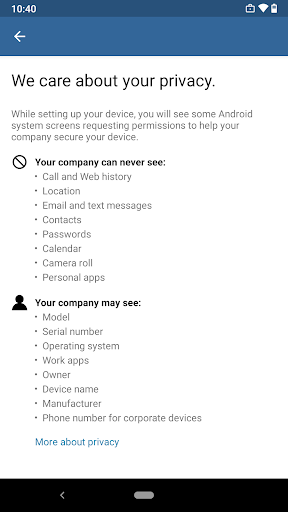
To utilize the Company Portal effectively, you are required to use your work account to enroll in Intune. Be aware that some features may be limited or unavailable, depending on the country or regional restrictions. If you encounter issues or have questions about the app’s usage or your company's privacy policy, it’s recommended that you contact your IT administrator. Users should avoid reaching out directly to Microsoft, network providers, or device manufacturers regarding support for this app.
For detailed guidance on enrolling or unenrolling your device, Microsoft provides official documentation which should be followed carefully to ensure proper device management. To unenroll your device from Intune before uninstalling the app, please refer to the official instructions at this link.
How to Uninstall the Company Portal App
Before you can uninstall the Company Portal application from your device, it’s crucial to unenroll your device from Intune. This process ensures that your device no longer communicates with your organization’s management system and that corporate data is properly secured.
Follow these steps:
- First, follow the instructions to unenroll your device from Intune.
- After successful unenrollment, uninstall the Company Portal like any other app on your device.
Pros
- User-friendly interface that simplifies navigation
- Enhanced speed and performance for smooth operation
- Wide range of features catering to various needs
- Reliable connectivity and consistent service quality
- Regular updates improve functionality and security
Cons
- High cost may be a barrier for some users
- Limited customization options compared to competitors
- Occasional technical glitches can disrupt experience
- Requires frequent updates that can be intrusive
- Battery consumption is relatively high during usage