Transform Your TV Viewing Experience with Cast Phone to TV, Chromecast
Are you tired of watching your favorite movies, photos, or presentations on a tiny phone screen? With the Cast Phone to TV, Chromecast app, you can easily cast and mirror your mobile content onto any big-screen television. This powerful screen mirroring solution supports a wide range of devices, media formats, and streaming options, making it the ultimate tool for transforming your entertainment experience at home or in the office.
Seamless Screen Mirroring and Casting Features
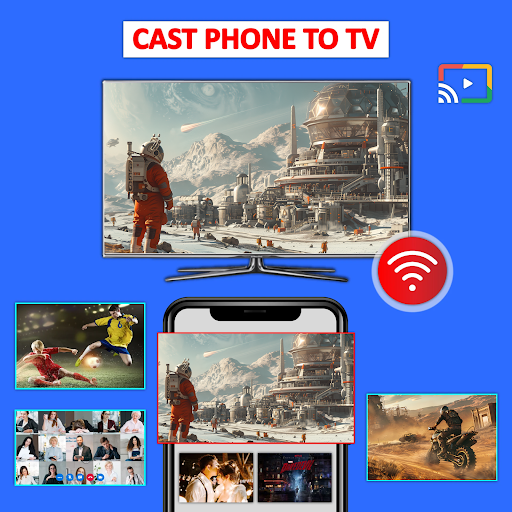
The core advantage of the Cast Phone to TV, Chromecast app lies in its ability to effortlessly mirror your phone or tablet screen in real-time. Whether you want to stream movies, showcase photos, share PDFs, or present slideshows, the app enables quick and reliable screen sharing over Wi-Fi or internet connections. With its faster screen casting technology, users can enjoy smooth, high-quality streaming without noticeable lag or buffering.
Support for Multiple Media Types and Devices
One of the most impressive features of this app is its extensive media support and device compatibility. You can cast:
- Videos, movies, and TV shows from popular platforms like YouTube, Vimeo, Dailymotion, Twitch, and more.
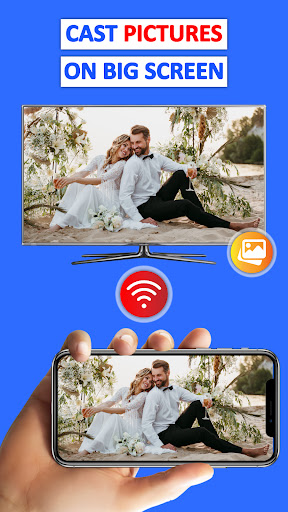
- Photos and videos from your gallery or camera roll.
- Audio files, e-books, PDFs, and documents.
- Live streams such as video calls and sports events.
- Smart TVs from Samsung, LG, Panasonic, Hisense, Philips, Hitachi, Grundig, and TCL.
- Streaming devices like Fire TV, Amazon Fire Stick, ROKU TV, Roku Stick, Anycast, and Google Chromecast.
- DLNA receivers and wireless adapters, making it versatile for virtually any hardware setup.
Ideal for Various Uses
Whether you are relaxing with family, hosting a meeting, or gaming, Cast Phone to TV, Chromecast offers a seamless experience. You can:
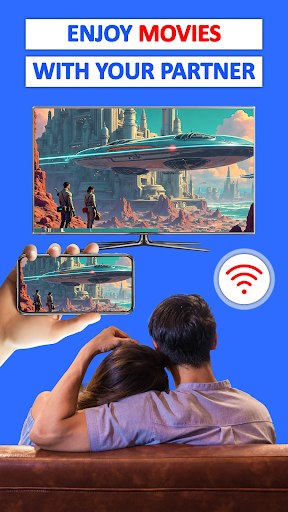
- Enjoy movies, TV shows, or sports with friends and family.
- Play mobile games on your big TV screen for better immersion.
- Showcase memorable photos or videos during gatherings or celebrations.
- Attend virtual meetings or presentations by casting your screen instantly.
Easy Setup and User-Friendly Interface
Getting started with Cast Phone to TV, Chromecast is straightforward. Ensure your smart TV or streaming device is connected to the same Wi-Fi network as your phone. Then, simply open the app— it automatically scans for available devices nearby. Once detected, select your device, and you are good to go! The intuitive interface allows even non-tech-savvy users to connect and cast effortlessly.
How to Use
- Confirm your TV or streaming device supports wireless display.
- Connect both your phone and the device to the same Wi-Fi network.
- Open the Cast Phone to TV, Chromecast app.
- Scan and select the device you wish to cast.
- Choose the media or screen you want to mirror, and enjoy!
Enhanced Viewing with High-Quality Streaming
The app guarantees a high-definition experience with minimal latency, making it perfect for streaming movies or live sports. The HD quality streaming ensures your videos and images look crisp and vibrant on the big screen, maintaining aspect ratios for a true-to-life display. Whether you’re binge-watching your favorite series or sharing holiday videos, the app preserves original quality without distortions.
Perfect for Business and Education
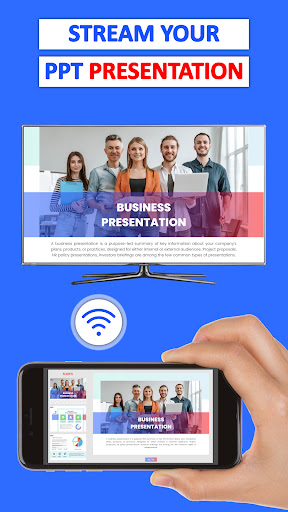
Not just for entertainment, Cast Phone to TV, Chromecast is an excellent tool for professional settings. During meetings, you can instantly share presentations, PDFs, or demonstrations directly from your phone to a conference room TV or projector. Its capability to cast websites, browser tabs, or live feeds makes it a practical solution for real-time sharing and collaboration.
Conclusion
If you’re seeking a reliable, versatile, and user-friendly way to cast and mirror your mobile device screen on a larger display, Cast Phone to TV, Chromecast is the perfect solution. It supports a broad range of devices and media types, ensuring you can enjoy movies, photos, games, or work presentations on a big-screen TV with ease. No complicated setups or slow connections—just instant, seamless streaming that transforms your viewing and sharing experiences. Give it a try, and turn your living room or office into a private theatre or an interactive workspace today!
Pros
- Seamless phone to TV casting
- Supports multiple file formats
- User-friendly interface
- High-quality video streaming
- Quick and easy setup
Cons
- Requires a stable Wi-Fi connection
- Limited features in the free version
- May experience lag on older devices
- Occasional connectivity problems
- Advertisements present in the free version