- Name No Frills Checkbook
- Category Personal Finance
- Developer Samsop Software
- Available on PC, Surface Hub, HoloLens
- OS Windows 10 version 14393.0 or higher
- Keyboard Integrated Keyboard
- Mouse Integrated Mouse
- languages English (United States)
Simple and Effective Budgeting for Windows: No Frills Checkbook
If you're looking for a straightforward way to keep your finances in check without fuss, No Frills Checkbook for Windows offers a clean, no-nonsense approach. It's like having a trusty, no-pretense financial sidekick that focuses on core functionalities, perfect for users who want clarity over complexity.
About the Developer and Audience
Developed and published by Samsop Software, No Frills Checkbook is designed to bring easy-to-use personal finance management directly to your Windows device. Samsop Software is known for creating lightweight, user-centric applications aimed at simplifying everyday tasks. This app's primary target audience includes individuals who prefer minimalistic tools for tracking expenses, managing budgets, and ensuring financial discipline without the clutter of overly complicated features.
Core Features That Keep Your Finances in Line
1. Seamless Expense and Income Tracking
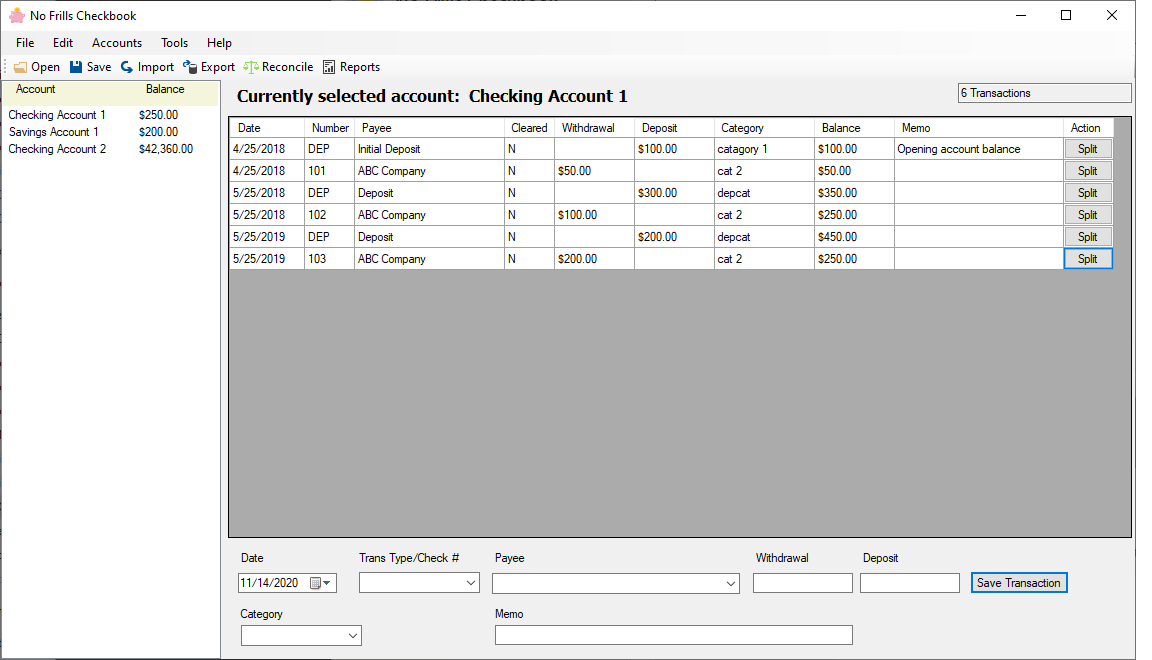
The main highlight of No Frills Checkbook is its straightforward transaction logging. Users can effortlessly record income and expenses with a few clicks, making it feel as natural as jotting down notes in a paper ledger. The app supports multiple accounts, allowing you to separate personal and business funds easily, and provides quick entry options that save time during busy days. The clarity of transaction history helps users visualize spending patterns without the overwhelm of detailed analytics.
2. Simple Budget Management
Instead of complex forecasting tools, this app offers a basic yet effective budgeting feature. You can set spending limits per category, such as groceries, entertainment, or utilities, and monitor your progress through clear, real-time indicators. This functionality acts like a digital envelope system, helping you stay within your means in a way that feels natural and non-intimidating. The emphasis remains on usability rather than excessive customization, making it accessible for beginners or those who prefer minimal fuss.
3. Reliable Account Balances and Reports
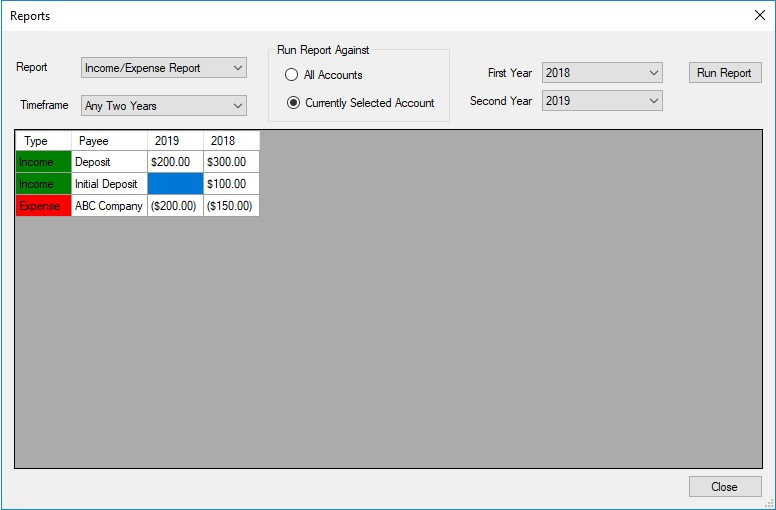
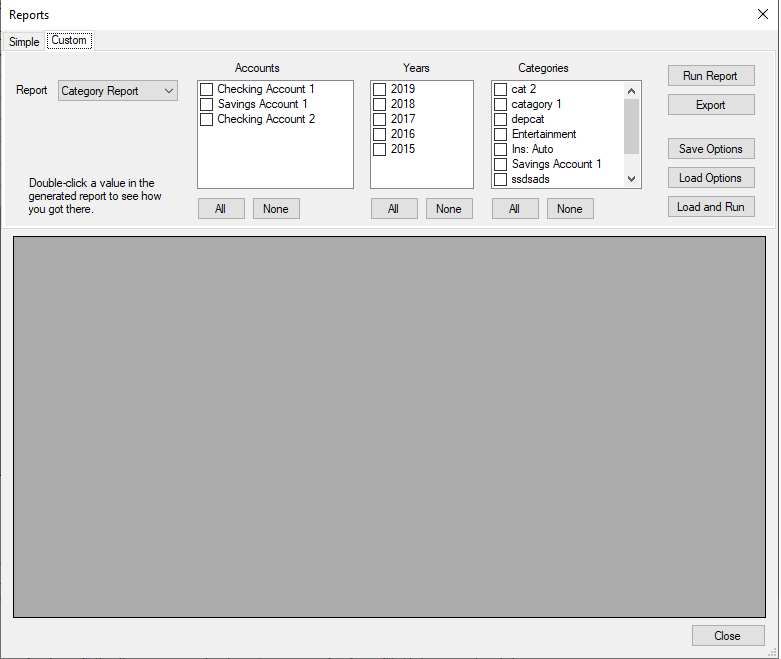
Another strong point is the straightforward account balance overview and transaction reports. Browse through your recent activity with a glance, and get a sense of your overall financial health without having to sift through complicated charts. The app's interface presents data in easy-to-understand formats, making it suitable for those who want quick insights rather than detailed financial analysis.
User Experience: Friendly, Intuitive, and Uncluttered
The interface design of No Frills Checkbook is crisp and organized, resembling a modern, digital version of a classic ledger. Navigation is intuitive—think of it as flipping through neatly arranged pages of a notebook—where every function is accessible within a few taps or clicks. The app runs smoothly on Windows, with no noticeable lag, and setting up your accounts and categories is a breeze, requiring minimal learning curve. It's like assembling a personal toolkit where everything you need is right at your fingertips, making financial management less of a chore.
Distinctive Advantages Over Similar Apps
What makes No Frills Checkbook stand out among other personal finance tools is its laser focus on essential functions and its minimalist design philosophy. Unlike many apps that bombard users with features like investment tracking or debt planning, this application chooses simplicity—allowing you to focus solely on your day-to-day finances. Additionally, its lightweight structure means it won't bog down your system, and its straightforward approach ensures that no feature feels bloated or unnecessary. For users seeking clarity without cognitive overload, No Frills Checkbook offers a refreshing, no-nonsense alternative.
Final Verdict and Usage Recommendations
I would confidently recommend No Frills Checkbook to anyone seeking an easy, reliable tool for managing personal finances on Windows. It's particularly suitable for students, freelancers, or anyone who prefers a straightforward app that keeps things simple and transparent. If you're tired of overly complicated finance apps and need something that gets the job done without fuss, this app is worth trying out. While it may lack advanced features like investment tracking or goal setting, its core strengths make financial management less overwhelming and more approachable.
Pros
- User-friendly interface
- Easy ledger management
- Built-in budget tracking
- Regular updates and support
- Syncs across devices
Cons
- Limited customization options
- No export to PDF or Excel
- Occasional syncing delays
- Limited reporting features
- Lack of automatic backups