Overview of the TV (Samsung) Remote Control App
The TV (Samsung) Remote Control app is a versatile and convenient solution that transforms your smartphone into a fully functional remote for your Samsung TV. Whether you’ve misplaced your original remote or simply want a more streamlined way to operate your TV, this app has got you covered. Designed with user-friendliness in mind, it supports multiple control methods—including network and infrared (IR)—making it a must-have tool for Samsung TV owners seeking easy and flexible control options.
Key Features of the Samsung TV Remote Control App
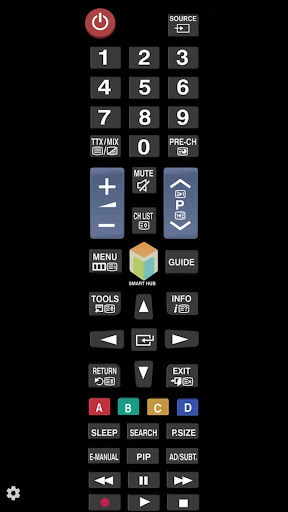
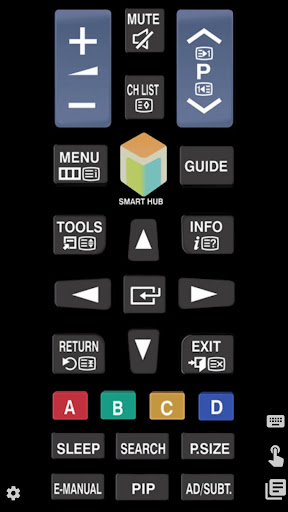
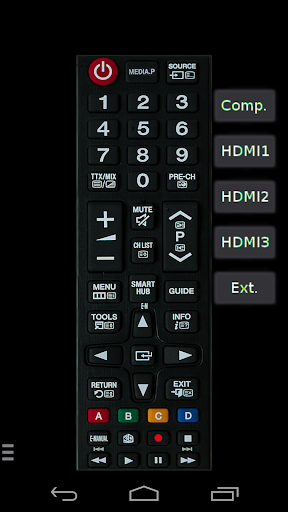
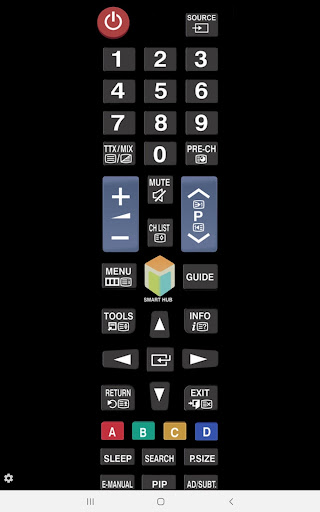
This app offers a range of features that significantly enhance your TV watching experience. The primary capabilities include network control over WiFi and LAN connections and IR control for compatible devices. It mimics the essential functions of a traditional remote, providing buttons for power, volume, channels, and a touchpad for quick navigation. A standout feature is the integrated keyboard functionality, allowing seamless text input—for example, when searching for content or entering login credentials—directly from your smartphone’s keyboard. Additionally, support for voice commands makes it even easier to control your TV hands-free, adding a layer of smart convenience.
Controlling Your Samsung TV via Network (WiFi / LAN)
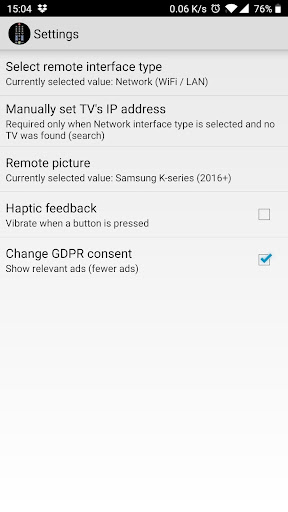
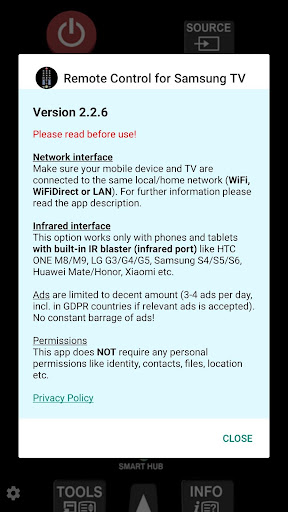
Connectivity via IP control enables you to connect your device over your home network. The app supports WiFi, WiFi Direct, and LAN connections—available for Samsung models from 2016 onward, including series C, D, E, F, K, and M, but not H or F models. To set up network control:
- Ensure your TV is turned On.
- Connect both your smartphone and Samsung TV to the same home network.
- If your router has a privacy separator function, disable it to enable device discovery.
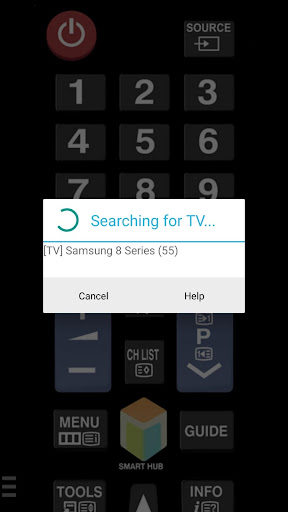
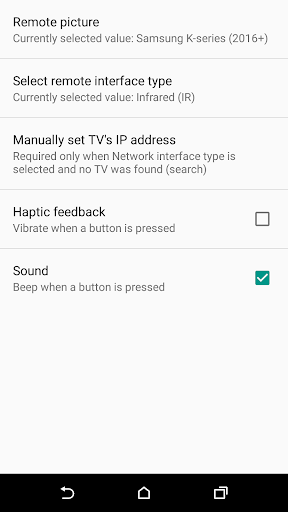
- Optionally, manually enter your TV’s IP address by navigating to [Menu] → [Settings] → [Network] → [Network Status] on your TV.
Infrared (IR) Control for Compatible Devices
The app also supports IR control on Android devices equipped with built-in IR blasters, such as many Samsung Galaxy, HTC, LG, Xiaomi, and Huawei models. This feature is particularly useful if your TV is older or if network control isn’t feasible. To use IR control:
- Point your phone’s IR blaster directly at the Samsung TV.
- Maintain a clear line of sight within a typical range of 4-10 feet (approximately 1-3 meters).
- Note that power saving modes or low battery levels may limit IR performance.
Setup Tips and Troubleshooting
To get the most out of the Samsung TV Remote Control app, ensure:
- Your TV is compatible and turned on.
- Both your smartphone and TV are on the same Wi-Fi network.
- Your router settings do not restrict device discovery or communication.
- If the app cannot detect your TV, try entering the IP address manually from your TV’s network settings.
Disclaimer and Support
This app is developed independently and is not affiliated with or endorsed by Samsung Group. Samsung is a registered trademark of Samsung Group. The software is offered “as is” without warranties, and the author declines liability for any damages resulting from its use. If the app doesn’t work with your specific device or model, user feedback via email can help improve support for newer or less common Samsung TV and Android device configurations.
Final Thoughts
The TV (Samsung) Remote Control app provides a reliable, feature-rich, and user-friendly way to control your Samsung TV. Its support for network and IR control, combined with intuitive design, makes it an excellent alternative or supplement to your original remote. Whether you want quick access to volume controls, seamless typing, or hands-free voice commands, this app simplifies your TV management. If you’re tired of misplacing your remote or seeking to streamline your entertainment setup, give this app a try and enjoy the convenience of remote control right from your smartphone.
Pros
- Easy to set up and operate with a user-friendly interface
- Compatible with the majority of Samsung TV models
- Provides quick response times for commands
- Supports voice control for added convenience
- No extra hardware is necessary
Cons
- Limited to Samsung TVs only
- Advertisements may be disruptive during use
- Some functionalities require a premium upgrade
- Limited options for customization
- Occasional connection problems