Delete Apps - Easy Uninstall
Delete Apps - Easy Uninstall is a powerful tool designed for Android devices that allows users to remove unwanted applications with just a few taps. Its primary goal is to help clean up storage space and free up valuable device memory efficiently. Whether you're looking to declutter your device or optimize its performance, this app offers a straightforward solution to manage your installed applications seamlessly. The app is compatible with all devices, featuring a new uninstaller pro version that enhances usability and functionality.
Features of Delete Apps - Easy Uninstall
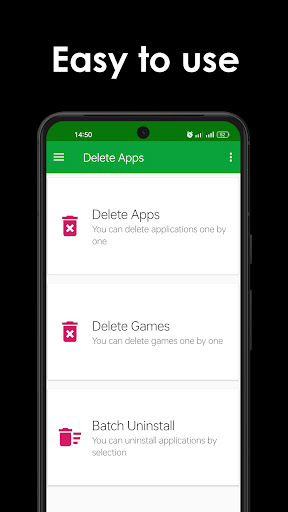
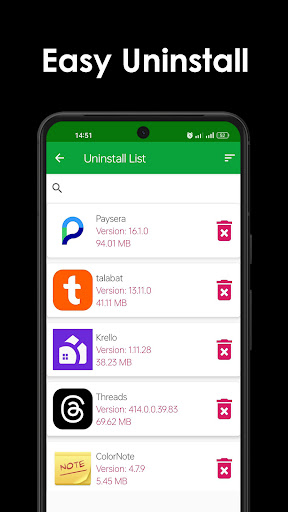
One of the standout features of Delete Apps - Easy Uninstall is its ability to list all installed applications on your Android device. It supports two uninstall modes:
- Single uninstall: Easily remove individual apps one at a time.
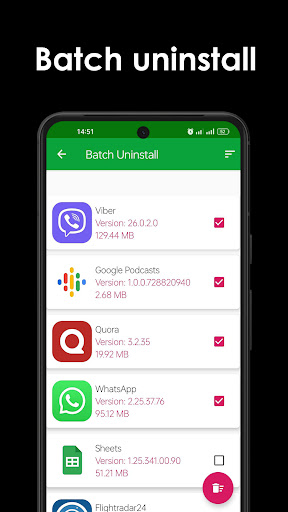
- Batch uninstall: Select multiple applications and uninstall them simultaneously, saving time and effort.
Additionally, the app includes a convenient search function, allowing users to quickly find specific apps by typing relevant keywords. Sorting options are also available, enabling users to organize their applications in various ways for easier management.
Description of Delete Apps - Easy Uninstall
Delete Apps - Easy Uninstall is designed to make the process of removing applications from your Android phone as simple as possible. With a user-friendly interface, users can select multiple apps they'd like to delete and simply tap the "Delete" button to uninstall them. The app supports searching and sorting functionalities, which help in locating and organizing applications effectively.
Please note that Delete Apps cannot uninstall pre-loaded or pre-installed system apps due to Android's system restrictions. For users seeking to remove such apps, rooting their device might be necessary, and searching for "root uninstall" tutorials online can provide further guidance.
Frequently Asked Questions (FAQ) about Delete Apps - Easy Uninstall
How to remove apps on Android?
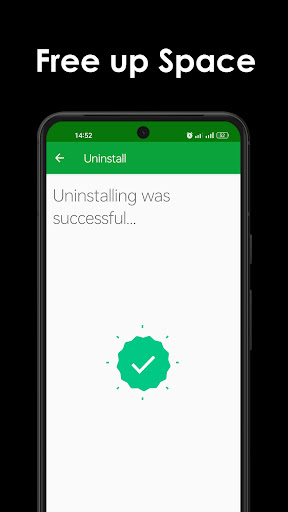
To uninstall applications, simply check the apps you wish to remove and tap the uninstall button. The process is quick and straightforward, making app management hassle-free.
Why can't it list pre-loaded apps?
Pre-loaded or pre-installed system applications cannot be uninstalled through this tool because of system limitations. If you want to remove such apps, rooting your device might be required; you can search for "root uninstall" on Google or app marketplaces for additional tools and guides.
Pros
- Offers an intuitive and user-friendly interface suitable for beginners.
- Provides a wide range of features to support various needs.
- Regular updates ensure improved performance and added functionalities.
- Excellent customer support enhances user experience.
- Integration with multiple platforms increases versatility.
Cons
- Some advanced features require a premium subscription.
- Occasional bugs may disrupt workflow until resolved.
- High resource consumption can affect device performance.
- Learning curve may be steep for complete novices.
- Limited customization options in certain areas.