Castly - Roku, Chromecast, DLNA: Features and Troubleshooting
Cast to TV
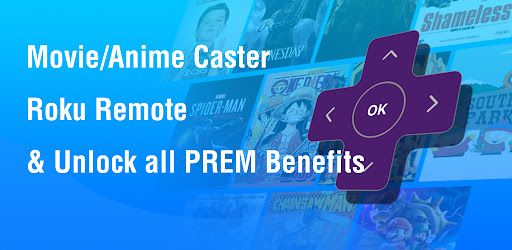
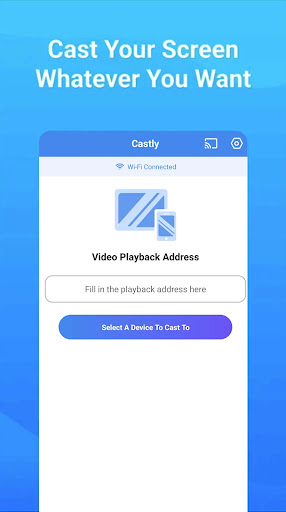
Cast video, photo, and music from your phone to a smart TV, Chromecast, or Roku device. This feature makes it easy to view memories and media on the big screen with minimal setup and fuss.
Cast online content
Cast web videos or IPTV found on websites to your TV, expanding viewing options beyond stored media. The app opens streaming pages and sends the content to your display, enriching your home entertainment setup.
Troubleshooting
Ensure your Wi‑Fi connection is stable and on the same network as your casting device. Streaming online movies to TV benefits from a robust internet connection. Most connection problems can be resolved by restarting either the casting receiver or your phone.
Castly - Roku, Chromecast, DLNA: Review and Highlights
Seamless Streaming Experience
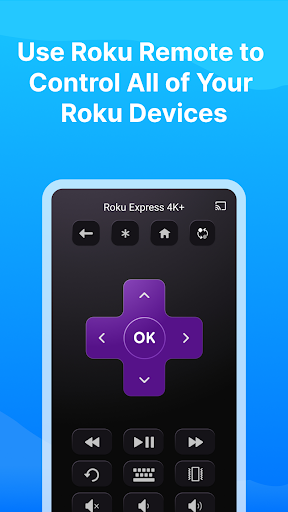
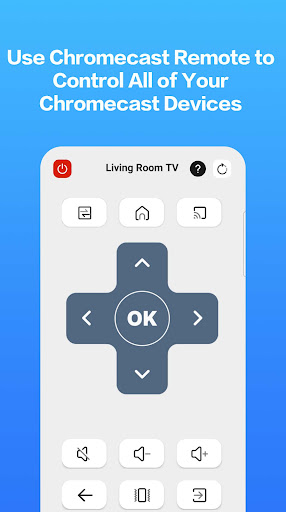
The app shines with how effortlessly it connects to various streaming devices. Whether you’re using a Roku, Chromecast, or any DLNA‑compatible device, Castly’s interface remains intuitive and easy to navigate. You don’t need to be a tech guru to get your favorite shows and movies up on the big screen.
Compatibility Galore
One of Castly’s standout features is its broad compatibility. Tested across multiple devices, it works smoothly with Roku TVs, Chromecast dongles, and DLNA‑enabled smart TVs. This versatility means you’re not tied to a single streaming device, which is a big plus for flexible setups. Setting up the app is a breeze—download, sync with your preferred device, and you’re ready to go. The app supports a wide range of media formats, so you can cast videos, photos, or music without any hassle.
User-Friendly Interface
The design is sleek and user-friendly, making it easy to access your media library. You can browse your files with ease, and Castly even includes a built‑in browser for streaming content from the web directly to your TV. The app provides a stable connection with minimal lag, ensuring a smooth and enjoyable streaming experience.
Customization and Control
Castly puts playback controls directly in your hand—pause, play, or skip without fumbling for the remote. You can adjust video quality to optimize the experience based on your internet connection, and subtitle support along with audio track selection lets you tailor the viewing experience to your preferences.
Conclusion
If you’re seeking a reliable, versatile, and user-friendly solution to stream content from your mobile device to your TV, Castly - Roku, Chromecast, DLNA is worth a look. It ticks the boxes for ease of use, broad compatibility, and thoughtful customization, making it a solid addition to any streaming setup for cord-cutters and multimedia lovers alike.
Pros
- Allows seamless streaming to multiple devices.
- Supports a broad range of media formats.
- Intuitive user interface for easy navigation.
- Fast setup with minimal configuration.
- Reliable connection with minimal buffering.
Cons
- Free version has limited features.
- Occasional connection drops.
- Advertisements can be intrusive at times.
- Requires a stable internet connection.
- Some premium features are costly.