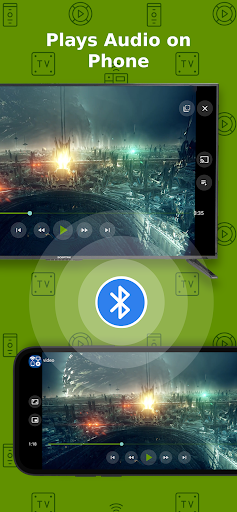
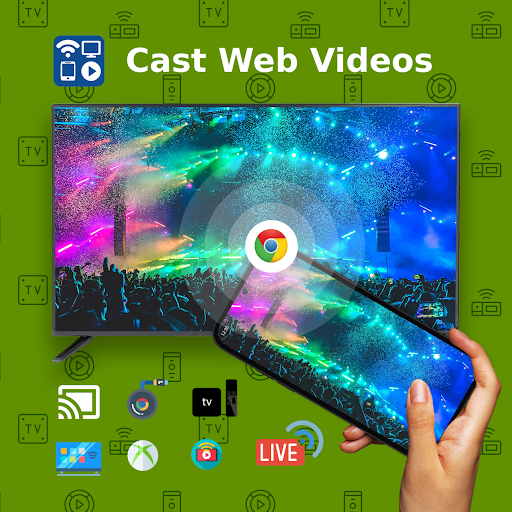
Introducing the Cast to TV+ Chromecast Roku TV App
After a long day, settling down to enjoy your favorite shows or movies should be effortless. However, many users face the frustrating experience of trying to transfer content from their smartphones to their TVs, often encountering difficulties or delays. The Cast to TV+ Chromecast Roku TV app is here to change that. Designed to simplify and enhance your streaming experience, this versatile application seamlessly connects your mobile device to a wide range of streaming devices and smart TVs, making casting and streaming more intuitive than ever before.
Seamless Connectivity with Multiple Devices
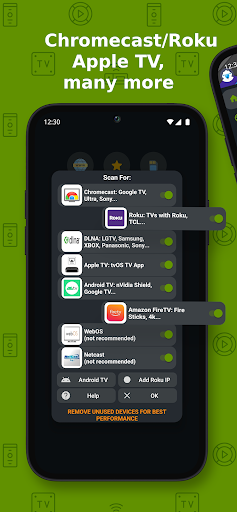
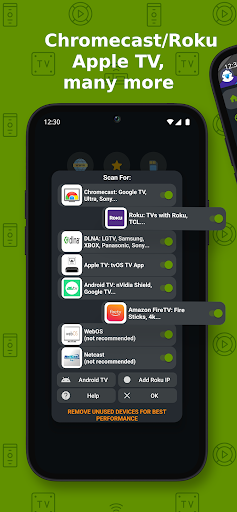
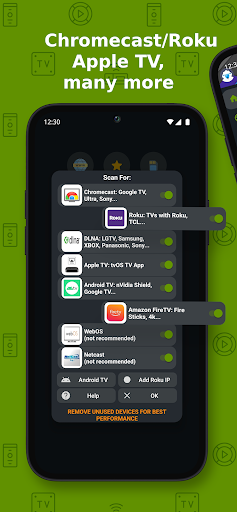
One of the key advantages of Cast to TV+ Chromecast Roku TV is its impressive compatibility with various streaming hardware. Whether you're using the popular Chromecast 1, 2, or Ultra HD 4K, or a Roku Premiere, Express, Streaming Stick, or Roku TV, this app has got you covered. It also supports Fire TV or Fire Stick, as well as DLNA receivers like Xbox One, Xbox 360, and a host of smart TVs from brands including LG, TCL, Phillips, Sony Bravia, Samsung, Sharp, and Panasonic. This broad device support ensures you can enjoy the app regardless of your setup.
Versatile Content Casting Capabilities
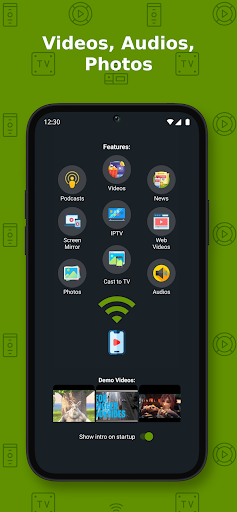
With Cast to TV+ Chromecast Roku TV, casting your favorite content is straightforward and versatile. The app allows you to:
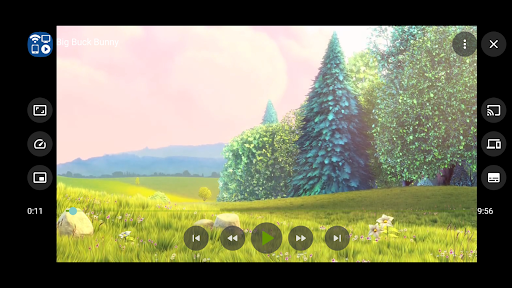
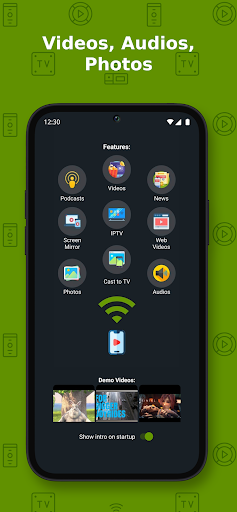
• Cast videos, music, photos directly from your phone or tablet
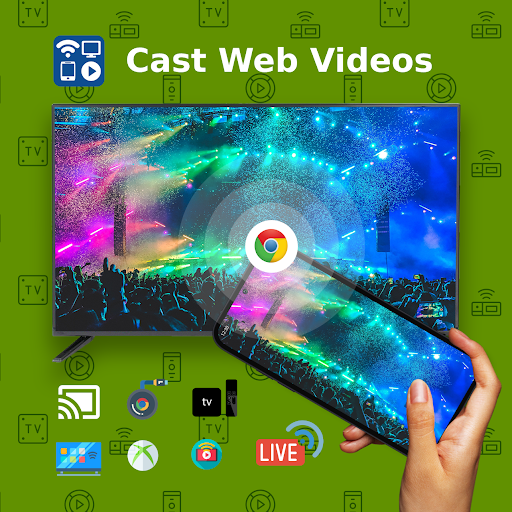
• Send web videos found online or through embedded browser
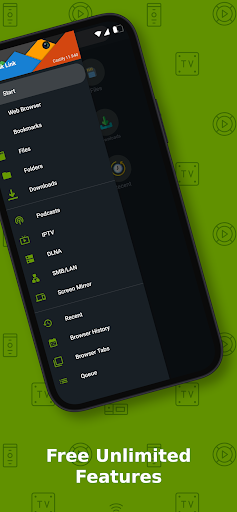
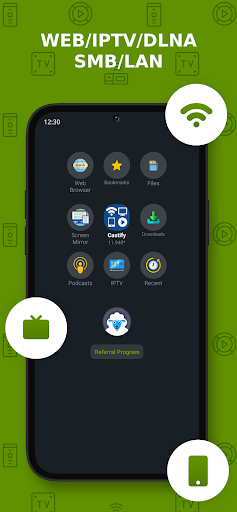
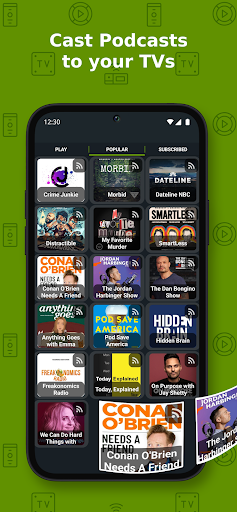
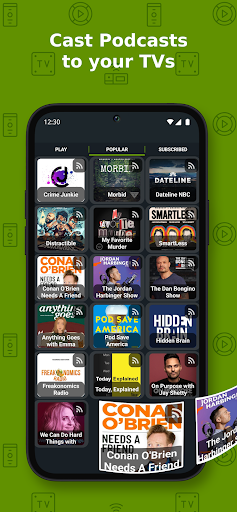
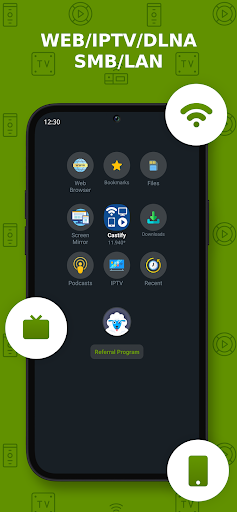
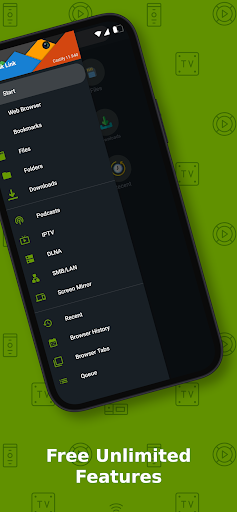
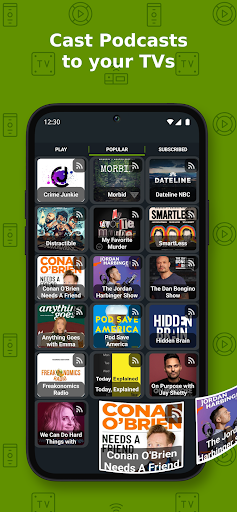
• Stream from IPTV, podcasts, or DLNA servers
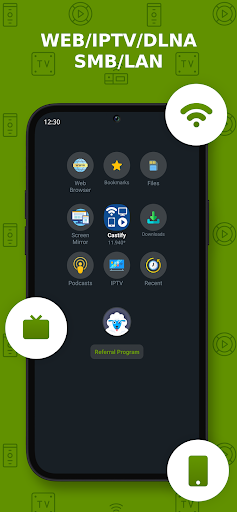
• Use WebDAV, SMB, Samba, NAS, LAN sources for local network streaming
It supports a wide variety of formats including MP4, MKV, MP3, JPG, PNG, HTML5 videos, HLS live streaming, and IPTV m3u files or URLs, ensuring that most media files are compatible.
Powerful Features to Elevate Your Streaming Experience
The Castify app offers an array of features designed to make content casting effortless and enjoyable:
• AI Subtitle Generate — Automatically create subtitles for videos
• AI Subtitle Translation — Translate SRT subtitles across languages
• Screen Mirroring — Mirror your device screen (available on newer Android devices and compatible streaming devices)
• Popup Blocker — Ensure smooth viewing by blocking unwanted pop-ups
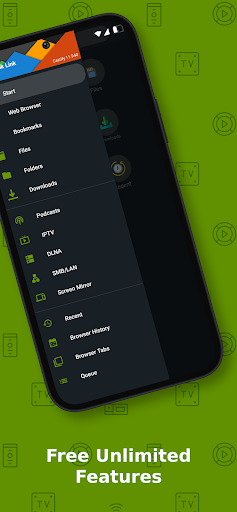
• Universal Remote Controls — Control Roku, Android TV, Samsung Smart TV, LGTV, and Fire TV devices
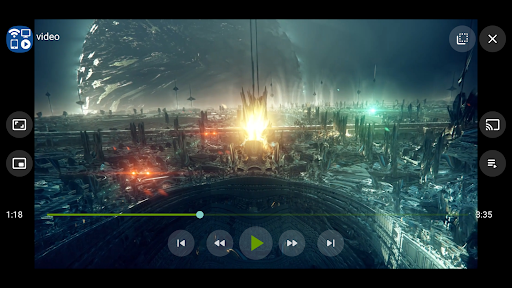
• Picture in Picture (PiP) — Multitask while watching your content
• Support for IPTV playlists — Stream live TV channels
• Web Video Search & Bookmarks — Find videos easily and save your favorite websites
Additionally, the app supports cast to web browsers like Chrome and Firefox and provides options for subtitles for Chromecast and Roku, enhancing accessibility and international viewing.
Enjoy High-Quality Streaming with Support for 4K & HD
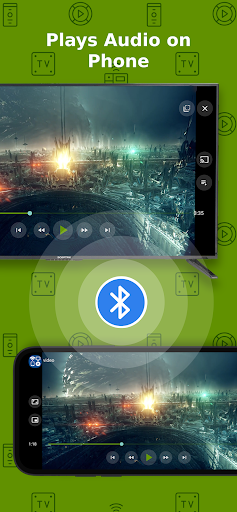
Whether you're streaming in HD or 4K where available, Cast to TV+ Chromecast Roku TV ensures quality video playback. It supports popular formats such as MP4, MKV, and more, enabling you to enjoy your media in the highest resolution supported by your device. The app is optimized for smooth playback, minimal lag, and maintaining the media's original quality, offering a personal cinema experience right in your home.
Easy Setup and User-Friendly Interface
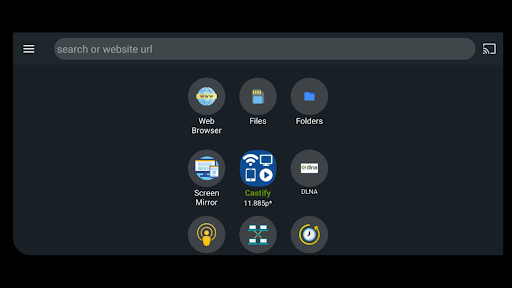
Getting started with Cast to TV+ Chromecast Roku TV couldn't be simpler. The setup process is quick and does not require any technical expertise. Just open the app, use its built-in browser to navigate to your desired website, and let the app detect playable videos or music. You can then choose to play the content locally on your device or cast it directly to your TV or compatible streaming device. The intuitive interface makes navigation straightforward, so you spend less time fiddling with settings and more time enjoying your content.
Overall, the app offers a clean, uncluttered experience with easy-to-access controls, playlist management, and volume adjustment, making it suitable for all users—from tech novices to experienced streamers.
Troubleshooting and Tips for Better Performance
To ensure smooth streaming, it is recommended to:
- Use a stable Wi-Fi connection on the same network as your streaming devices
- Restart your casting receiver and mobile device if you encounter connectivity issues
- Verify compatibility of the video format with your device
Note that certain formats like MKV or proprietary videos may not be supported due to device limitations. Also, a strong internet connection is essential for online streaming to prevent buffering or disconnections caused by ISP issues or weak Wi-Fi signals.
Conclusion
If you're tired of the hassle involved in transferring media to your TV, Cast to TV+ Chromecast Roku TV is the perfect solution. Combining ease of use, broad device compatibility, and a suite of powerful features, it transforms your smartphone into a versatile remote and casting hub. Whether you're streaming movies, casting photos or music, or mirroring your screen, this app simplifies the process and elevates your entertainment experience. Say goodbye to frustration and hello to seamless casting — your ultimate streaming companion awaits!
Pros
- Easy setup with most smart TVs
- Supports multiple video formats
- Streams in high resolution
- Compatible with Roku and Chromecast
- User-friendly interface
Cons
- Requires stable Wi-Fi connection
- Ads in free version
- Limited features without premium
- Occasional streaming lag
- Not compatible with all TV models