

- Name TranslucentTB
- Category Personalization
- Developer TranslucentTB Open Source Developers
- Available on PC
- OS Windows 10 version 18362.0 or higher
- languages Chinese (Simplified), Chinese (Traditional), English (United States), German, Hebrew, Indonesian, Japanese, Korean , Russian, Spanish (United States), Turkish, Ukrainian
Introducing TranslucentTB: A Sleek, Customizable Taskbar Enhancer for Windows
TranslucentTB is a lightweight, open-source utility designed to give Windows users enhanced control over their taskbar's appearance, combining aesthetics with practicality to create a personalized desktop environment.
Meet the Developers: Open-Source Innovation at Its Best
Developed by the dedicated TranslucentTB Open Source Developers and published by Charles Milette, this application benefits from community-driven development, ensuring continuous improvements and transparency. This collaborative approach means users can expect a robust and flexible tool that adapts to diverse customization needs.
Core Features that Brighten Your Desktop
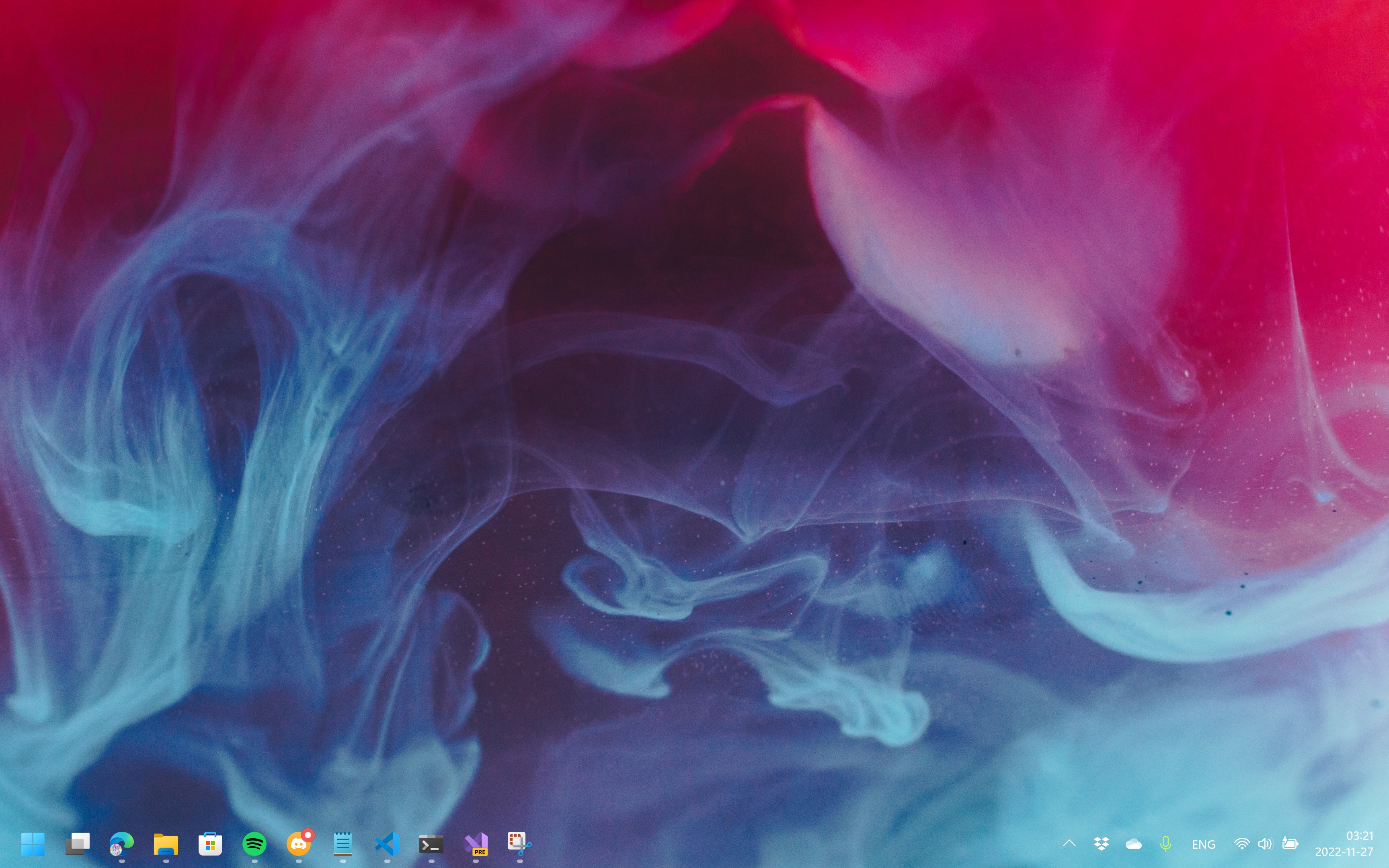
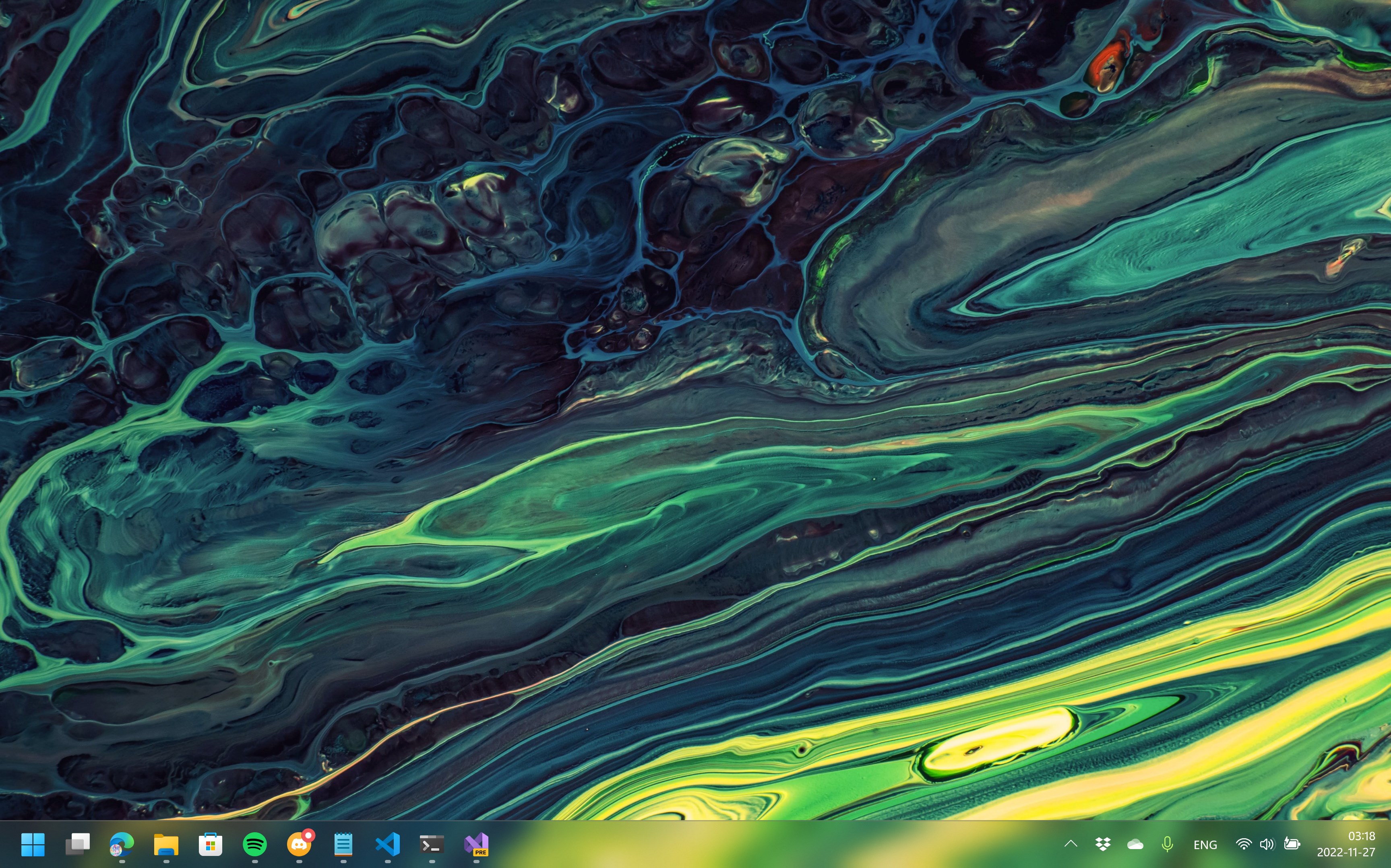
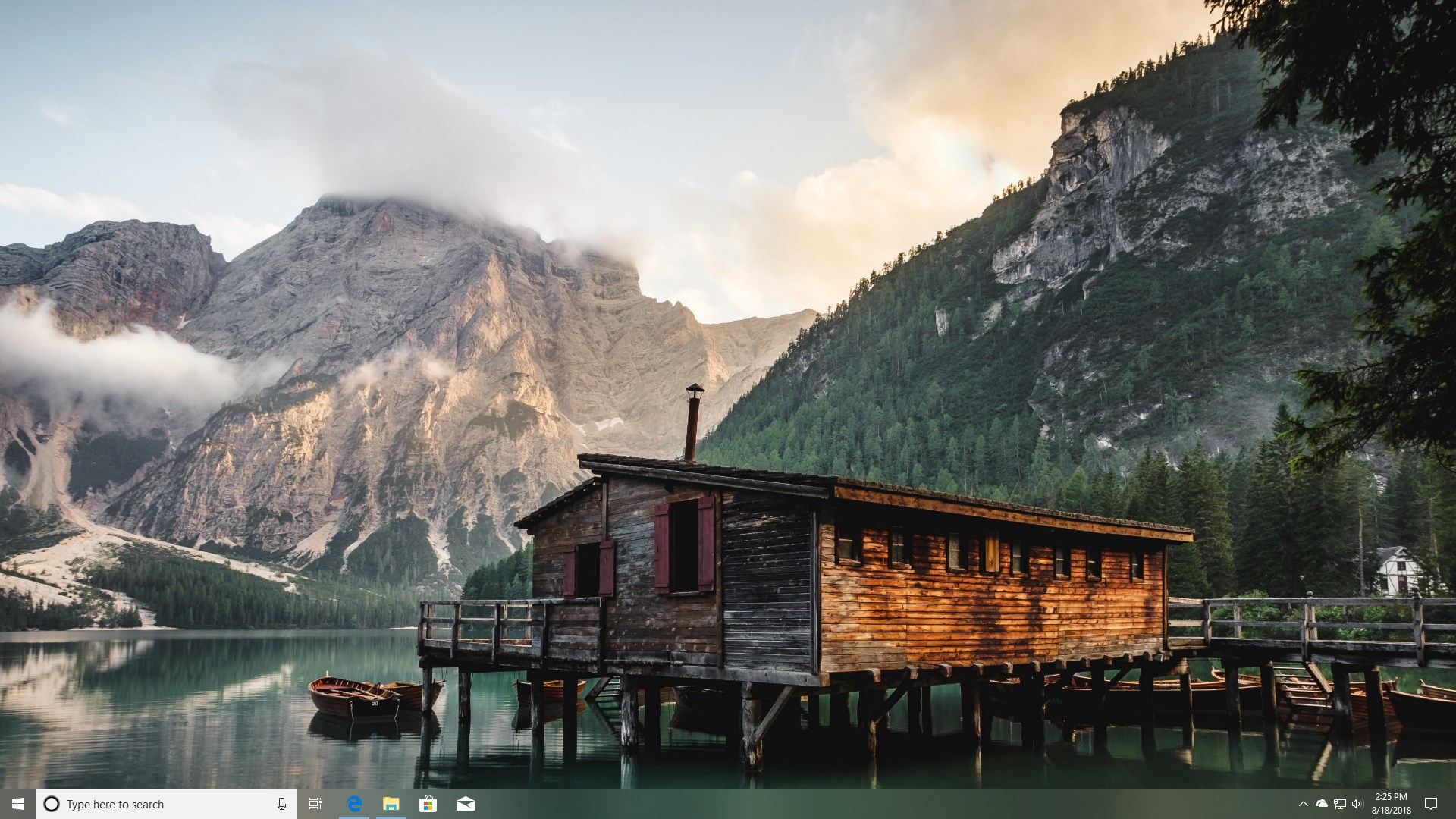
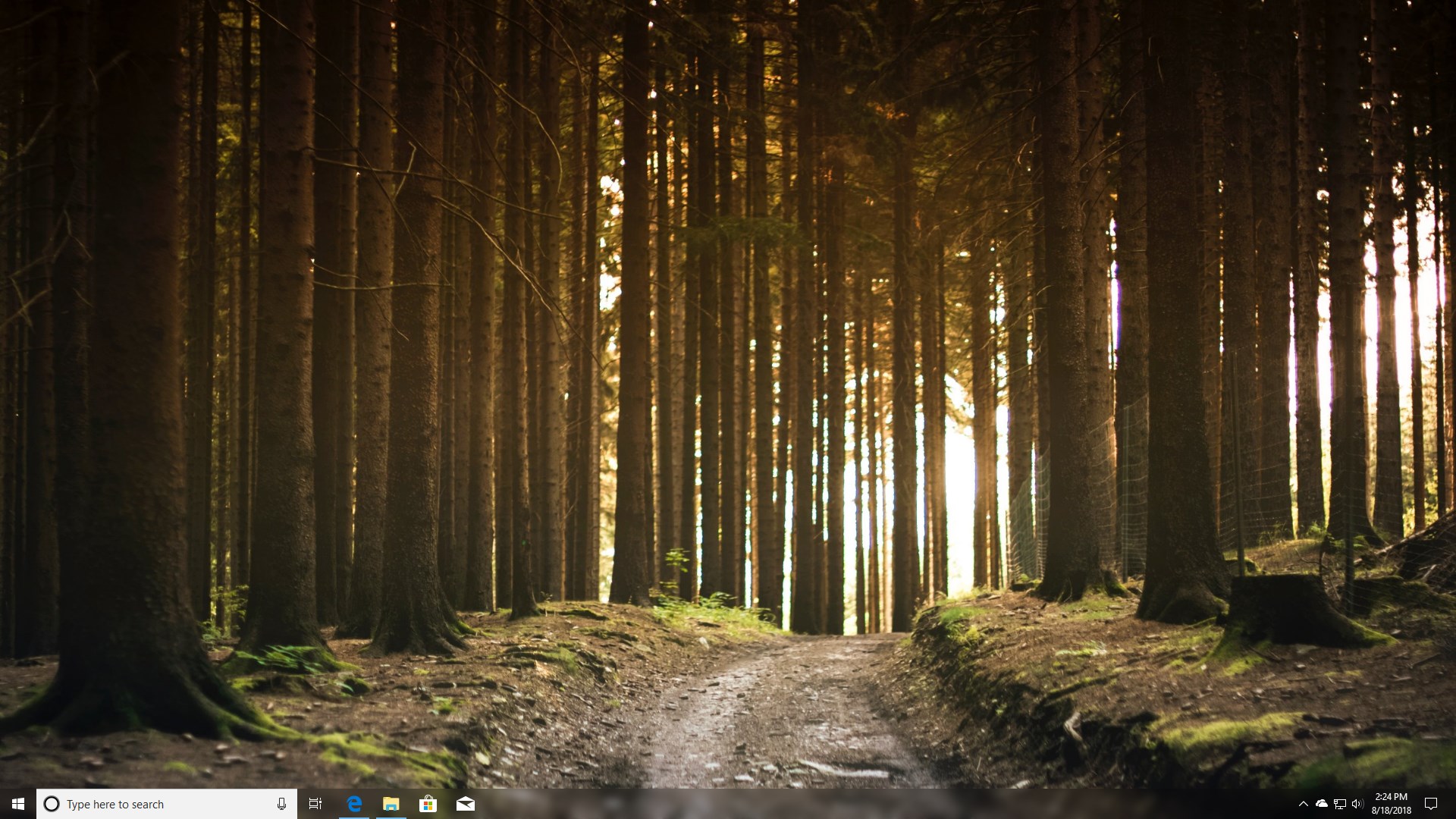
- Translucency & Transparency Control: Adjust the transparency level of the taskbar to blend seamlessly with your wallpaper, creating a modern, glass-like effect or opt for complete opacity depending on your preference.
- Dynamic State Recognition: The app intelligently adapts its appearance based on system states, such as when on battery or connected to a docking station, allowing for context-sensitive customization that keeps your workspace visually coherent.
- Customizable Visual Effects & Themes: Not just transparency—TranslucentTB offers options to add color tints, shadows, and even animated effects, enabling a highly individualized look tailored to your aesthetic.
- Lightweight and Open Source: Built with minimal system impact and full transparency, the app empowers users to tweak and customize without the bloat typical of larger personalization suites.
Vivid Experience: Elevating Your Desktop's Visuals
Imagine a desktop where your taskbar isn't just a mundane bar at the bottom of your screen but a sleek, integrated element that enhances the overall aesthetic — almost like a crafted jewelry piece on a finely tailored suit. TranslucentTB manages this transformation effortlessly, offering smooth animations and transitions that make adjustments feel natural rather than jarring.
When you launch the app, its interface is straightforward — a minimalist dashboard with intuitive controls. The real charm lies in its seamless operation; toggling transparency or theme options feels as smooth as sliding a piece of silk across your fingers. Even for newcomers, the learning curve is gentle, thanks to comprehensive documentation and community support, making personalization accessible for everyone.
Highlighting the Unique Edge: Translucency and Context-Aware Customization
Compared to other personalization tools, TranslucentTB's standout feature is its ability to offer real-time, context-sensitive taskbar customization. Its translucency options are not mere static settings; they adapt dynamically based on system states—such as when you're switching between battery power and plugged-in modes—delivering an experience that feels smart and considerate of your workflow.
Moreover, its open-source nature allows for extensive customization beyond the default settings, empowering tech-savvy users to write their own scripts or integrate additional themes. This flexibility ensures that TranslucentTB doesn't just beautify your desktop but also respects the diversity of user preferences and workflows.
Should You Try It? Recommendations & Usage Tips
All in all, TranslucentTB is a solid choice for Windows users seeking an elegant, customizable taskbar without the bloat. It's particularly recommended for those who appreciate minimalism, want dynamic appearance features, or enjoy tinkering with their desktop environment. For users new to customization, starting with the default options offers significant visual enhancement with minimal effort.
Given its stability and active community, it's suitable for daily use—from casual browsing to professional workflows—adding just a touch of polish and personality to your Windows experience. Whether you're a design enthusiast or someone simply looking to make their workspace more visually appealing, TranslucentTB is worth exploring.
Pros
- Highly customizable appearance
- Lightweight and system-friendly
- Easy to use interface
- Supports multiple themes
- Improves visual appeal
Cons
- Limited customization options in free version
- occasional glitches with transparency effects
- Compatibility issues with certain wallpapers or themes
- Lack of detailed user guides
- Limited support for non-English languages