- Name TaskbarX
- Category Personalization
- Developer Chris Andriessen
- Available on PC
- OS Windows 10 version 17763.0 or higher
- languages English (United States)
A Fresh Twist on Your Windows Taskbar: TaskbarX
Imagine turning your Windows taskbar from a mundane strip into a sleek, personalized control center—TaskbarX by Chris Andriessen makes this possible with both elegance and ease. This lightweight app promises to transform the taskbar's appearance and behavior, giving users a more streamlined and customizable desktop experience.
Core Features That Stand Out
Centrally Aligned Icons for a Modern Look
One of TaskbarX's flagship features is its ability to center taskbar icons, mimicking the aesthetic found on macOS or new Windows 11 designs. This creates a balanced and visually appealing interface. Unlike default Windows, where icons are aligned to the left, TaskbarX allows you to distribute focus evenly, making your workspace feel more organized and intentional.
Smooth Animation and Customization Effects
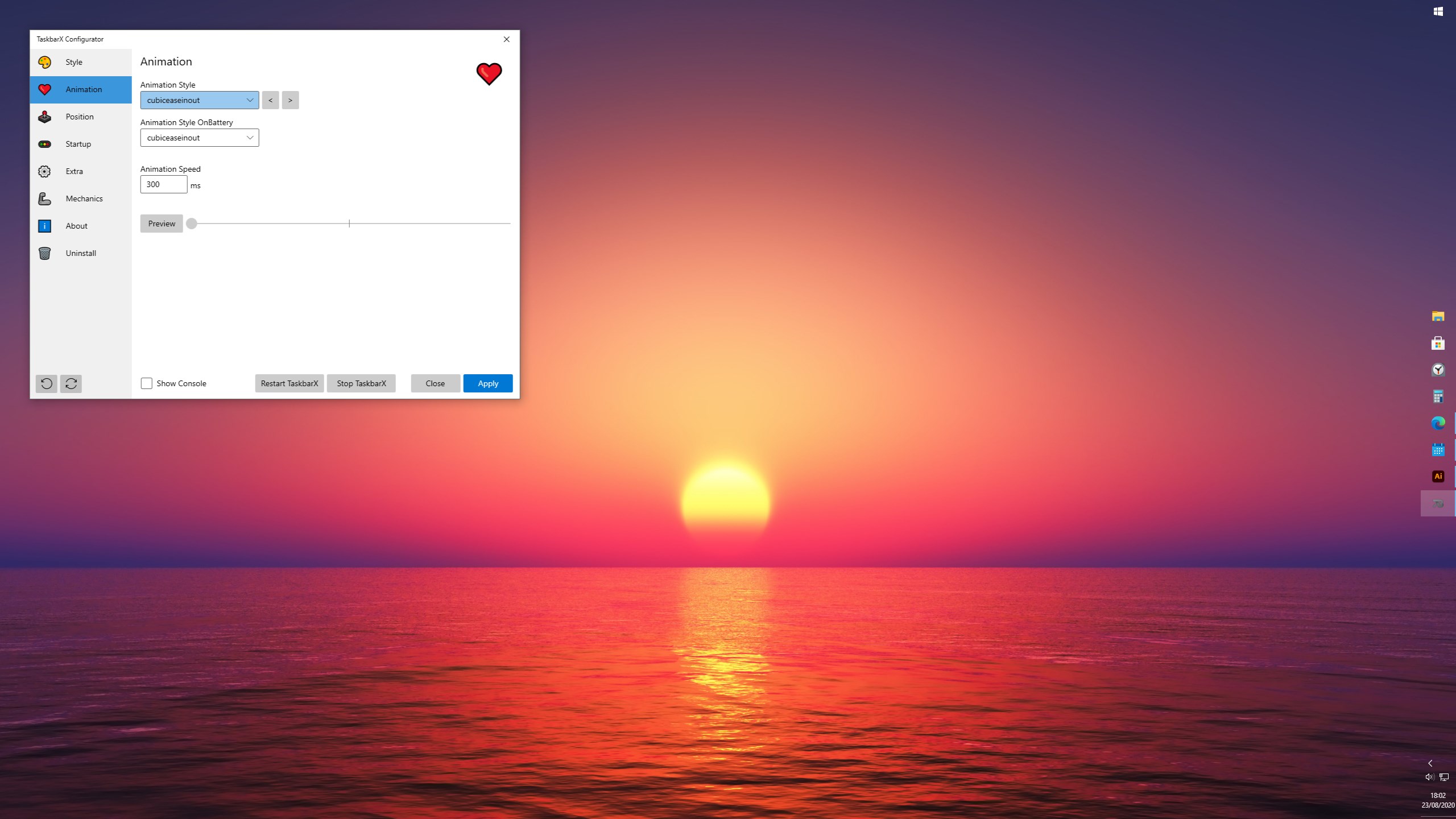
TaskbarX isn't just about static alignment—it's about bringing your taskbar to life. With its smooth, customizable animations, icons can gently slide into position, fade in, or shift with subtle motion. These effects add a layer of polish that elevates your desktop from ordinary to thoughtfully designed, all while maintaining seamless operation.
Flexible Behavior and Positioning Options
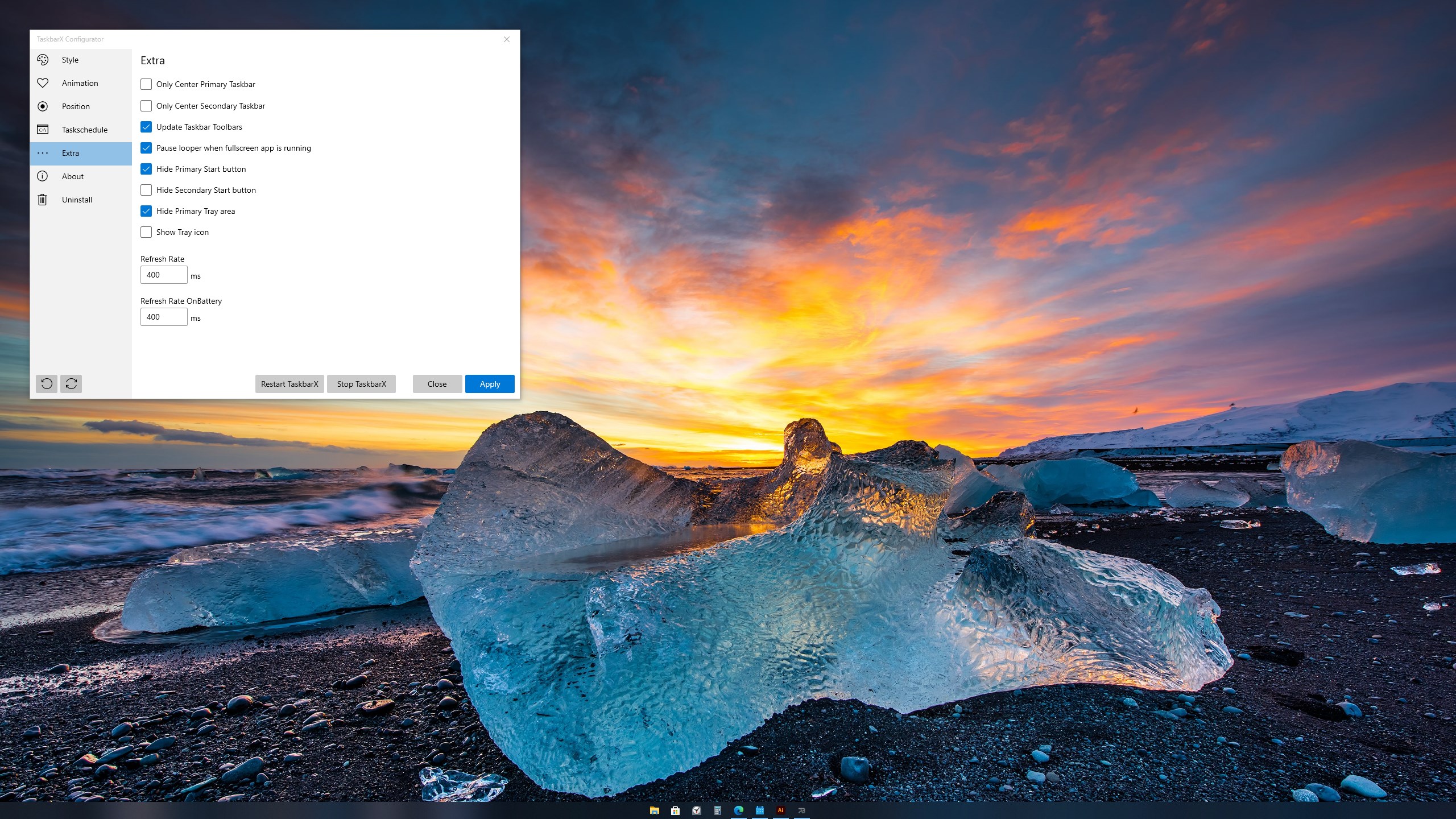
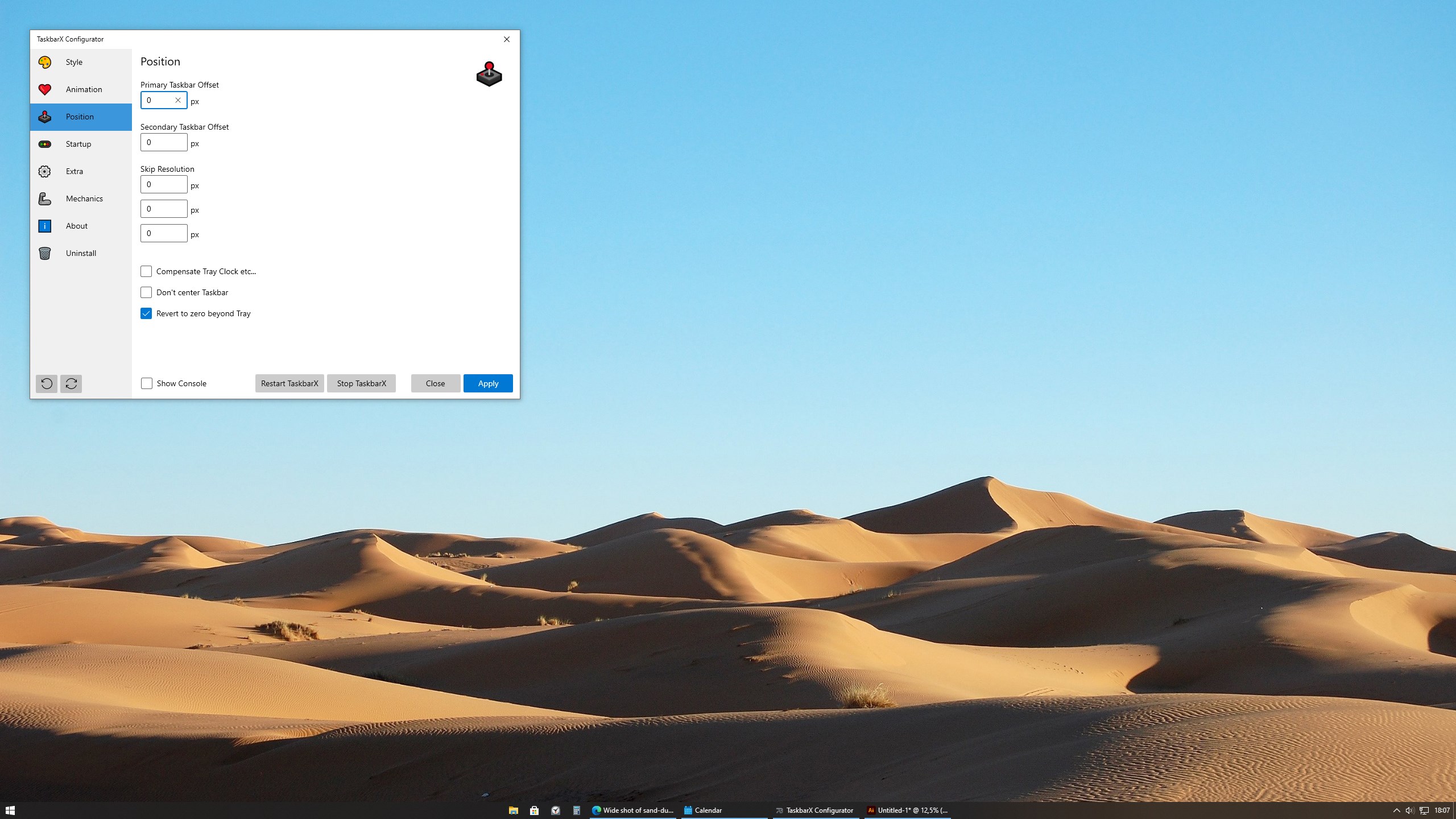
Beyond mere visual tweaks, TaskbarX offers control over taskbar behavior. You can set the taskbar to auto-hide, adjust the offset positions, or even disable the centering when needed. This flexibility ensures the tool adapts to diverse workflows—from minimalistic setups to more traditional configurations.
User Experience and Design Excellence
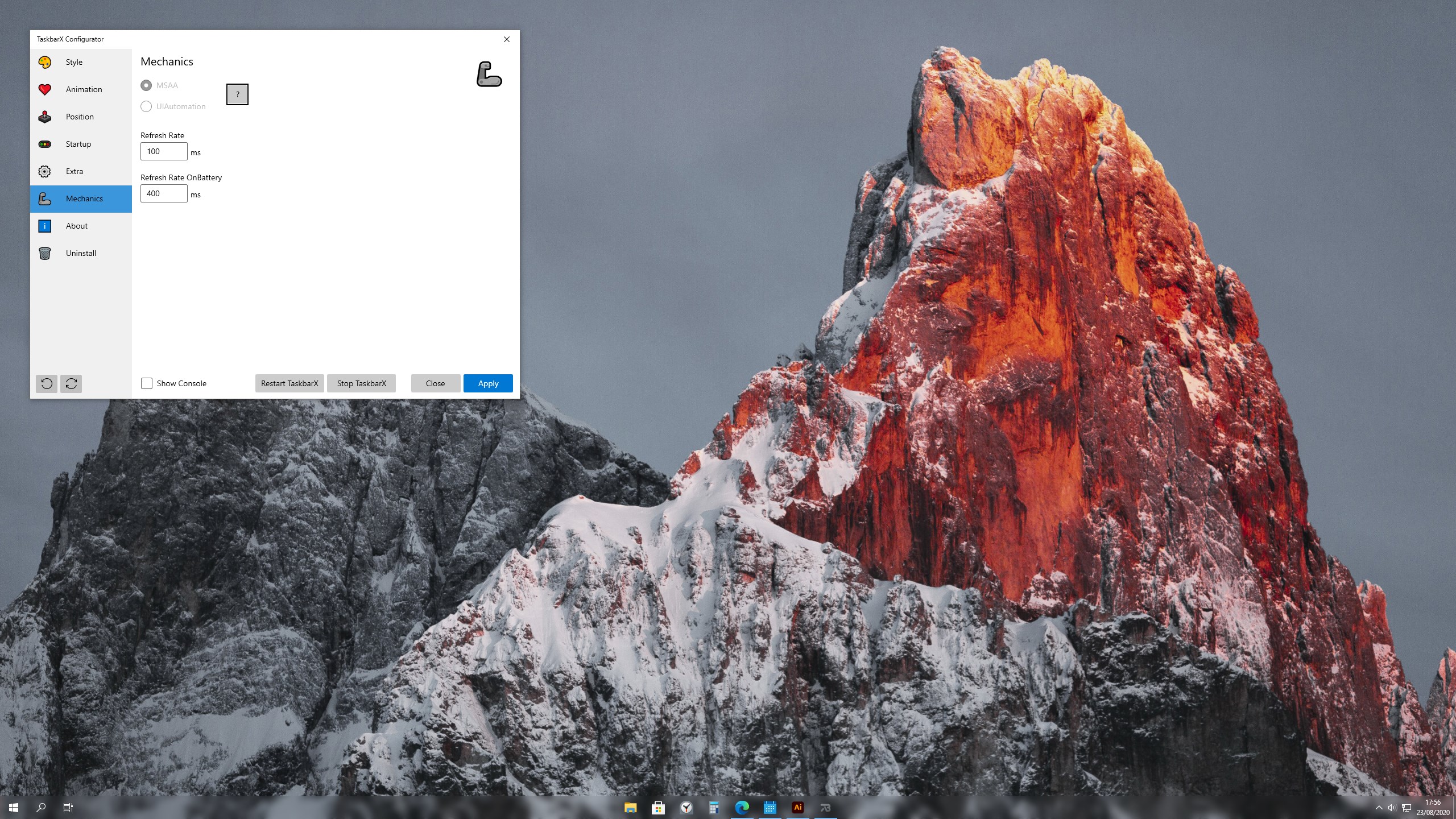
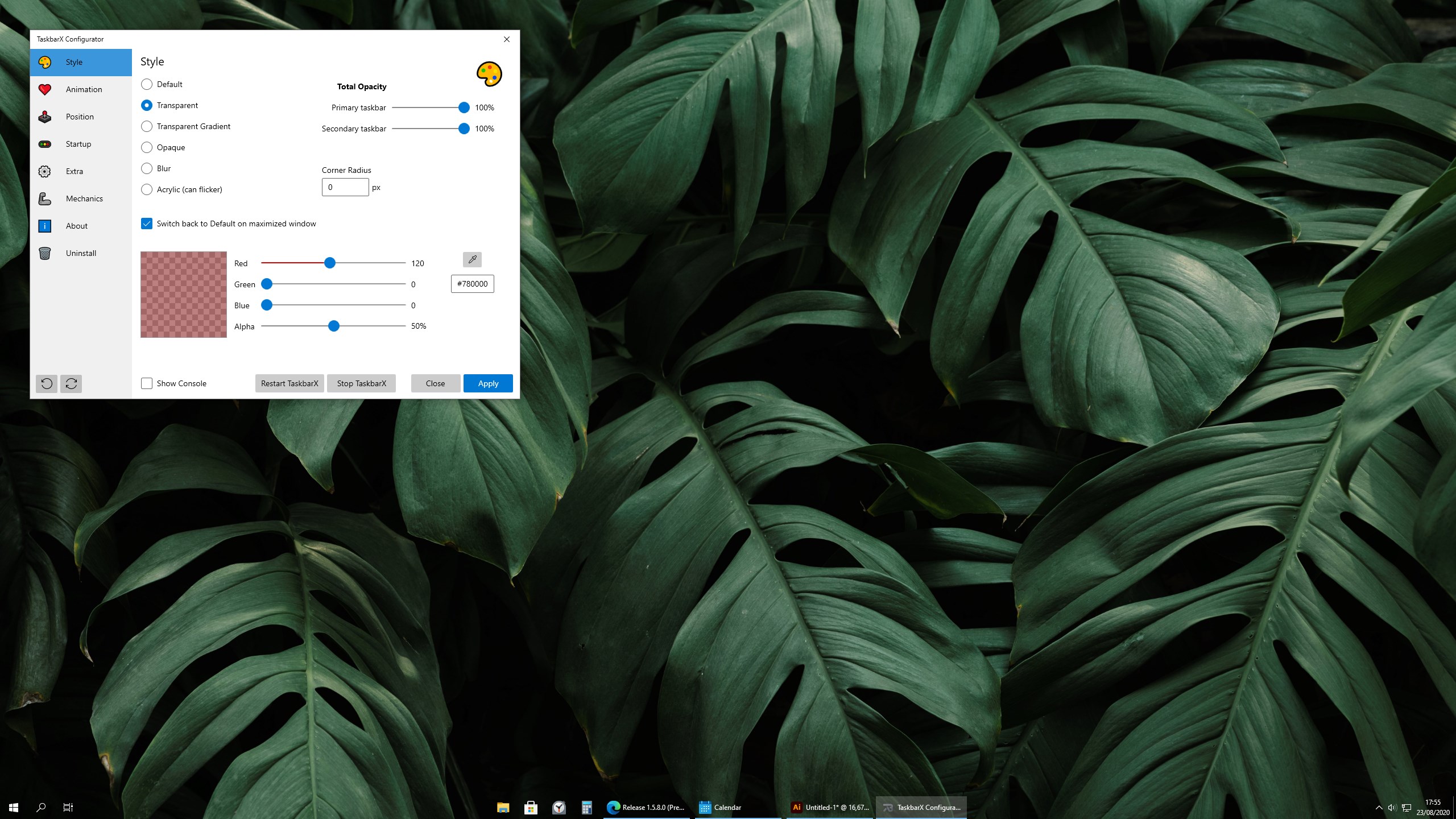
Installing TaskbarX is as straightforward as putting on a pair of comfortable shoes—intuitive and simple. Its clean interface allows quick access to customization options without overwhelming users. The app runs silently in the background, with minimal impact on system performance, ensuring flicker-free animations and responsive adjustments. Navigating through settings is smooth, and tweaking parameters feels natural, making it accessible even for newcomers to desktop personalization.
Differentiating from Competing Personalization Tools
While many customization apps focus solely on changing wallpapers or color schemes, TaskbarX's main strength lies in its refined control over taskbar positioning and animations. Unlike generic launchers or themes, it offers an elegant, cohesive approach to the taskbar that doesn't compromise system stability or speed. Its compatibility with various desktop themes and high level of personalization options make it stand out—allowing users to craft a truly unique and harmonious interface.
Recommendation and Usage Tips
For users seeking a subtle yet impactful way to modernize their Windows interface, TaskbarX is a solid choice. Its most compelling feature—the ability to center icons with smooth animations—is especially recommended for those who enjoy desktop aesthetics or want a cleaner workspace. However, less tech-savvy users should spend some time exploring the settings to maximize potential. Overall, I rate TaskbarX as a valuable tool for personalization enthusiasts and professionals alike who appreciate refined UI elements without sacrificing performance.
Pros
- Customizable Taskbar Alignment
- Smooth Animation Effects
- Lightweight and Performance-Friendly
- Compatibility with Windows 10 and 11
- Easy-to-Use Configuration Options
Cons
- Limited Free Features
- Occasional Glitches in Icon Positioning
- Lack of Extensive Custom Themes
- Compatibility Issues with Certain Software
- Temporary Fixes Needed for Some Bugs