
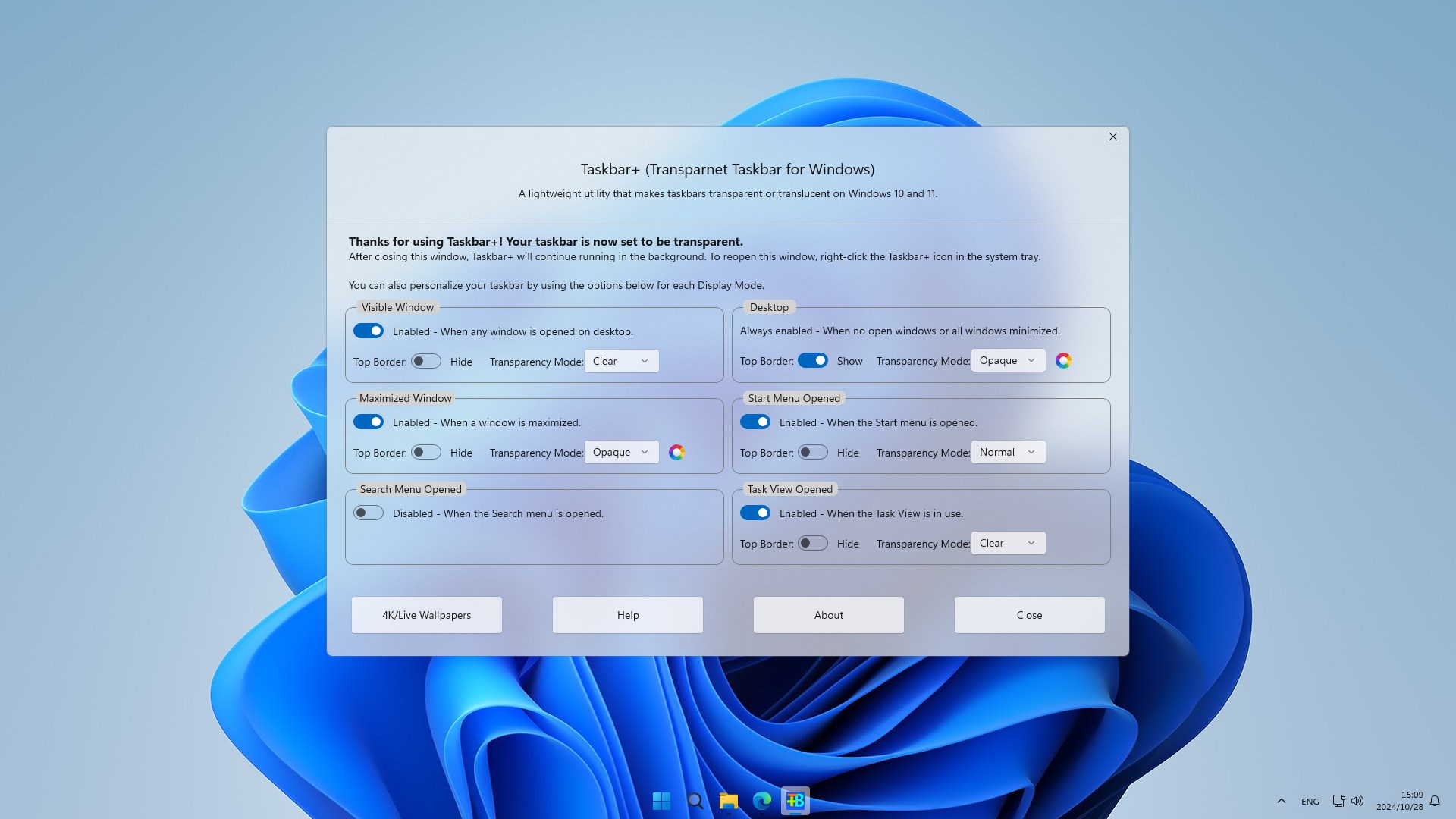
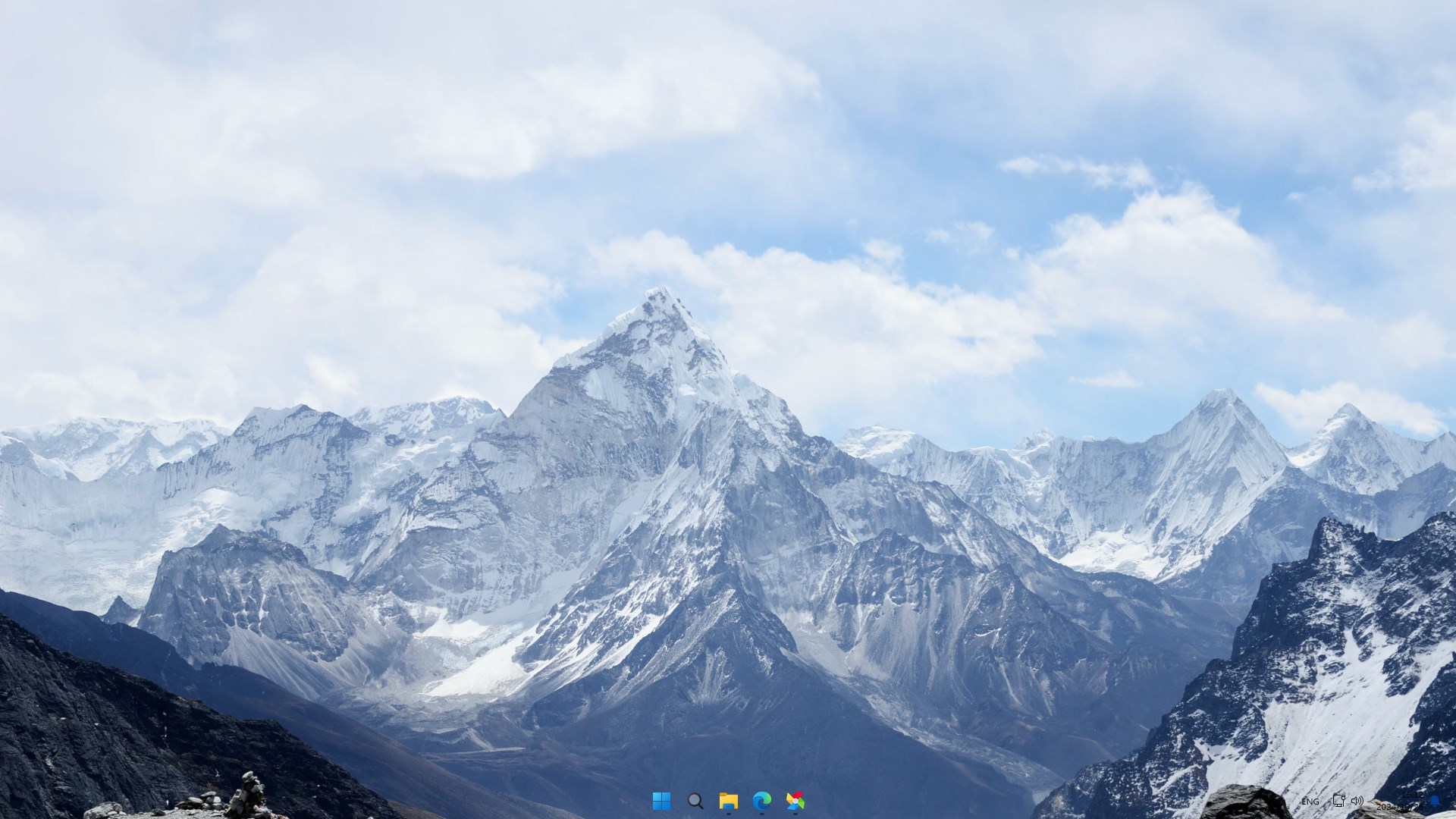
- Name Taskbar+
- Category Personalization
- Developer PeroSoftware.com
- Available on PC
- OS Windows 10 version 18362.0 or higher
- languages Chinese (Simplified), Chinese (Traditional), English (United States), German, Indonesian, Japanese, Korean , Russian, Spanish (United States), Turkish, Ukrainian
A Fresh Take on Windows Taskbar Customization
Taskbar+ for Windows by PeroSoftware.com is a thoughtfully designed app aimed at transforming your Windows experience through personalized taskbar enhancements, blending aesthetic appeal with functional flexibility. Whether you're a productivity enthusiast or someone who simply loves a bit of visual flair, this app invites you to customize your workspace with ease and style.
Meet the Developers: PeroSoftware.com
Crafted by the dedicated team at PeroSoftware.com, this application reflects their commitment to delivering user-centric, innovative productivity tools. Known for their focus on clean design and reliable performance, PeroSoftware.com aims to make each Windows user's customization journey enjoyable and straightforward.
Core Features that Make a Difference
1. Extensive Theme and Icon Support
The app offers a wide array of pre-designed themes and icon sets, allowing users to overhaul their taskbar's look with just a few clicks. This extensive variety ensures that every user can find a style that resonates with their personality, whether it's sleek minimalism, vibrant flair, or professional elegance.
2. Dynamic Taskbar Layouts and Behavior Customizations
Beyond aesthetics, Taskbar+ enables users to reorganize their taskbar's layout, control button grouping, and modify hover behaviors. These features collectively enhance usability, especially for power users seeking to streamline their workflow and reduce clutter.
3. Seamless Theme Compatibility and Live Preview
This application's standout feature is its intelligent theme compatibility engine, which ensures that customizations integrate smoothly with Windows system themes. Plus, the live preview function lets users visualize tweaks in real-time, making customization both intuitive and satisfying.
Design & User Experience: Worth the Click
The interface is clean and intuitive, with a layout that feels both professional and inviting—think of it as walking into a well-organized workshop where every tool is at your fingertips. Navigating through options is smooth, with transitions that are snappy and responsive, creating a seamless experience from exploration to application. Learning curves are minimal—just enough to empower users to experiment confidently without feeling overwhelmed.
Distinctive Edge in a Crowded Field
While many personalization tools focus solely on themes and icons, Taskbar+ distinguishes itself with its exceptional emphasis on theme compatibility and live previews. The ability to see real-time changes before applying them reduces guesswork and frustration, making it easier for users to craft their ideal workspace. Compared to conventional customization apps, this focus on seamless integration with Windows' ecosystem ensures that your aesthetic modifications don't clash with the core system, providing a polished and harmonious look.
Final Thoughts and Recommendations
If you're someone who loves to Tinker and give your Windows environment a fresh look, Taskbar+ for Windows is a solid choice. Its combination of a user-friendly interface, extensive customization options, and intelligent theme integration makes it stand out among similar apps. For casual users who want a simple splash of style or professionals aiming for a cohesive aesthetic, this app caters to both ends of the spectrum.
We recommend trying it out if you're interested in elevating your Windows experience without sacrificing stability or ease of use. It's particularly beneficial for users who appreciate detailed customization with minimal fuss—a true gem for personalization enthusiasts.
Pros
- Enhanced customization options
- Improved taskbar management
- User-friendly interface
- Seamless Windows integration
- Regular updates and support
Cons
- Limited free features
- Occasional stability issues
- Learning curve for advanced features
- Compatibility restrictions
- Limited offline support