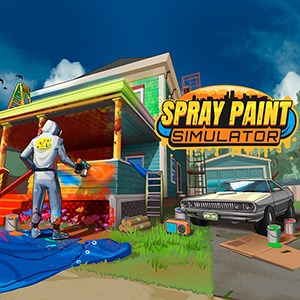
- Name Spray Paint Simulator
- Category Simulation
Introducing Spray Paint Simulator for Windows
Imagine stepping into a digital studio where your creativity unfolds with sprays of color—this is what Spray Paint Simulator offers. Developed by Whitethorn Games, this application provides an immersive experience that combines artistic expression with realistic physics, catering to both hobbyists and curious newcomers alike. Its primary allure lies in its detailed simulation of spray-painting mechanics, encouraging players to experiment freely without the mess of real paint.
The Developer Behind the Art
Whitethorn Games, renowned for crafting engaging and well-designed simulation titles, brings their expertise to this innovative project. Their focus on creating accessible yet authentic digital experiences shines through in Spray Paint Simulator, emphasizing both fun and educational value.
Key Features That Make It Stand Out
- Realistic Spray Mechanics: The simulator meticulously replicates spray paint's flow and dispersion, allowing users to control spray intensity, angles, and pressure, leading to highly authentic art creation.
- Customization & Creative Tools: Users can select different spray cans, colors, and stencil options, enabling a personalized touch to their artwork.
- Learning & Skill Development: The app offers tutorials and practice modes that help users understand spray painting techniques, which can subtly transfer to real-world art practices.
- Intuitive Interface & Smooth Performance: The application boasts a user-friendly interface with responsive controls, ensuring a seamless experience even on moderate hardware.
Engaging and Intuitive User Experience
Jumping into Spray Paint Simulator feels like entering an artist's playground. The interface is clean and approachable, akin to stepping into a well-organized art studio where everything is at your fingertips. Navigating through color palettes, tool options, and canvas controls is effortless, making the initial learning curve gentle for beginners yet sufficiently nuanced for more experienced users. The responsiveness of the controls enhances the sensation of wielding a real spray can, and the smooth rendering ensures your artistic flow isn't interrupted by lag or stutter.
Physics Realism and Educational Edge
What sets Spray Paint Simulator apart from other sandbox painting apps is its commitment to realistic physics and mechanics. The spray's behavior closely mimics real-world spray paint, including the physics of gravity, nozzle pressure, and diffusion patterns. This fidelity offers a meaningful learning experience—users gain an intuitive understanding of how spray angles and pressure influence paint spread, which can translate into better techniques in real-life graffiti or urban art projects.
Compared to more cartoonish or simplified painting apps, this simulation's attention to detail makes it a valuable tool for teaching fundamentals of spray art, especially for those considering street art or mural work. Its mechanics are transparent enough to demonstrate cause-and-effect, fostering an appreciation of the craft's technicalities.
Final Thoughts and Recommendations
Overall, Spray Paint Simulator for Windows emerges as a thoughtfully crafted digital canvas, blending realism with accessibility. If you're passionate about street art, urban aesthetics, or just curious about spray painting's mechanics, this app offers a rewarding and educational experience. Its standout feature—the authentic physics simulation—makes it a unique tool for learning and practicing technique without the risks and mess of real spray paint.
While it may not replace professional training or true street art environments, it's a delightful sandbox for experimentation and skill honing. I recommend it to hobbyists, students, or anyone interested in digital art who values authenticity and detailed mechanics. Whether you're looking to refine your technique or simply enjoy the process of creating colorful murals virtually, Spray Paint Simulator deserves a spot on your digital art toolkit.
Pros
- Intuitive Touch Controls
- Wide Color Palette
- Realistic Spray Effects
- Multiple Brush Sizes and Styles
- User-Friendly Interface
Cons
- Limited Layer Support
- Few Advanced Tools
- Performance on Low-End Devices
- No Export in High Resolution
- Limited Tutorial Resources