- Name Earth 3D Real live Wallpaper
- Category Personalization
- Developer Husky estudio soft
- Available on PC
- OS Windows 10 version 17763.0 or higher
- languages English (United States)
Earth 3D Real Live Wallpaper for Windows: Bringing Your Desktop to Life
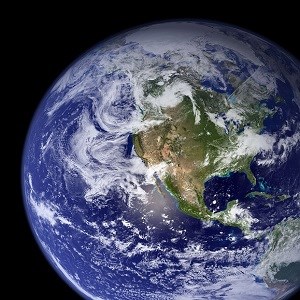
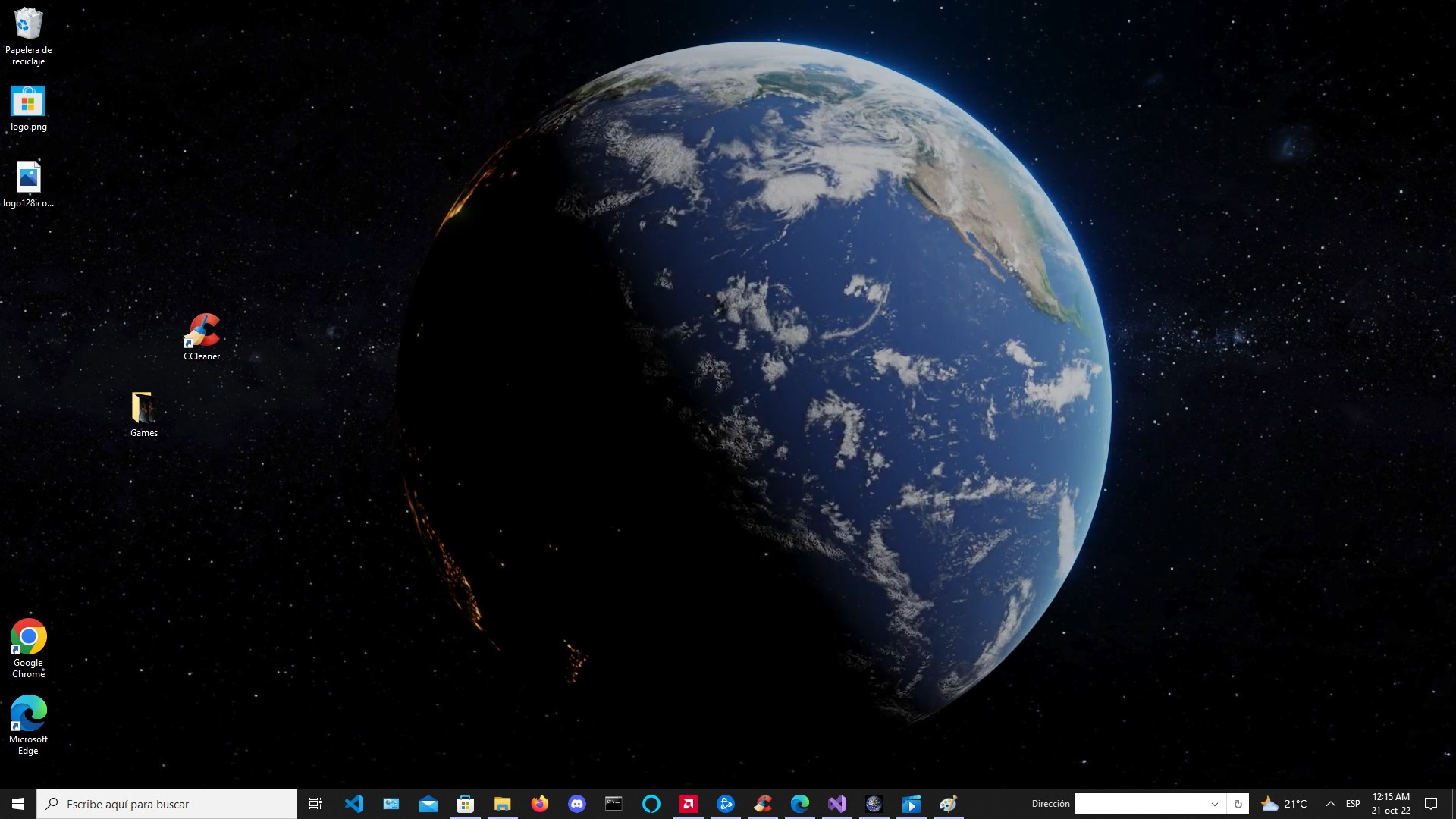
Imagine transforming your mundane desktop into a dynamic, living planet — Earth 3D Real Live Wallpaper for Windows by Husky Estudio Soft offers just that. This app aims to immerse users in a realistic, customizable globe experience directly on their PC screens, turning computing into a breathtaking visual journey.
Developed by Husky Estudio Soft: Passionate Creators of Visual Experiences
Husky Estudio Soft, an emerging name in desktop personalization tools, brings artistic flair and technical finesse to their applications. Their focus with Earth 3D is to craft an interactive world display that balances aesthetic appeal with user-friendly functions, making desktop environments more vibrant and engaging.
Highlighting the Core Features: Why This App Stands Out
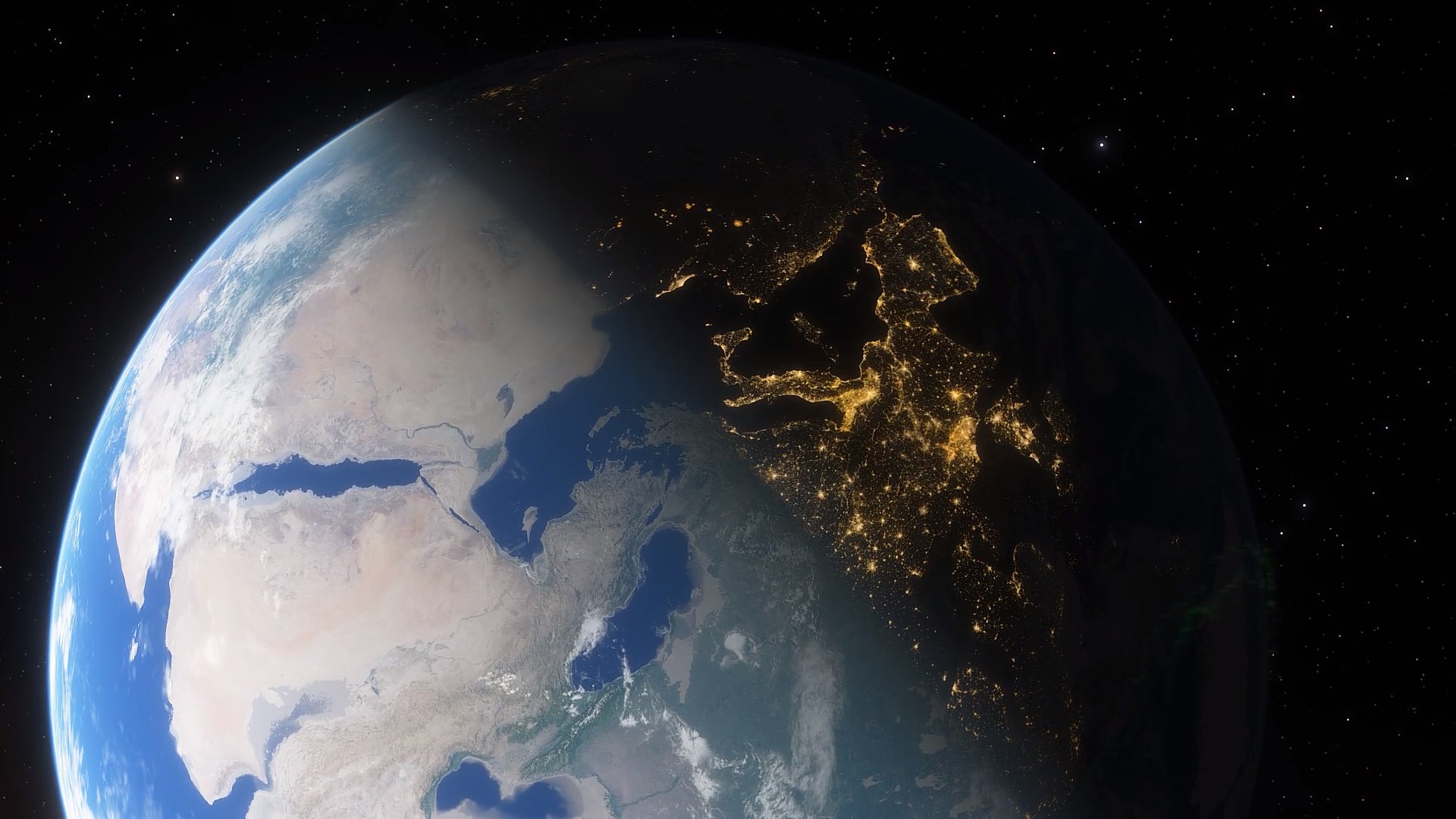
There are several compelling aspects of Earth 3D Real Live Wallpaper that make it worth exploring. The first is its stunning 3D visualization of Earth, which creates a realistic, rotatable globe that reacts smoothly to user interaction. Next, customizable overlays such as weather data, city labels, and cloud movements allow users to personalize their planet view, adding layers of information or simply enhancing its beauty. Lastly, its performance optimization ensures that despite intricate graphics, the app remains lightweight and smooth, avoiding unnecessary drag on system resources.
Design & User Experience: Navigation Through a Virtual Globe
The interface strikes a balance between visual allure and straightforward functionality. The scene seamlessly loads with a high-resolution Earth, designed to look sleek and modern, reminiscent of a high-end sci-fi control panel. Basic operations like zooming, rotating, and toggling overlays are intuitive, with responsive controls that make exploration feel natural—almost as if you're holding a miniature planet in your hands. Users may initially need a moment to familiarize themselves with configuration options, but the overall learning curve is gentle, making it accessible even for those new to dynamic wallpapers.
Differentiation from Similar Apps: A World of Unique Customization
When compared to other desktop personalization apps, Earth 3D's standout feature is its depth of customization options. Unlike simpler wallpapers that merely display static images or basic videos, this app offers a versatile toolkit for adapting the globe's appearance and information overlays. Users can easily swap themes—like day/night cycles, weather conditions, or even satellite data—thanks to the app's compatibility with various data sources. This adaptability makes it more than just a background; it becomes an interactive window to our planet, appealing particularly to astronomy enthusiasts, geography buffs, or those seeking an elegant desktop upgrade.
Final Verdict & Usage Recommendations
Overall, Earth 3D Real Live Wallpaper presents a carefully crafted experience that balances aesthetic splendor with practicality. Its strongest features—particularly the realistic globe visualization and comprehensive customization options—make it a compelling choice for users eager to add a touch of the cosmos to their daily routine. For casual users seeking a visually engaging yet straightforward desktop enhancement, this app is highly recommended; however, those needing highly specialized data overlays may find their options somewhat limited. I suggest trying it out if you appreciate high-quality visuals and interactive personalization—it's a neat way to turn your monitor into a dynamic miniature Earth.
Pros
- Realistic Earth Visualization
- Customizable Live Wallpapers
- Smooth Performance on Modern Devices
- Battery Optimization Features
- Informative Earth Data Display
Cons
- High Battery Usage in Continuous Mode
- Limited Customization Options for Certain Elements
- Occasional Performance Glitches on Older Devices
- Require Permissions for Full Functionality
- Small User Interface for Settings